Viewing data on the dashboard
Widget actions
After adding all required widgets, you can customize the dashboard layout for more convenient data viewing:
- to move a widget, hover over its header and drag it to the desired location
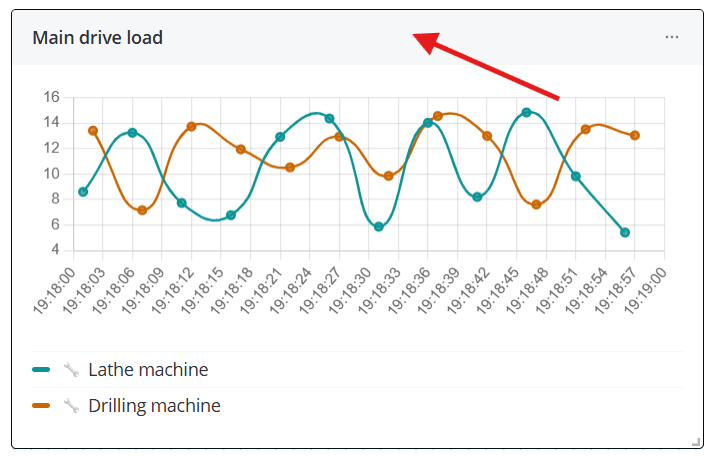
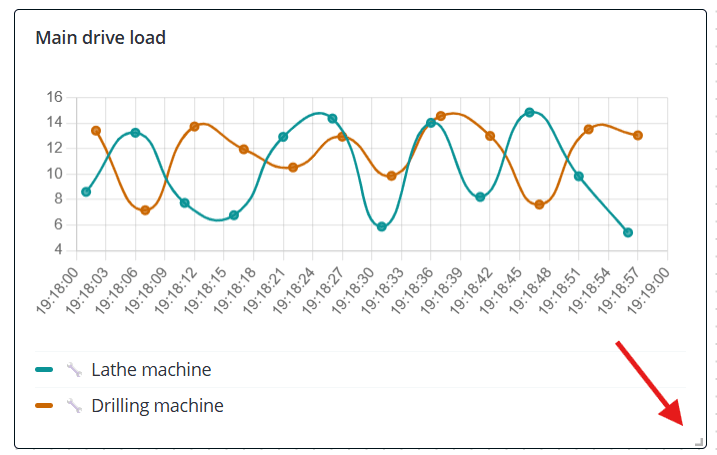
- to resize a widget, drag it by the lower-right corner.
When you hover over a widget, a three-dot menu appears in the upper-right corner. Click it to access additional
widget actions.
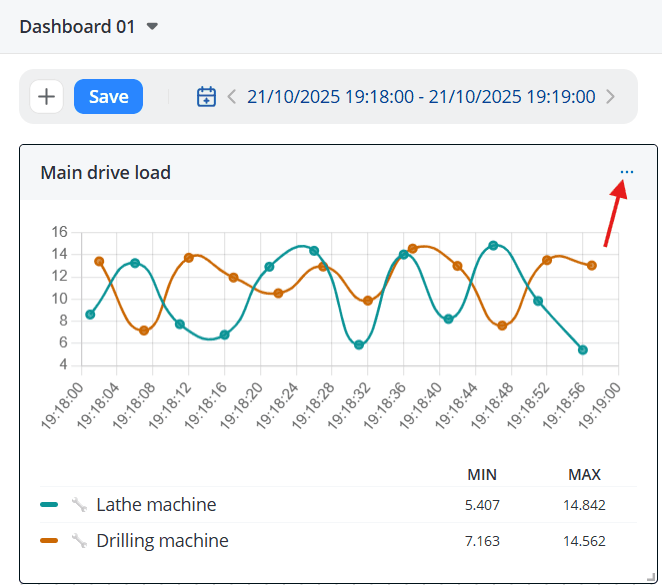
- Edit – widget editing. After clicking the button, a form for configuring its parameters will open on the right;
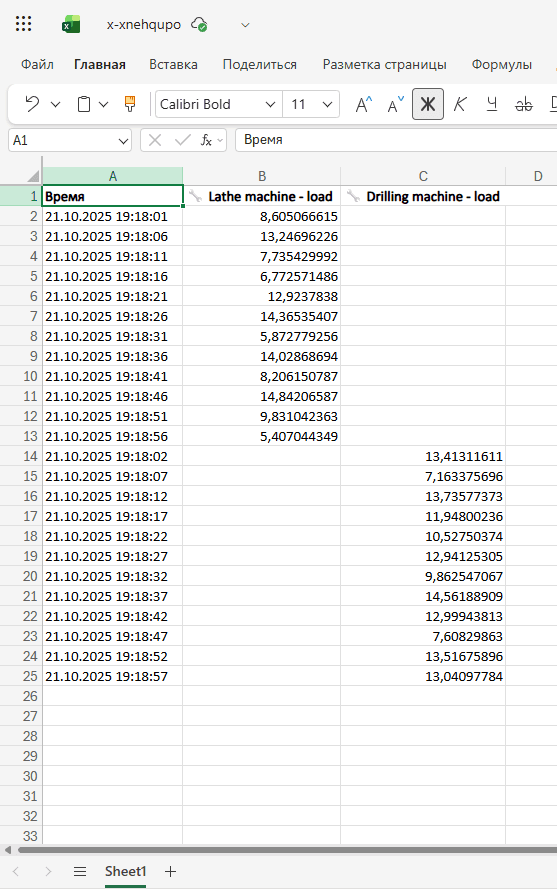
- Download .xlsx – downloading data from the widget for the selected period;
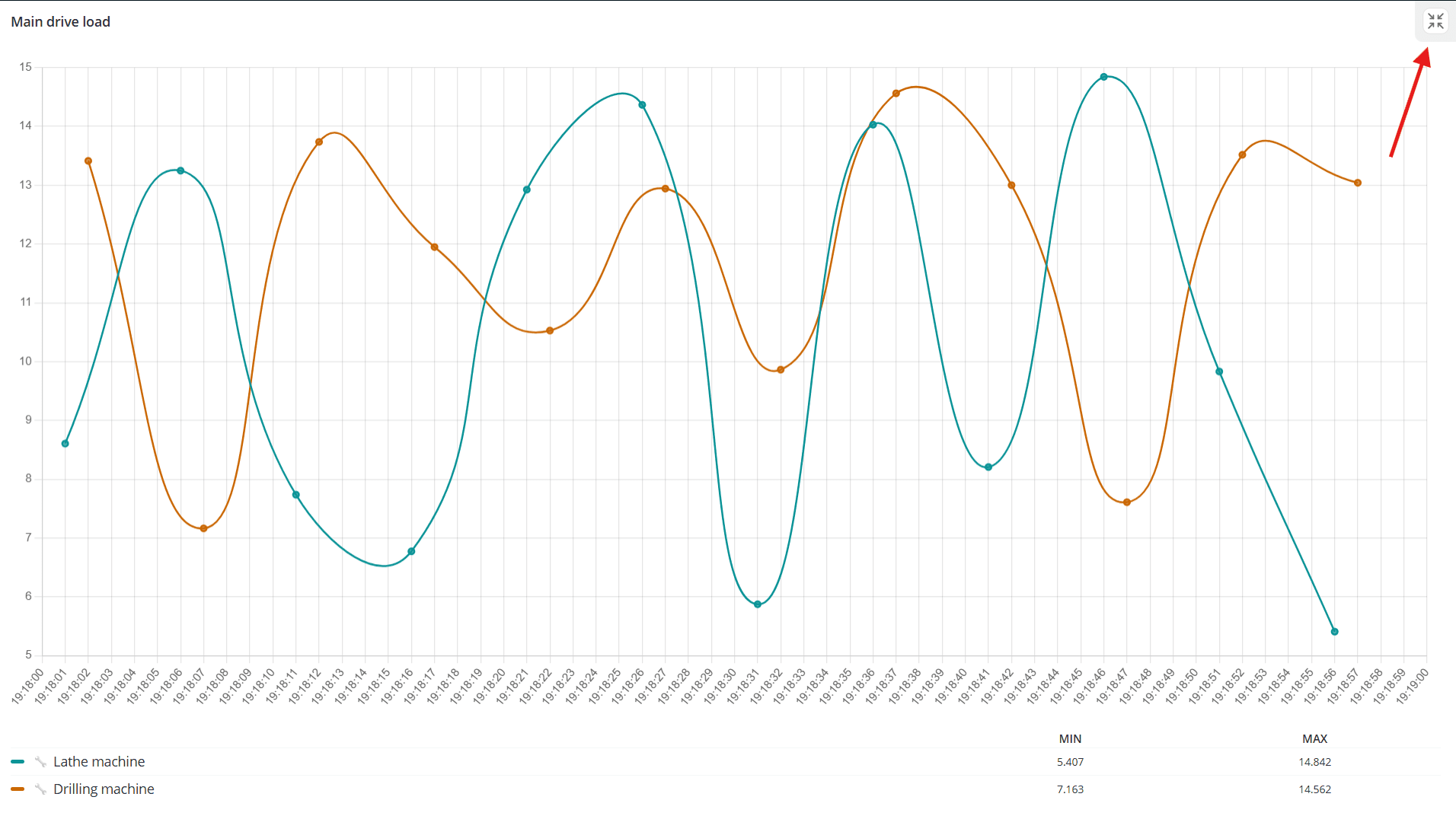
- Fullscreen – displaying the widget in full screen. To exit full-screen mode, click the button in the upper-right corner or press Esc;
- Make copy – copying the widget. All information filled in for the widget is copied, with the only difference that the text “(copy)” is added to the name;
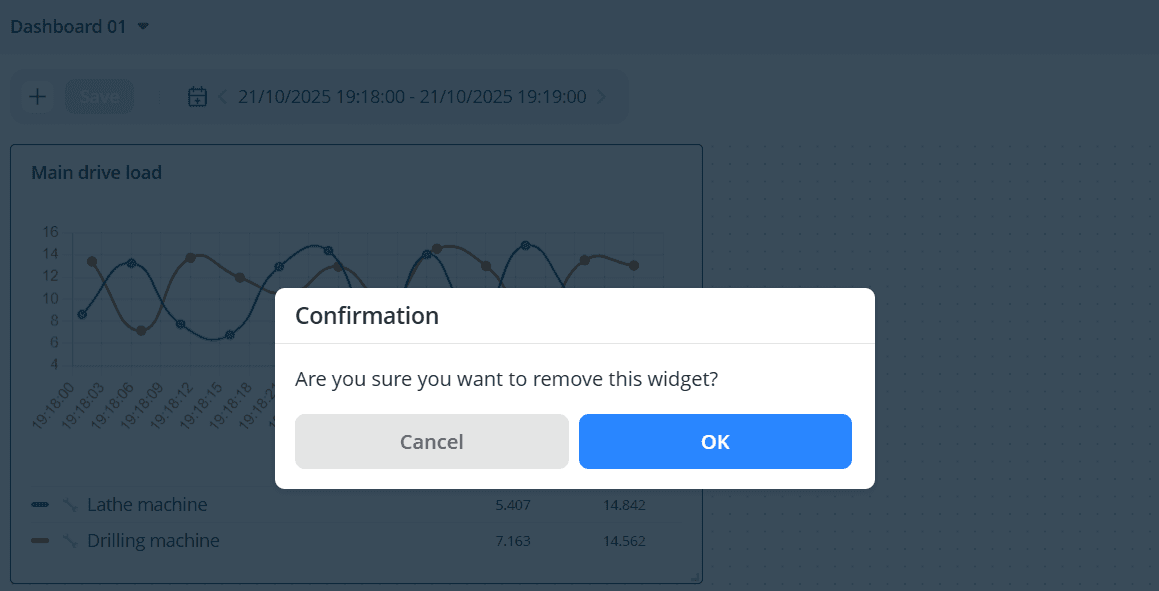
- Delete – deleting the widget. After clicking, a modal window will appear to confirm the action.
Selecting a time interval
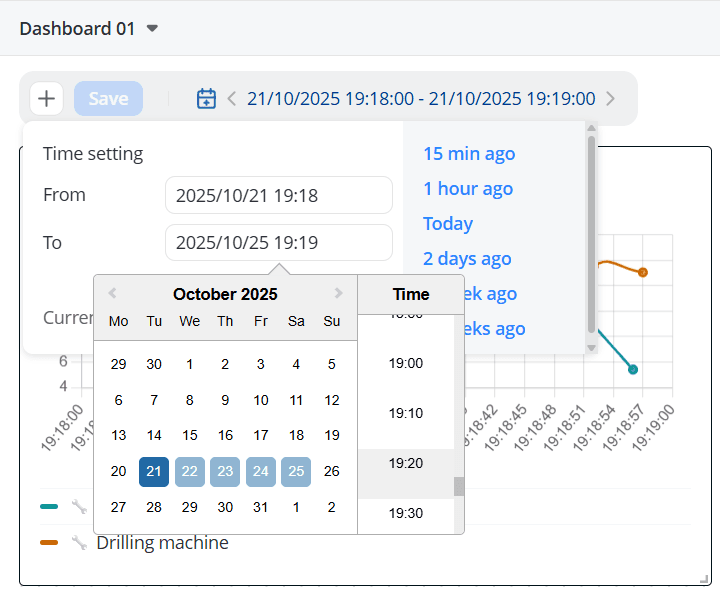
After the dashboard takes a form that is convenient for viewing data, proceed to selecting the time interval. This
setting allows you to choose the time period for which data must be displayed on the dashboard. There are a number of
presets that can be used immediately (15 minutes ago, 1 hour ago, Today, etc.), or select a specific
date and time from the calendar. Please note that the interval between the start and end of the period can be no more
than one month. When switching between dashboards, the selected time period is retained. If the page is refreshed, the
preset time interval will also be retained, while the time interval set via the calendar will revert to the default
preset Today.
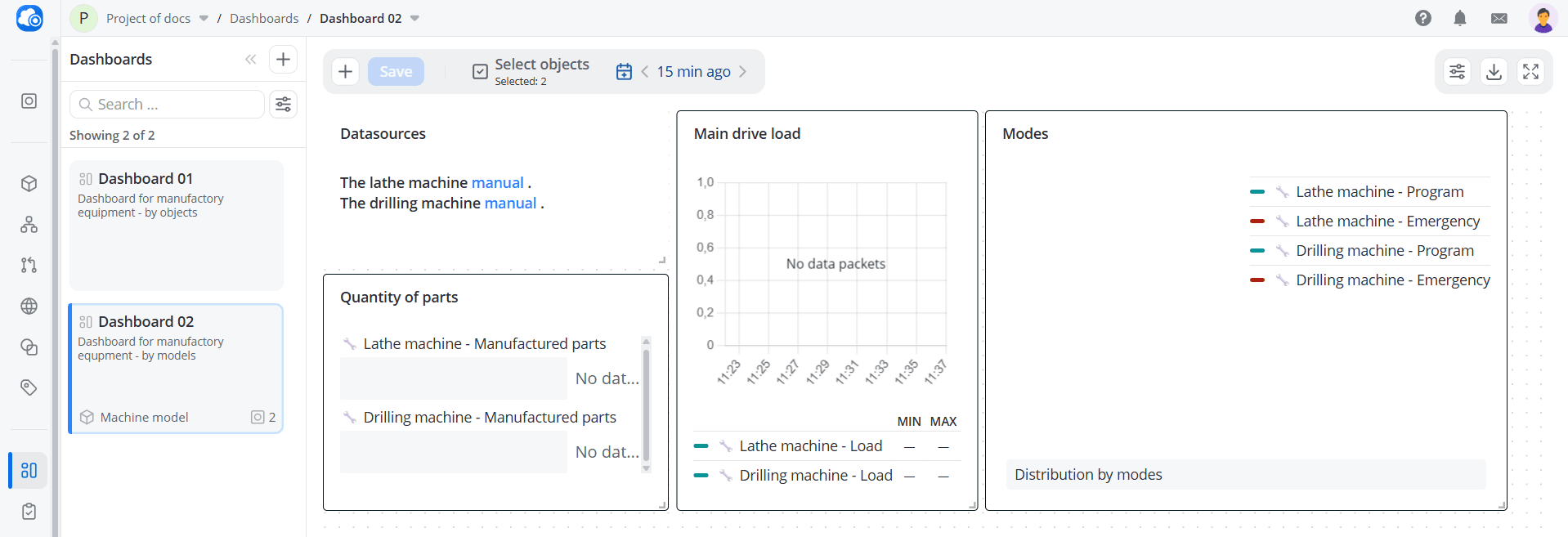
If no data was received from the device during the selected time interval, no data will be displayed in the widgets.
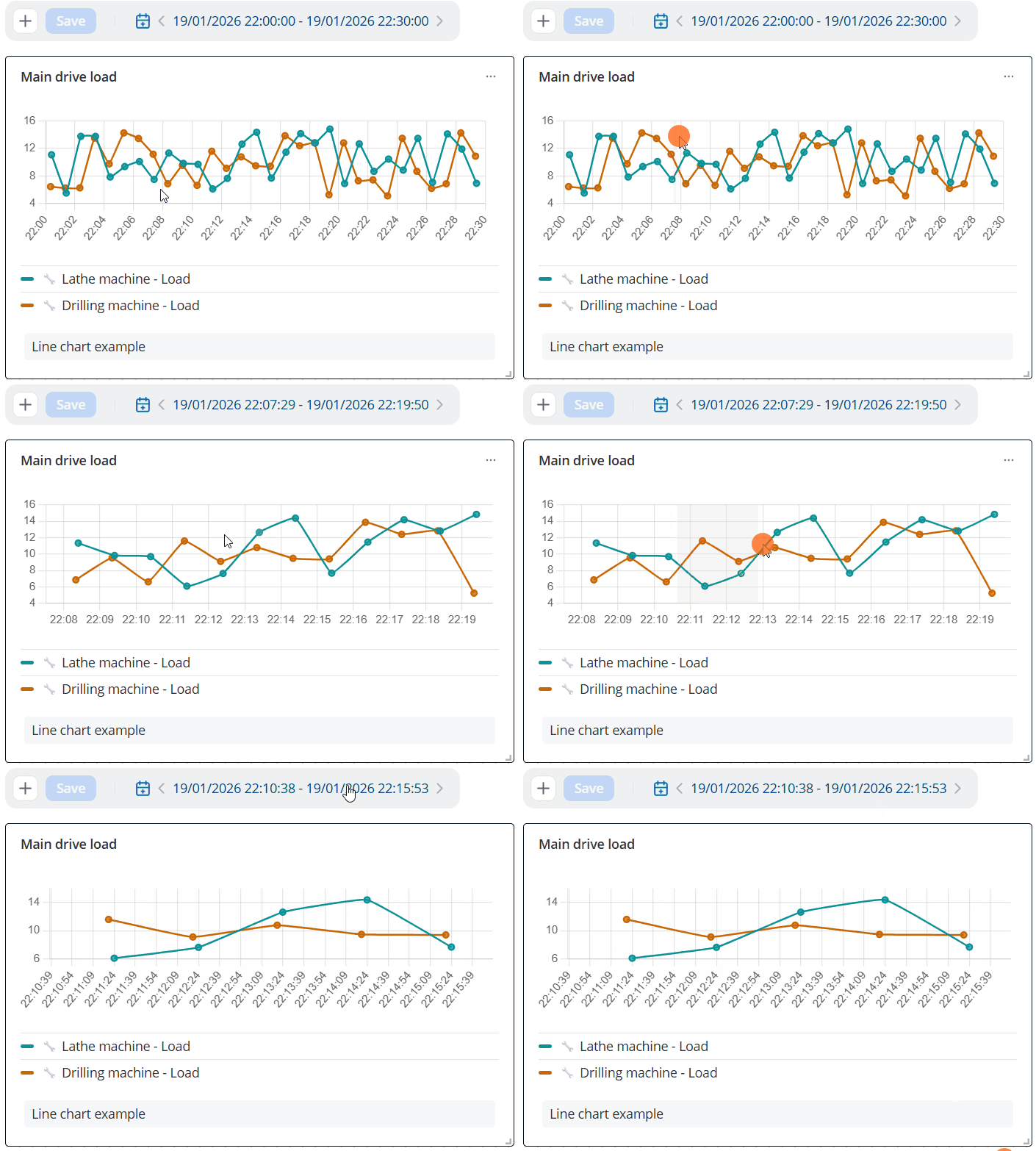
When viewing data on a line chart, you can select a time interval directly on the widget to take a closer look
at the required section of the chart. To do this, hold down the left mouse button and select the area that needs to be
zoomed in. In this case, the main data viewing interval on the dashboard also changes and corresponds to the one selected on
the chart.
The following widgets display only the last received value within the selected time interval:
- Pie chart
- Gauge chart
- Percentage
- Bar gauge chart
- Counter
- LED
- Battery
- Flask
- Thermometer
For example, if the Percentage widget received the following values:
- 26% at 13:05;
- 28% at 13:10;
- 30% at 13:15.
Then:
- for the interval 13:00–13:05, the value is 26%
- for the interval 13:00–13:10, the value is 28%
- for the interval 13:00–13:15, the value is 30%
Additional display settings
The following display settings are also available:
- Autorefresh – when enabled, dashboard widgets are updated automatically whenever new data packets are received. The end of the selected time interval is automatically adjusted to the timestamp of the latest data received. When disabled, widget data is updated only after a page refresh or when switching between platform tabs;
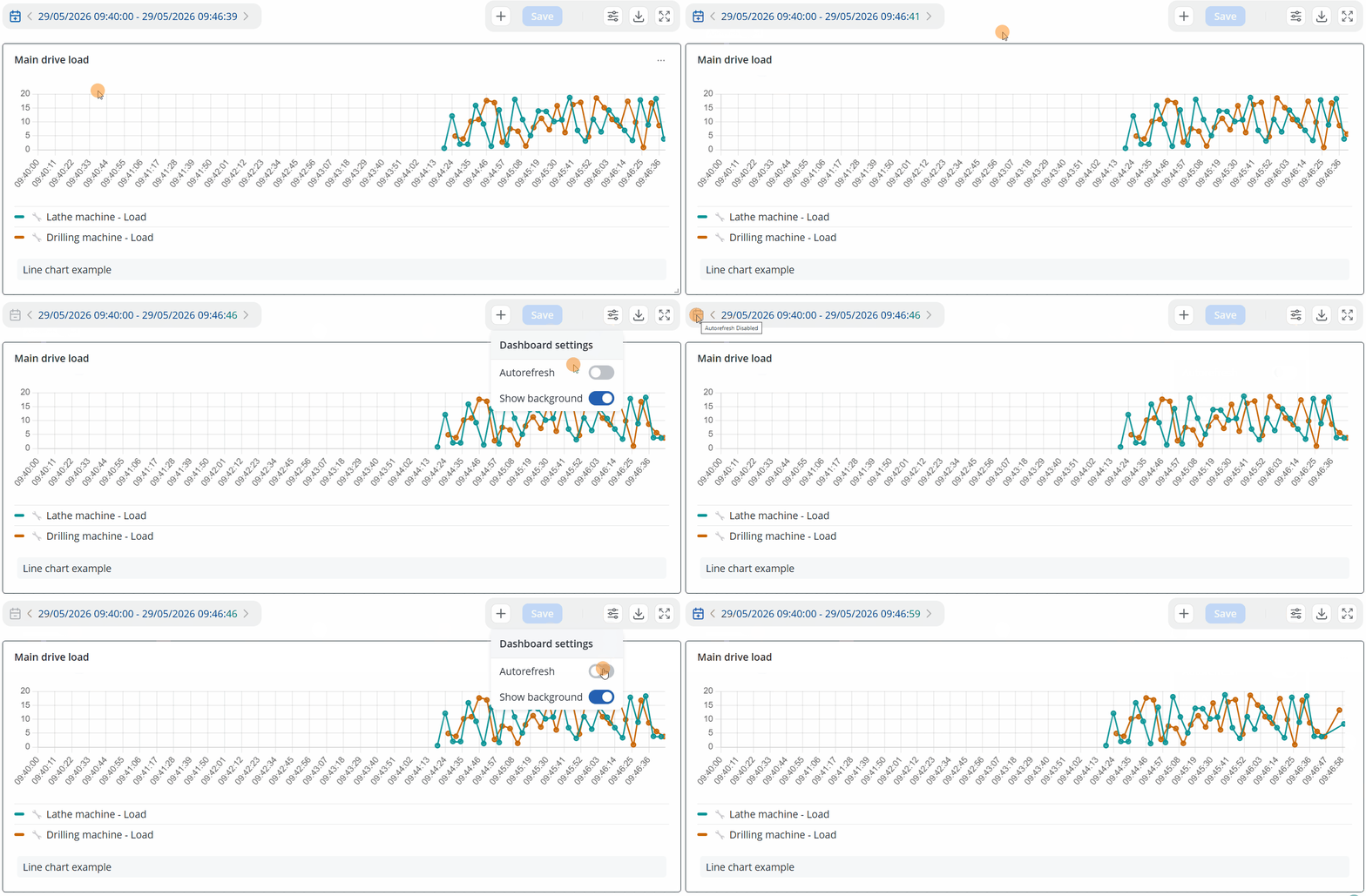
- Show background – show or hide the dashboard grid background.