Running a scenario
Objects assigned to the scenario are displayed in a list as selectable rows. Select the rows corresponding to the objects on which you want to run the scenario – the selected rows will be highlighted in blue:
- to select a single object, click its row;
- to select multiple non-adjacent rows, hold Ctrl and click each row;
- to select a range of consecutive rows, click the first row, hold Shift, and then click the last row in the range;
- to select all objects in the list, click Select all.
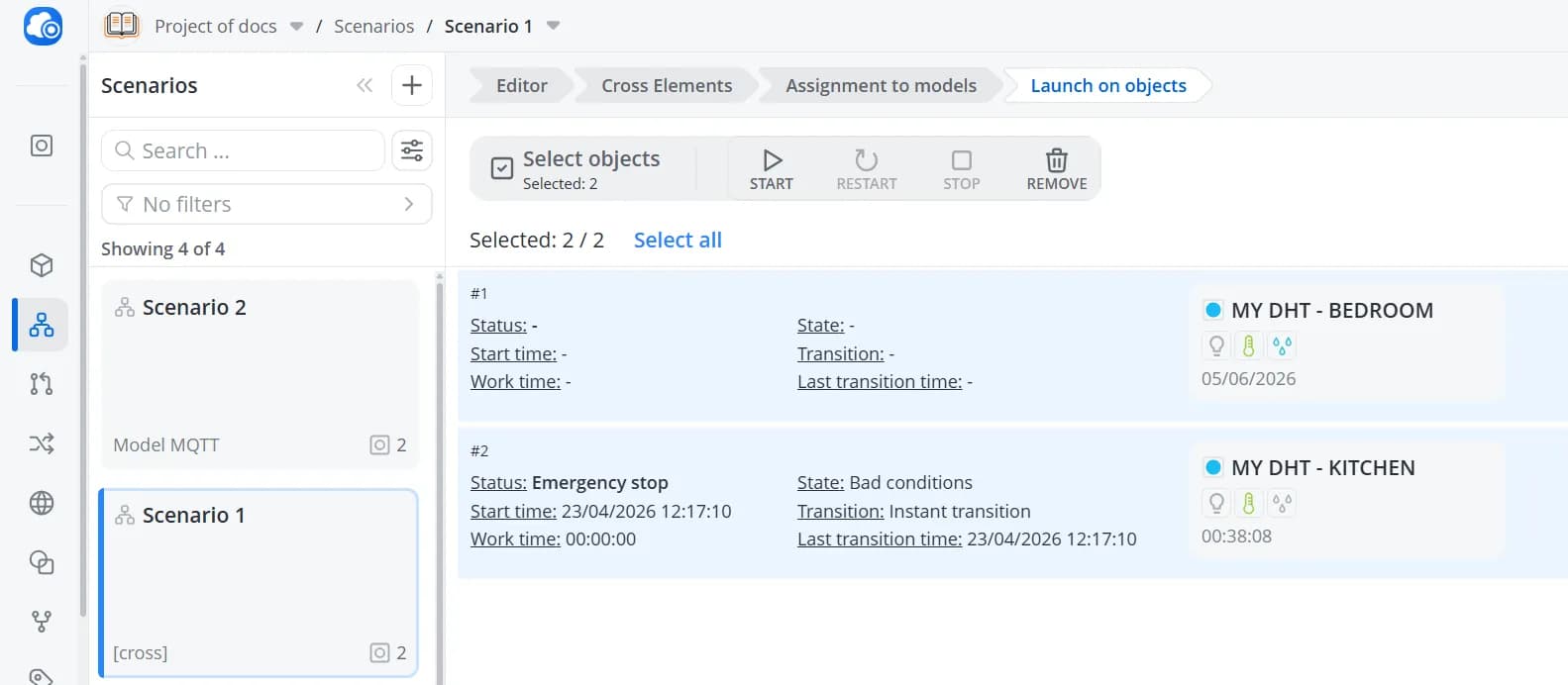
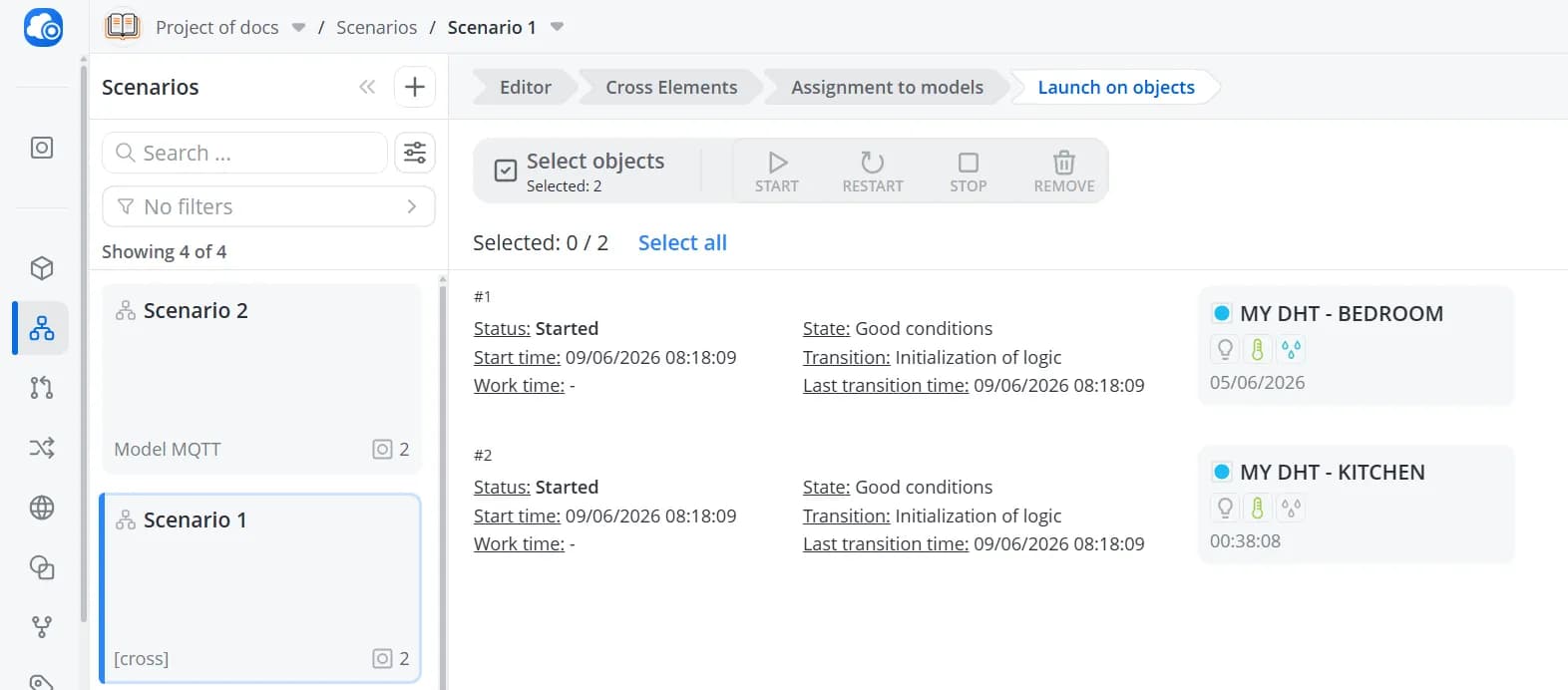
The Start and Delete buttons will become available for all selected objects. Click Start to launch the scenario. Its status will change to Running.
💡
A scenario can also be started using a command from the Objects tab. If the scenario is finite, it will be automatically removed from the object after execution completes, and the command will be marked as successfully completed.
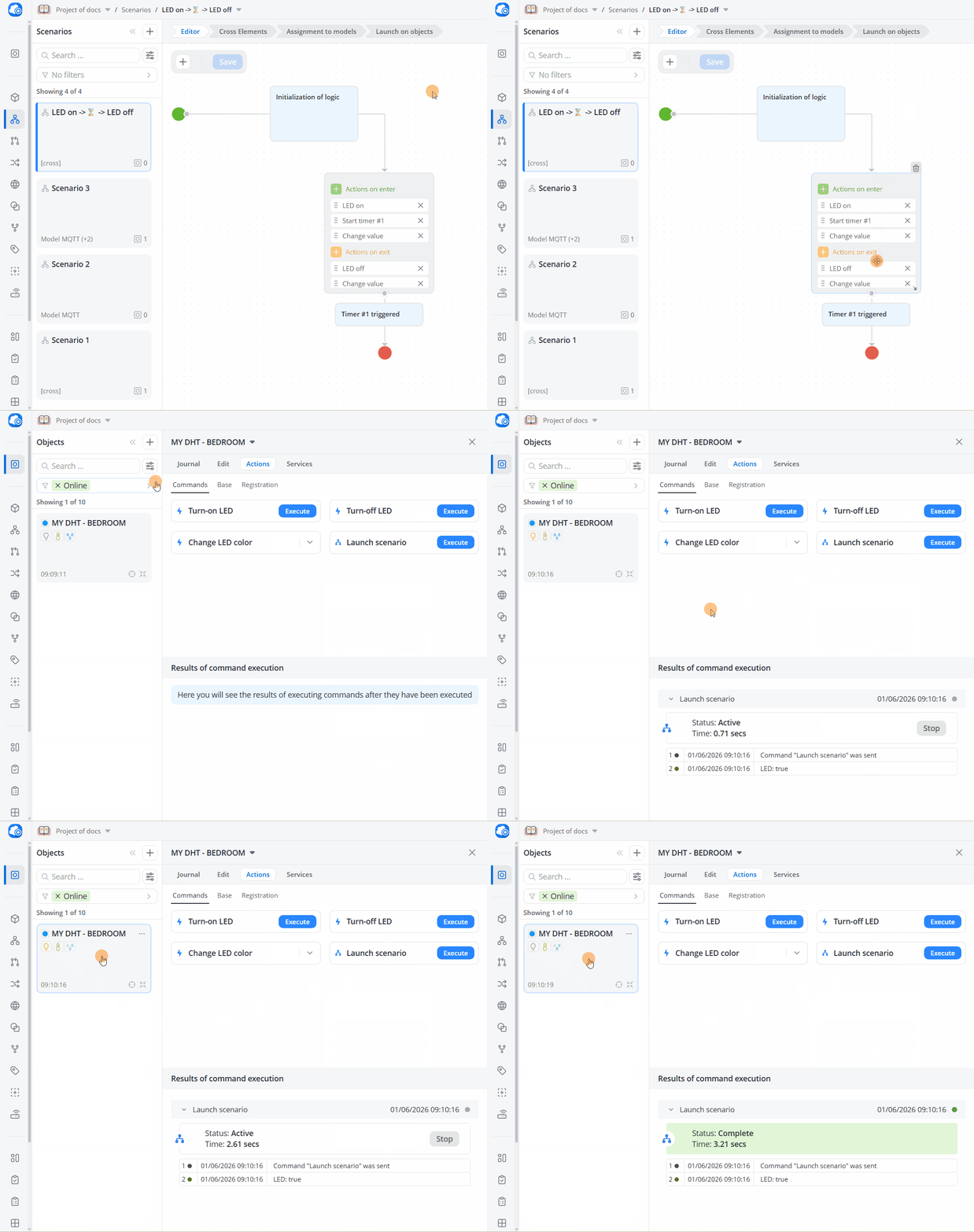
This feature is useful when you need to trigger a scenario from another scenario or from a mobile application.
For objects with a running scenario, the Stop and Restart buttons become available:
- Stop terminates scenario execution;
- Restart performs the equivalent of clicking Stop followed by Start, and is typically used to apply changes made to the scenario.
💡
If a scenario has been created, saved, and started, and is then modified and saved again, you must restart it. Otherwise, the previously running version of the scenario will continue to execute.
Detailed information about the execution of a scenario on a specific object is available from the Objects tab. Learn more about monitoring scenario execution on an object >>>