Terms and definitions
- Assignee — a company employee who executes tasks.
- Operator — an employee with access to the platform interface who manages the task flow from it.
- Operator interface — the Rightech IoT Core platform.
- App — the RIC Service Android application, through which the Assignee creates or receives tasks and records the results of their execution. It can be installed via Google Play.
- Task type — a task template that defines the list of additional fields, commands available to the assignee, task icon, etc.
Workspace
YouTube link: RIC: Task Service. Operator Workspace.
The Task Service interface in the Rightech platform is a Kanban board that displays all tasks and their current status. This interface is optimal for operators who need to see the overall picture of the company's service maintenance.
Main window of the Task Service:
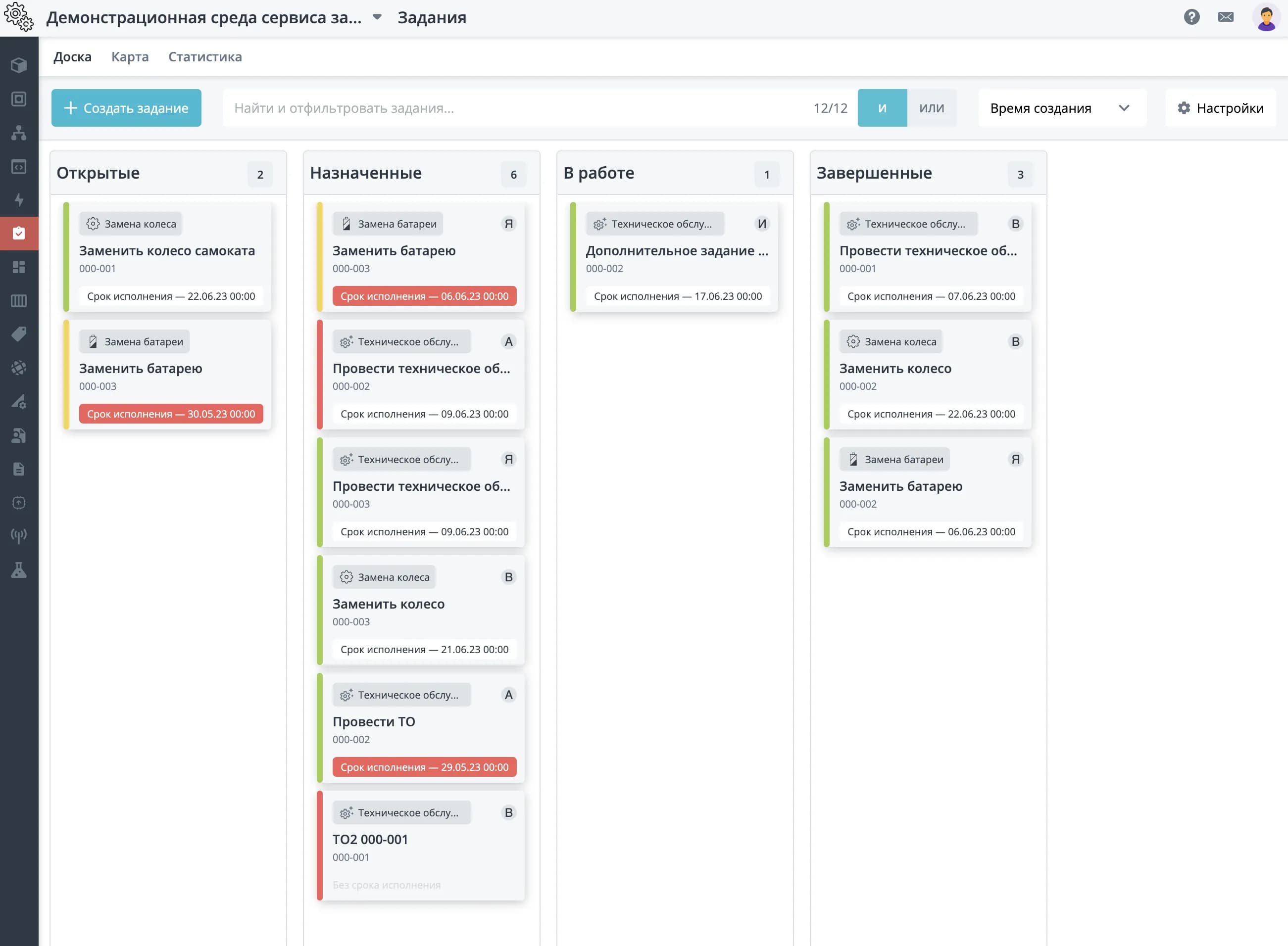
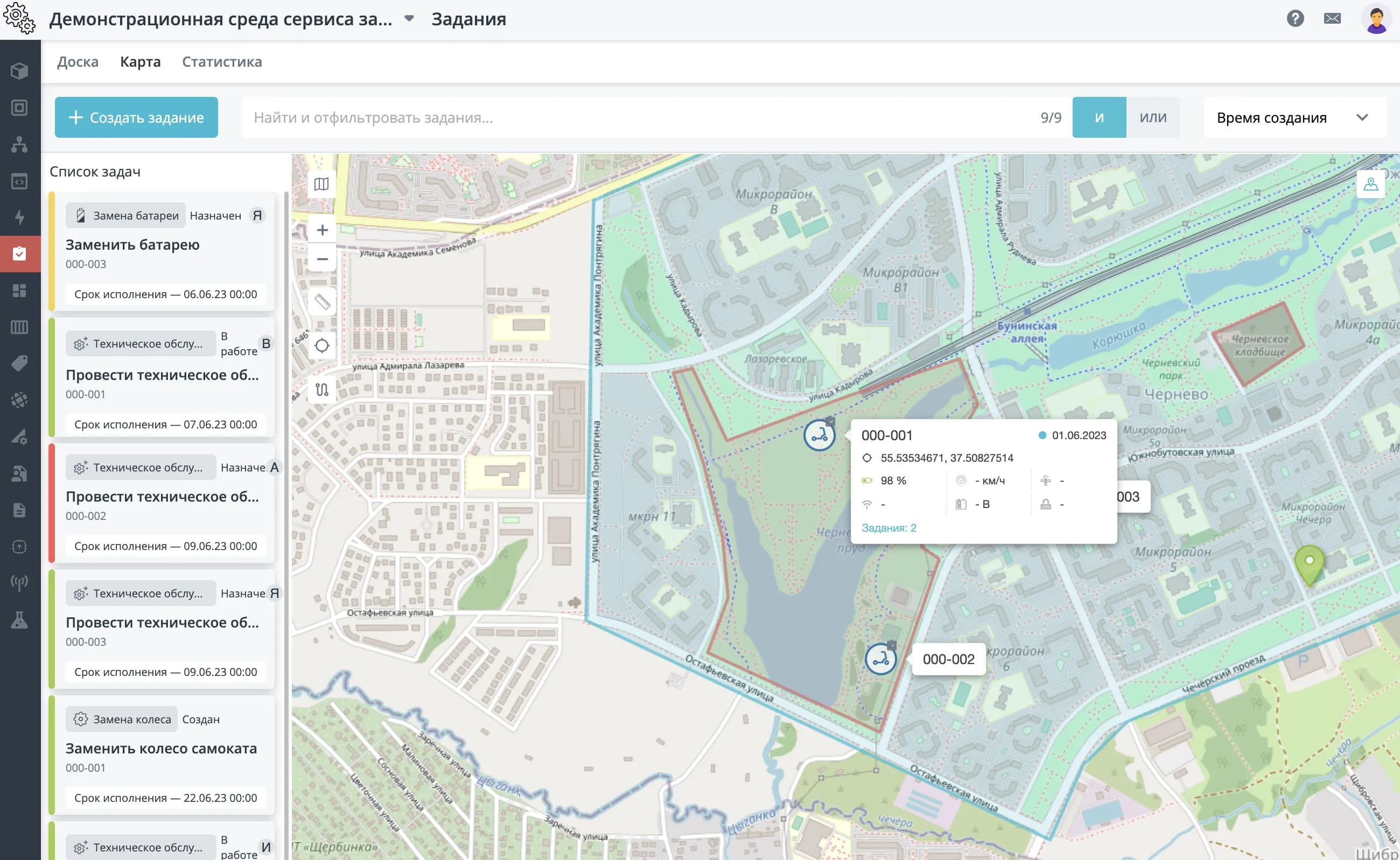
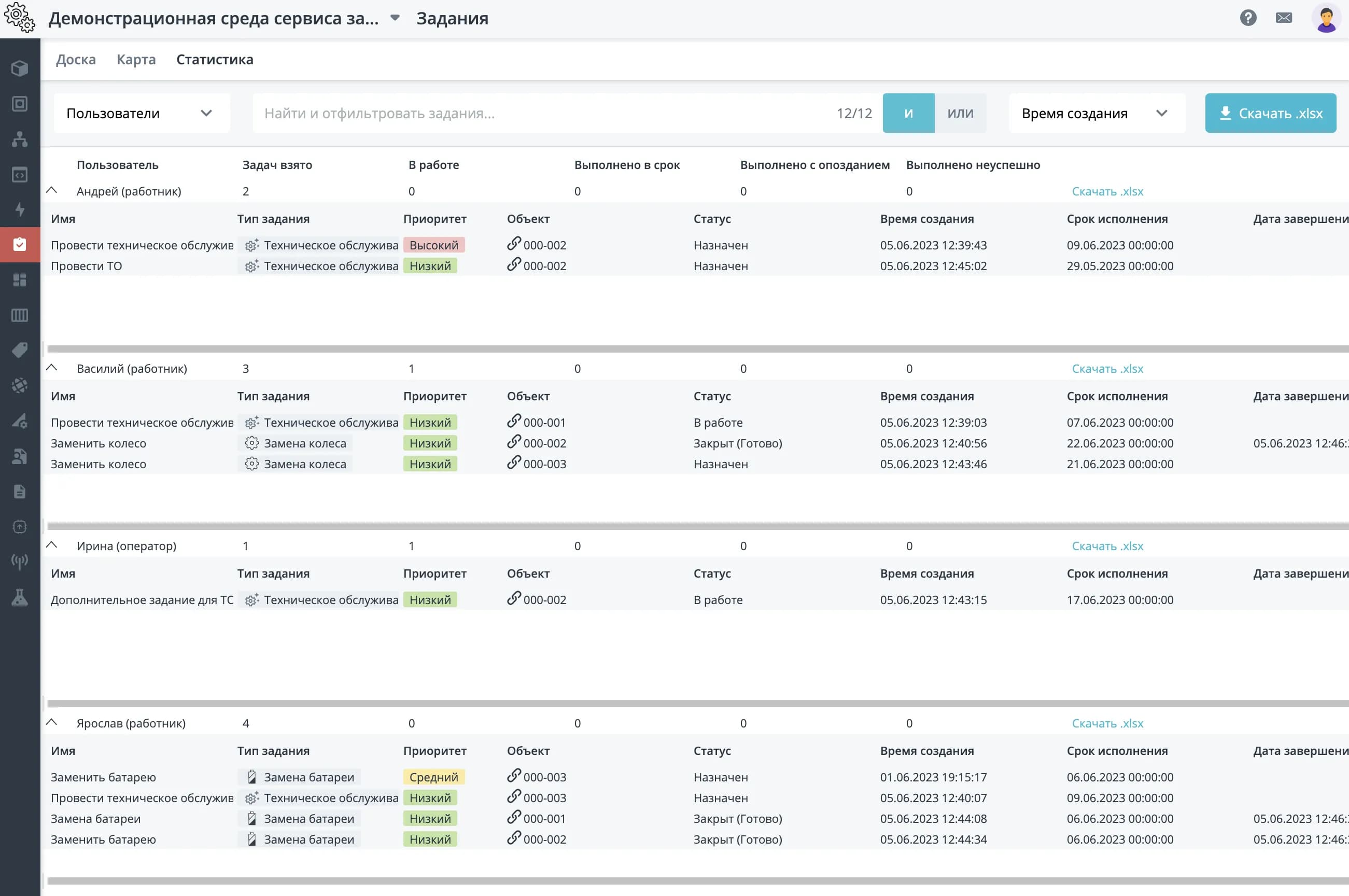
In addition to the Kanban board view, users can view tasks on a map or as a table. When selecting the table view, it is possible to group tasks by assigned users and by objects. This is convenient for studying the statistics of each assignee's work and analyzing the failure rate for each piece of equipment.
Task map:
Statistics grouped by users:
Tasks
YouTube link: RIC: Task Service. Task Card Overview.
The Task Service allows you to control the lifecycle of each task from the moment it is created. Tasks can be divided into types, which are configured based on user needs.
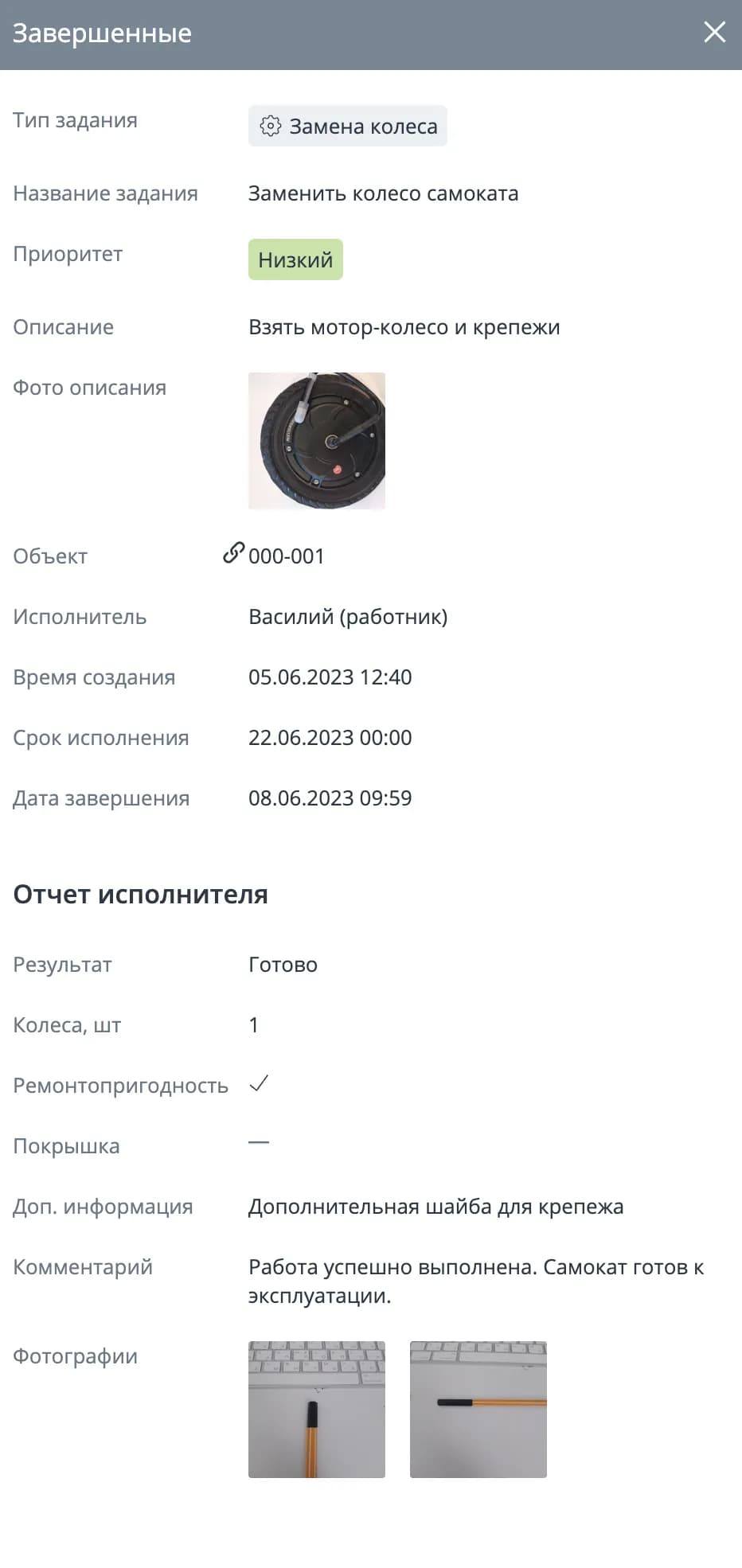
In the workspace, a task is represented by a card with a description of the assigned task, linked to an object. For more detail, the user can optionally add comments, a deadline, and upload/view photo materials in the specific task window. As an example — tasks in the platform and in the RIC Service mobile app interface.
Completed task window (platform):
Task window in RIC Service (management and history):
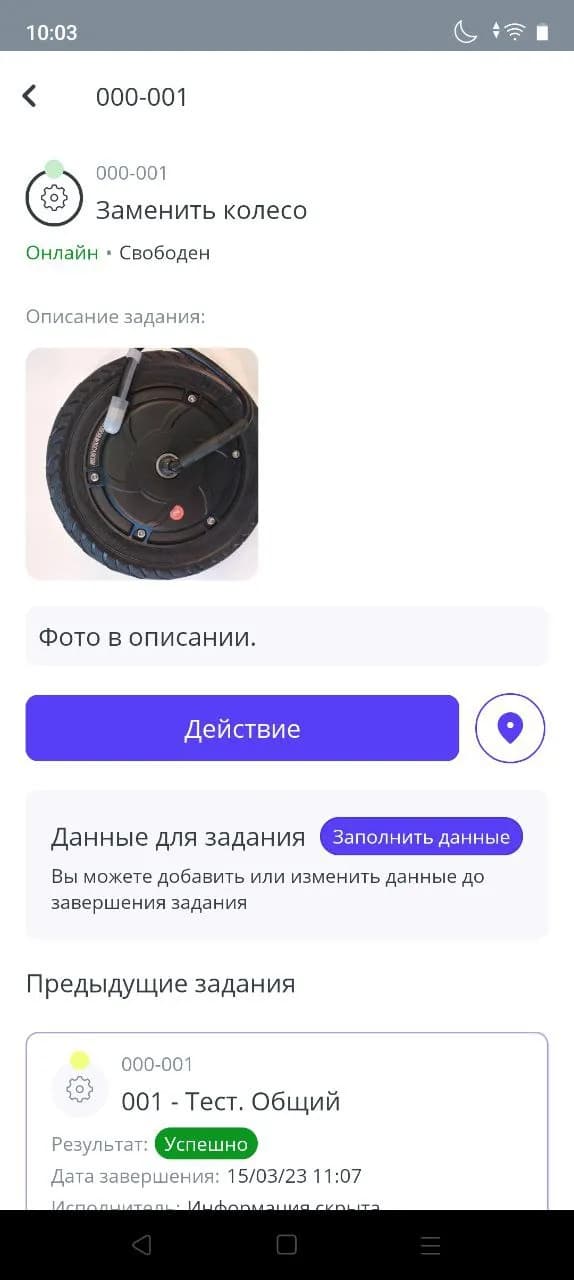
More details on working with the card in the RIC Service app interface can be found in the corresponding section.
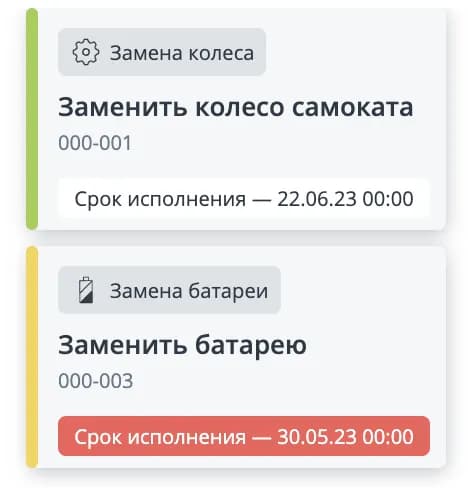
On the card, the priority is indicated by color: green (low), yellow (medium), red (high).
The first line is the task type name with its icon.
The second line is a clickable link to the object.
The third line is the task deadline.
The "Edit" button (appears on hover) allows you to modify the task.
The assignee is indicated on the card in the lower right corner. It shows the first letter of the assignee's username.
Task card preview on the board:
Task statuses
There are four main task statuses:
Open — the task is created, no assignee assigned. In the mobile app, such tasks are visible to all assignees, and any of them can take it.
Assigned — the assignee has taken the task. Other assignees lose access to this task. When a task is assigned, no operations are performed on the object. The assignee cannot send commands from the mobile app.
In progress — the assignee has started working on the task. In this case, the actions defined in the task type are executed. Most often, a mandatory action will be to take the object offline (Status change — Breakdown). The assignee is granted access to the commands defined in the task type.
Completed — the assignee has closed the task. After completing the task, the assignee loses access to the object, and the task completion time is recorded. Upon completion, the assignee fills out a report, which includes the option to leave a comment, attach photos, and fill in additional fields. These fields may be mandatory or optional, depending on the configuration of the task type.
Moving tasks
To change a task's status from the operator interface, click on the task card. Clicking on multiple cards selects them. For selected cards, you can perform a group move.
Task move buttons on the board:
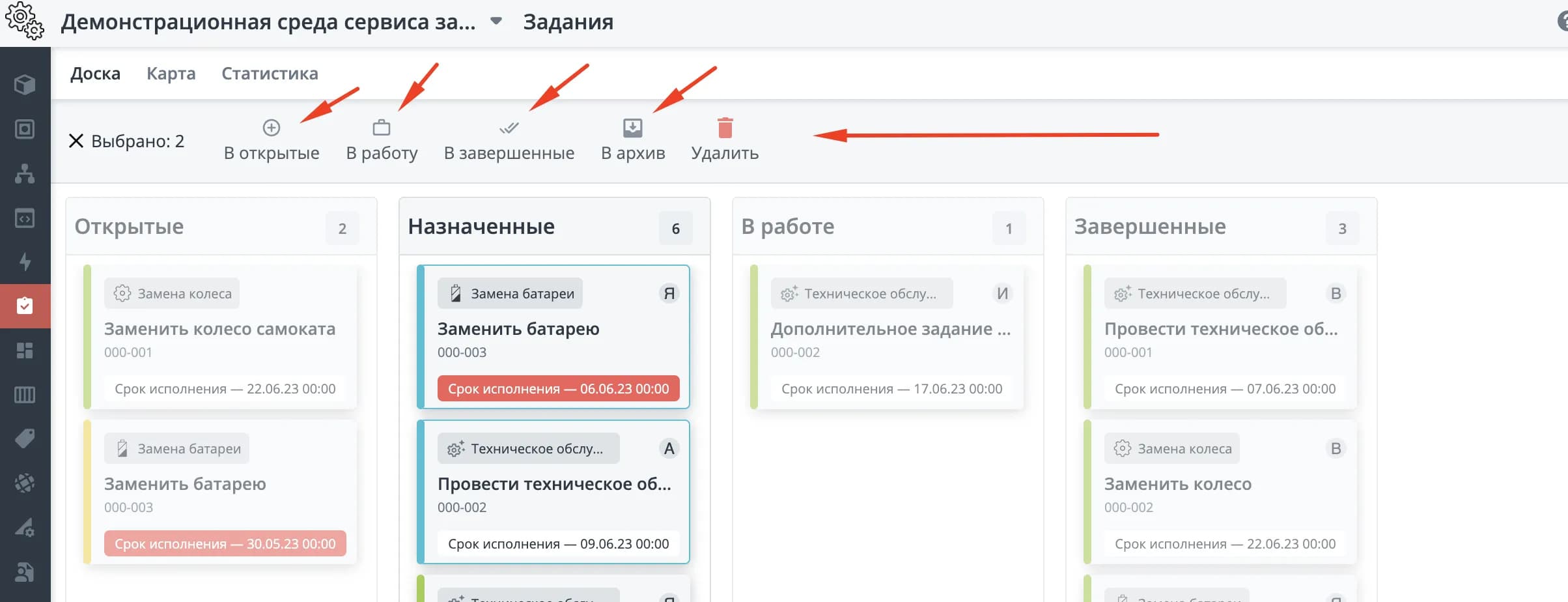
After that, the task management menu becomes available. Moving tasks from Open to any other stage requires selecting a assignee.
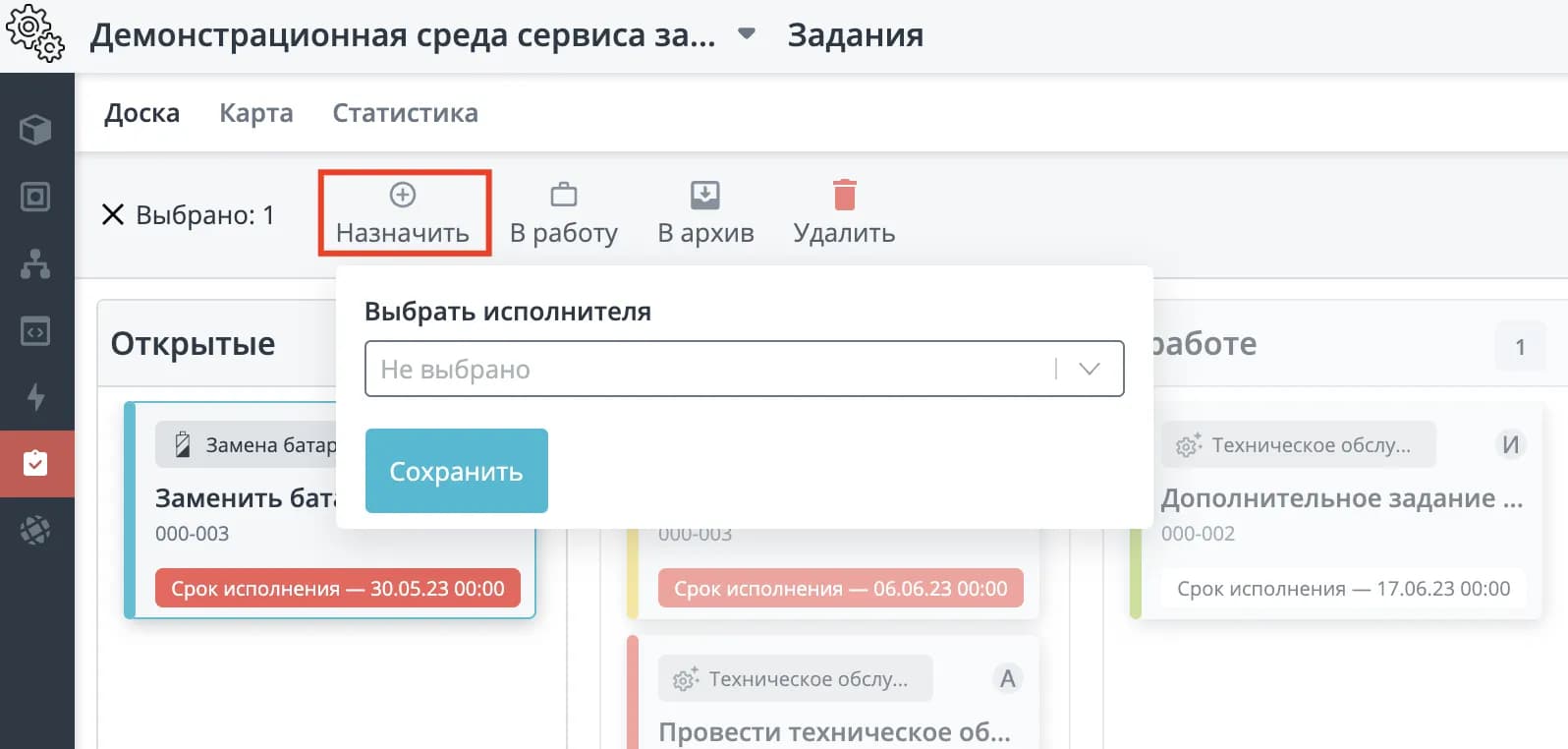
When moving a task "Open" -> "Assigned", a window appears allowing you to select a assignee.
"Open" -> "Assigned":
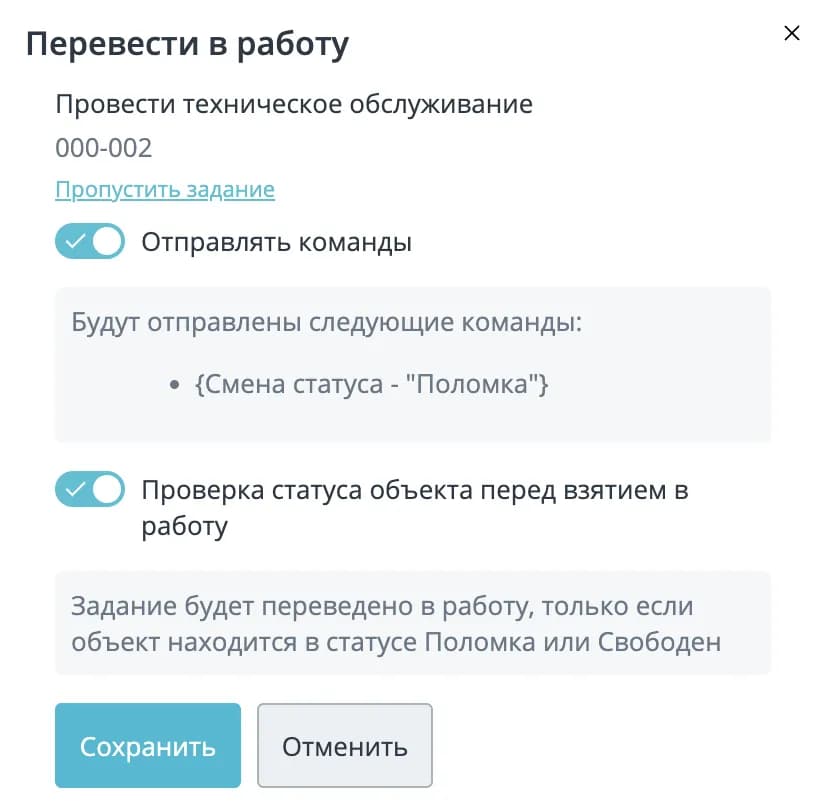
When moving a task "Assigned" -> "In progress", a window appears with settings for sending commands and checking the object's status before taking it into work.
"Assigned" -> "In progress":
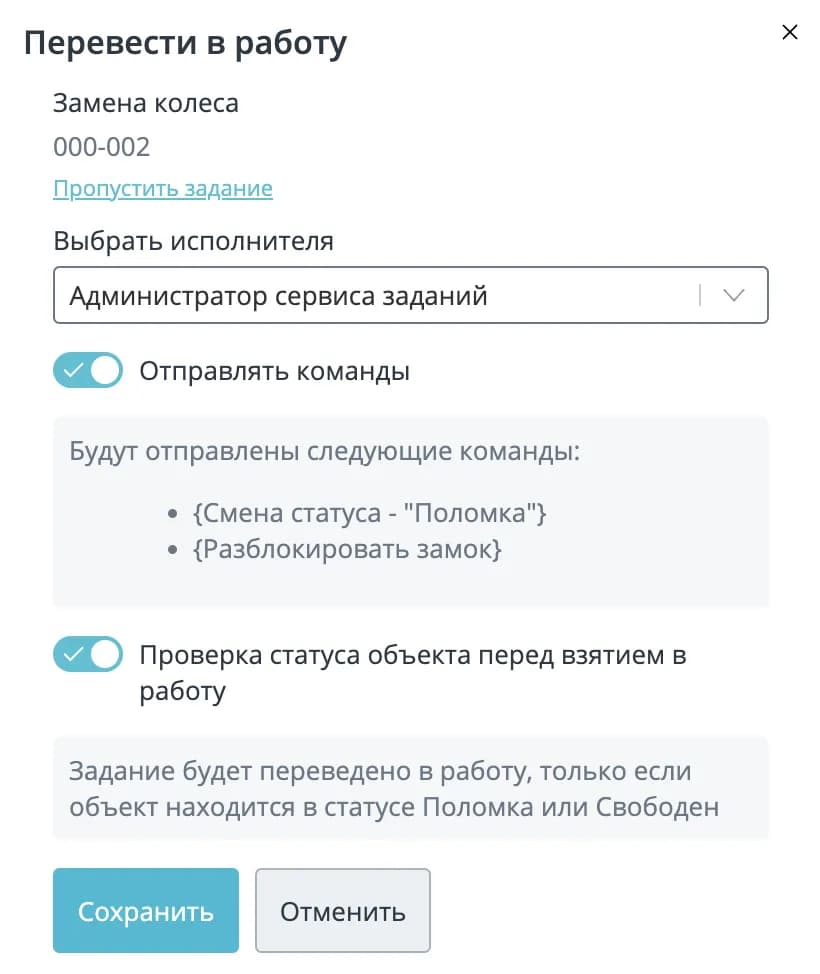
When moving a task "Open" -> "In progress", a window appears with assignee selection, command sending settings, and checking the object's status before taking it into work.
"Open" -> "In progress":
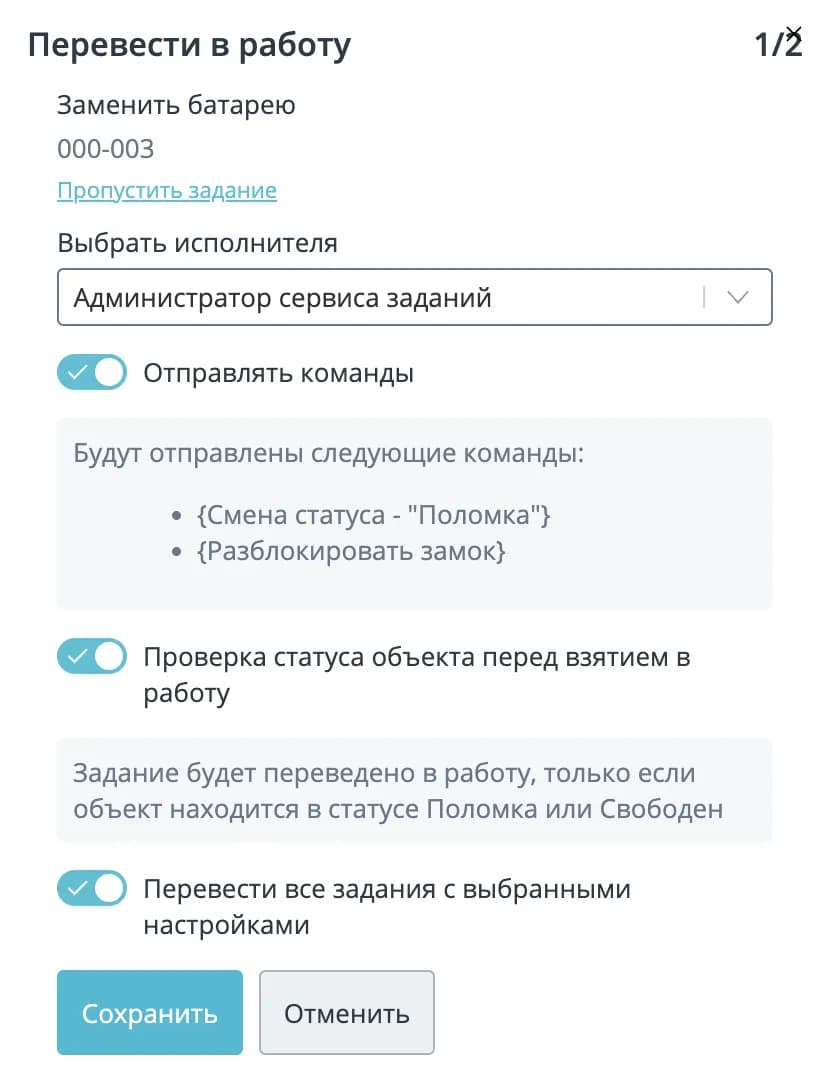
When multiple tasks are selected, the operator can assign the selected tasks to a single assignee by choosing the setting "Move all tasks with the selected settings" in the window that opens. If this setting is turned off, each task will be configured by the operator sequentially. You can skip a task using a special button.
"Open" -> "In progress" for multiple tasks:
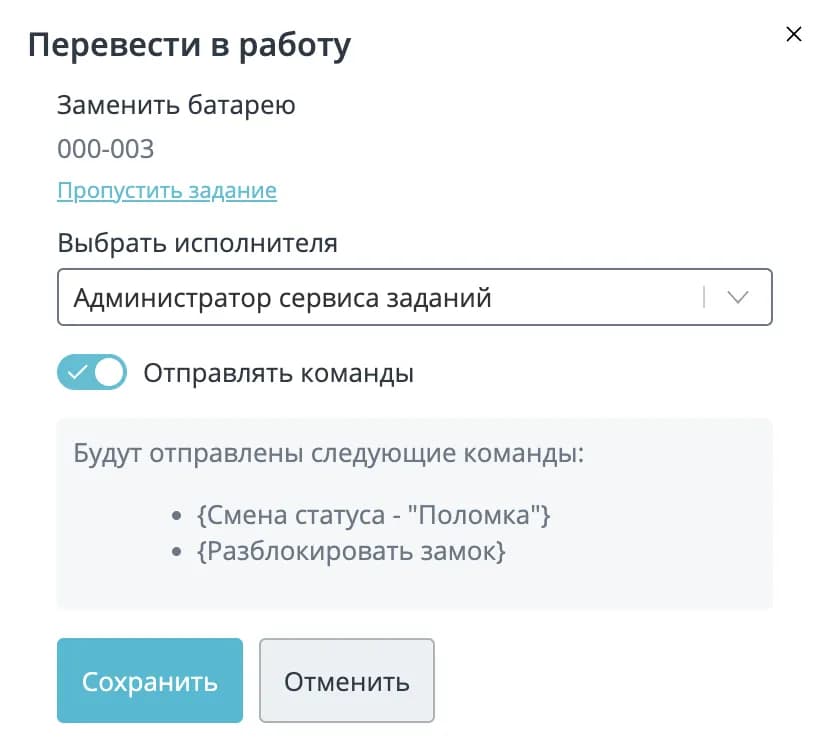
The settings "Send commands" and "Check object status before taking into work" can be optionally disabled by the operator. In the move-to-work banner, hints for each switch can be seen.
These settings will be discussed in more detail in the Task Type section.
Task type
YouTube link: RIC: Task Service. Roles, Access and Task Type.
A task type is a template created in the admin panel and selected when creating a task from the platform interface or the RIC Service mobile app.
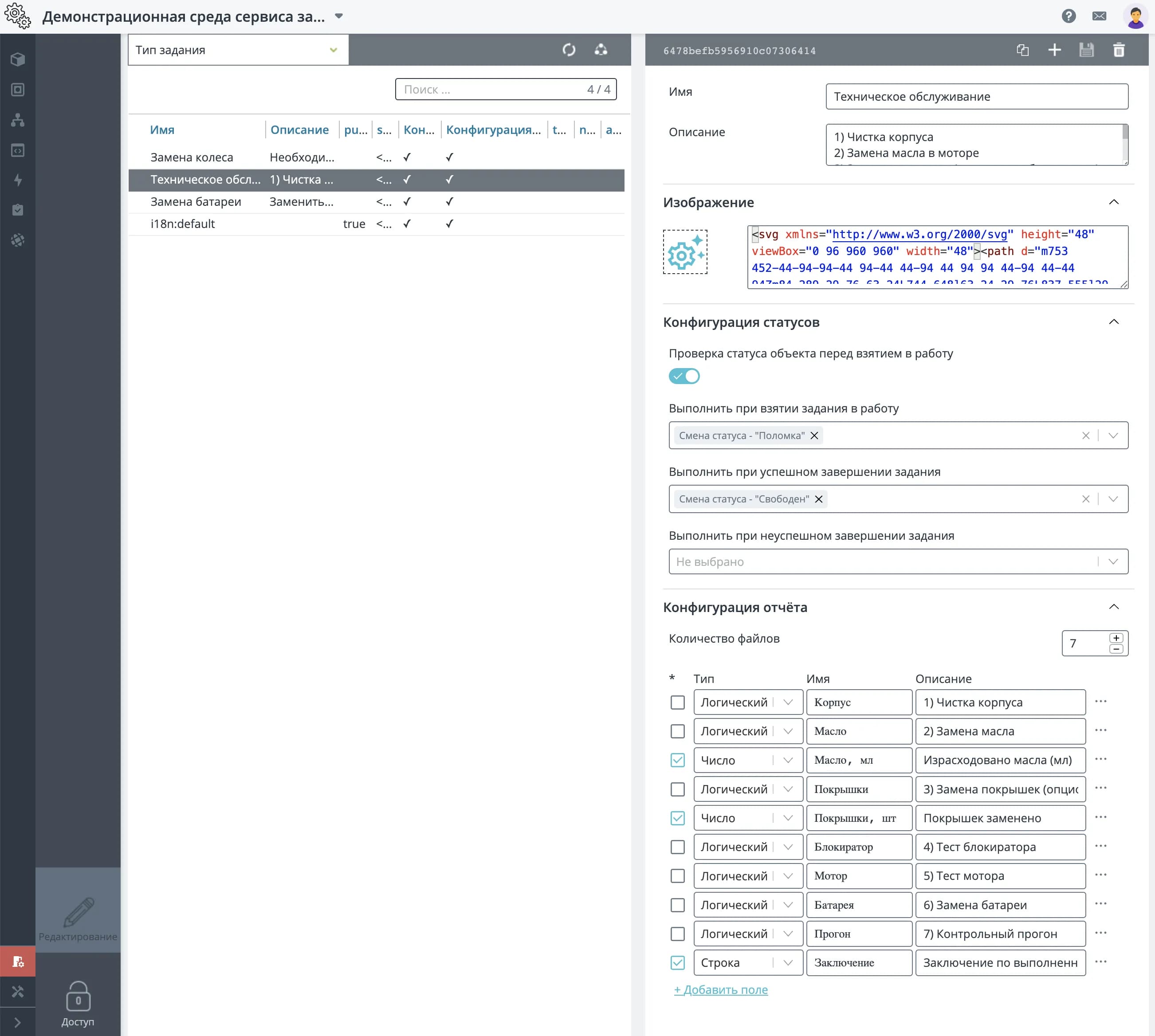
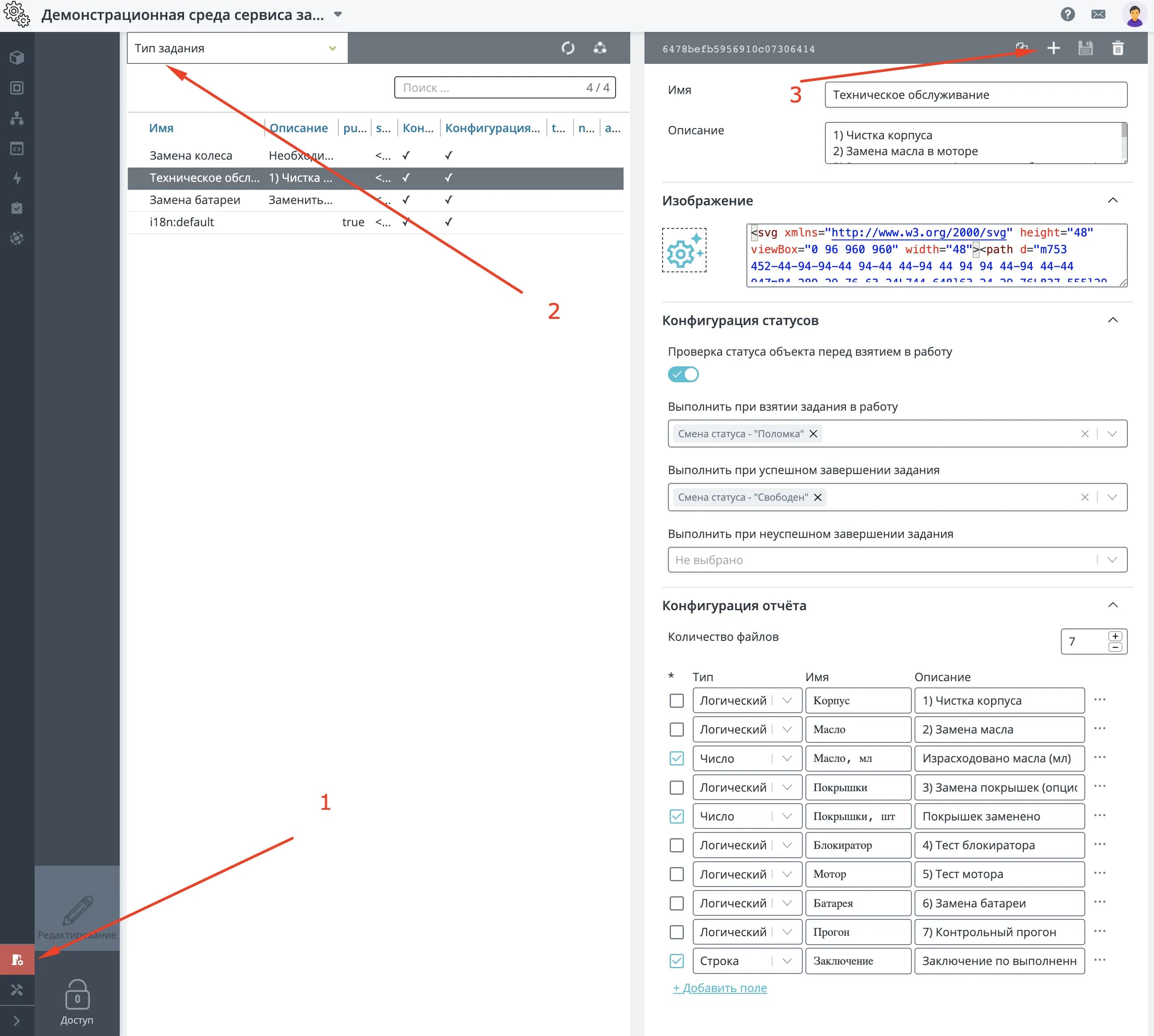
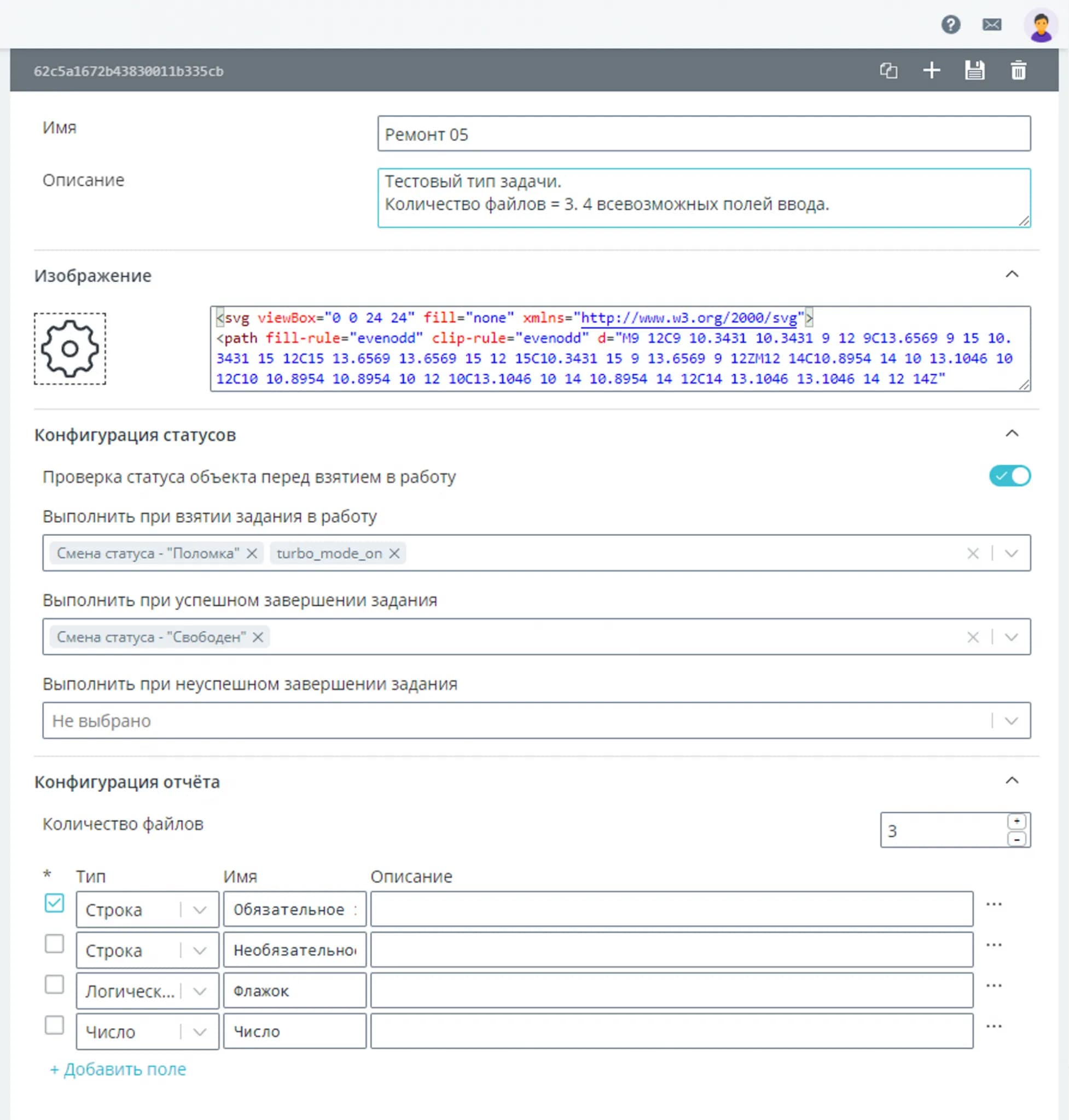
Task type in the console:
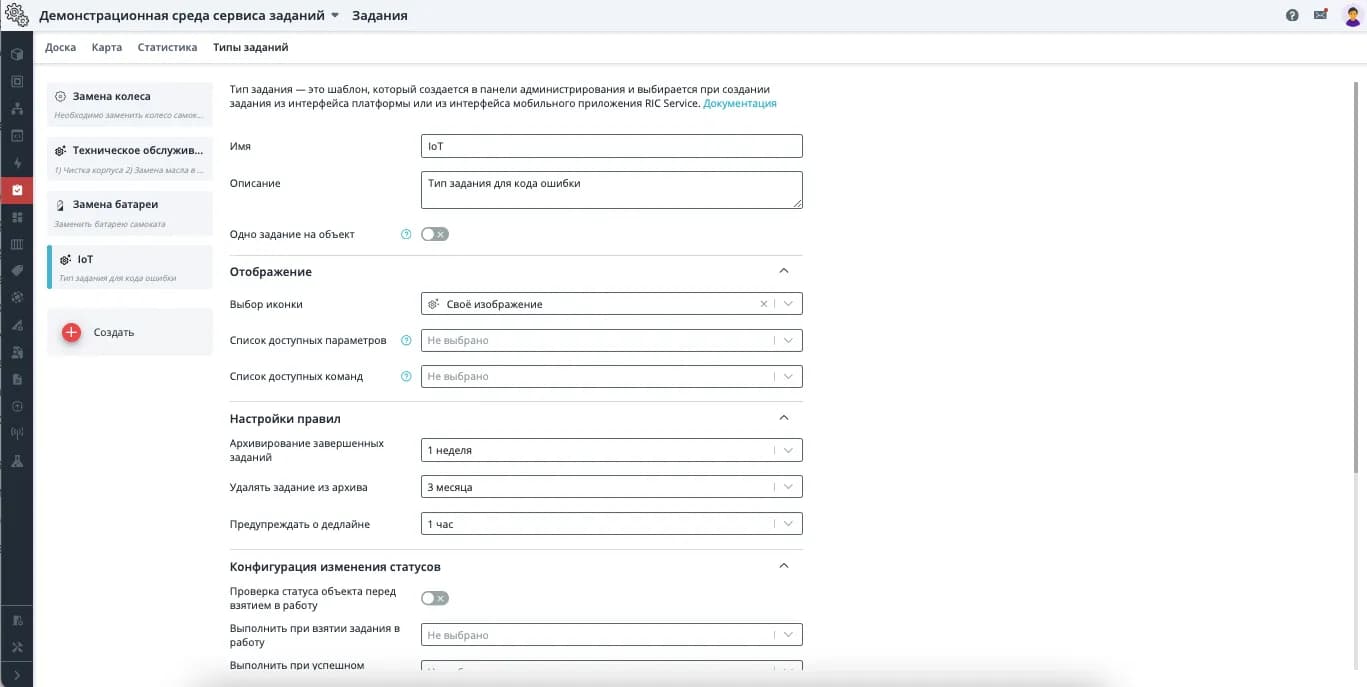
To create a new task type, go to the admin panel and click the "Create" button (plus sign on the right side of the screen).
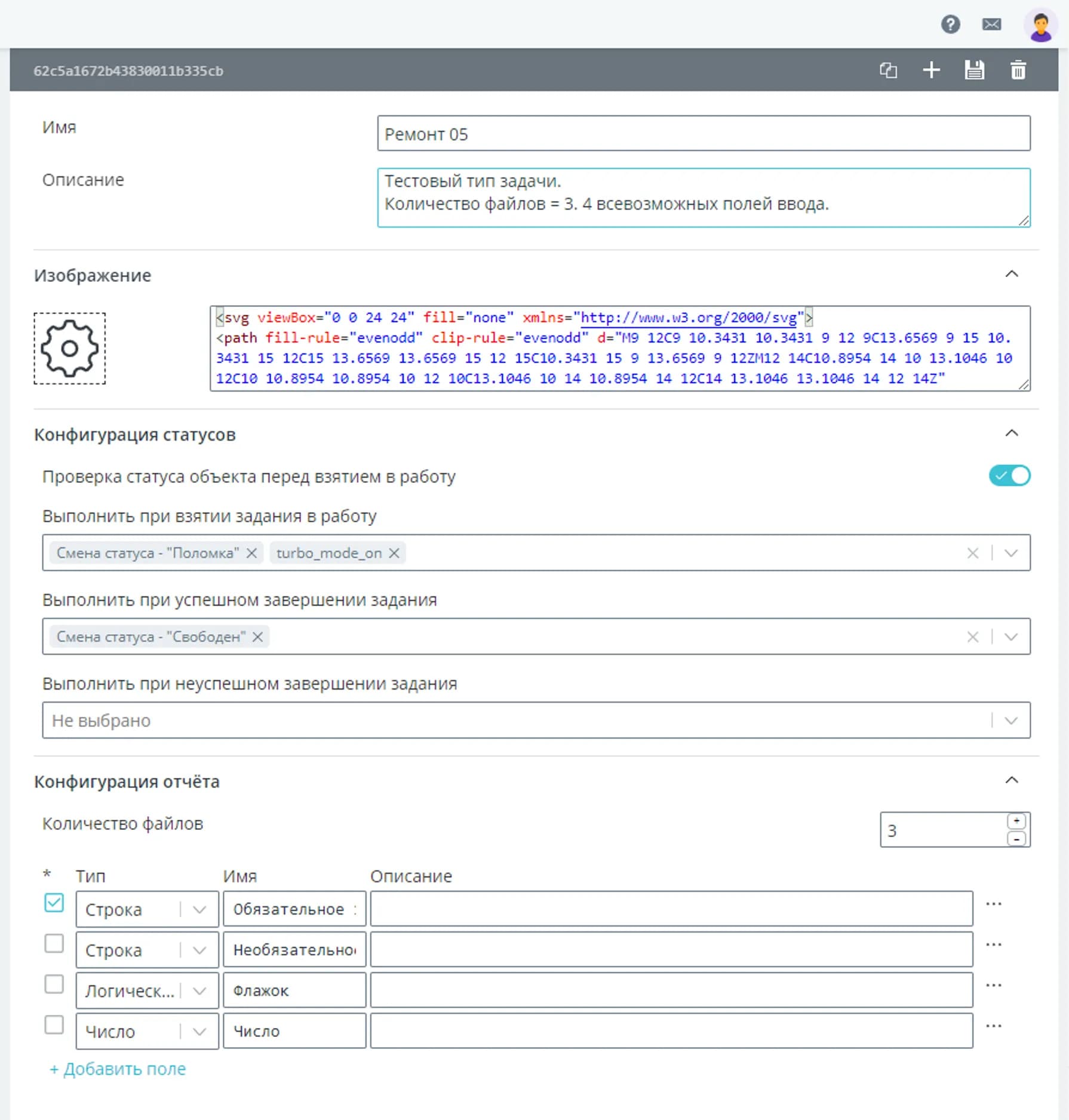
On this screen, you need to enter the task type name, upload an SVG image for indication in the platform interface, and configure the status configuration.
Please note. Currently, to upload an SVG image, you need to paste its code into the text field.
Creating a task type:
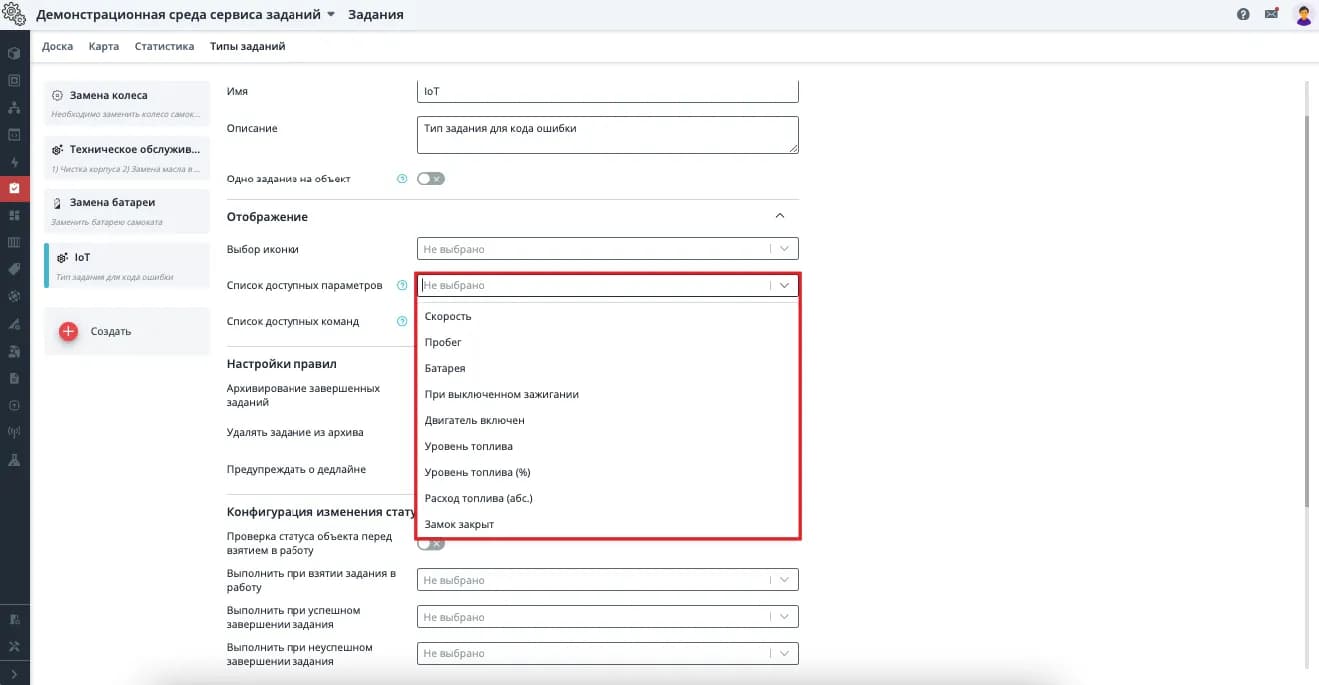
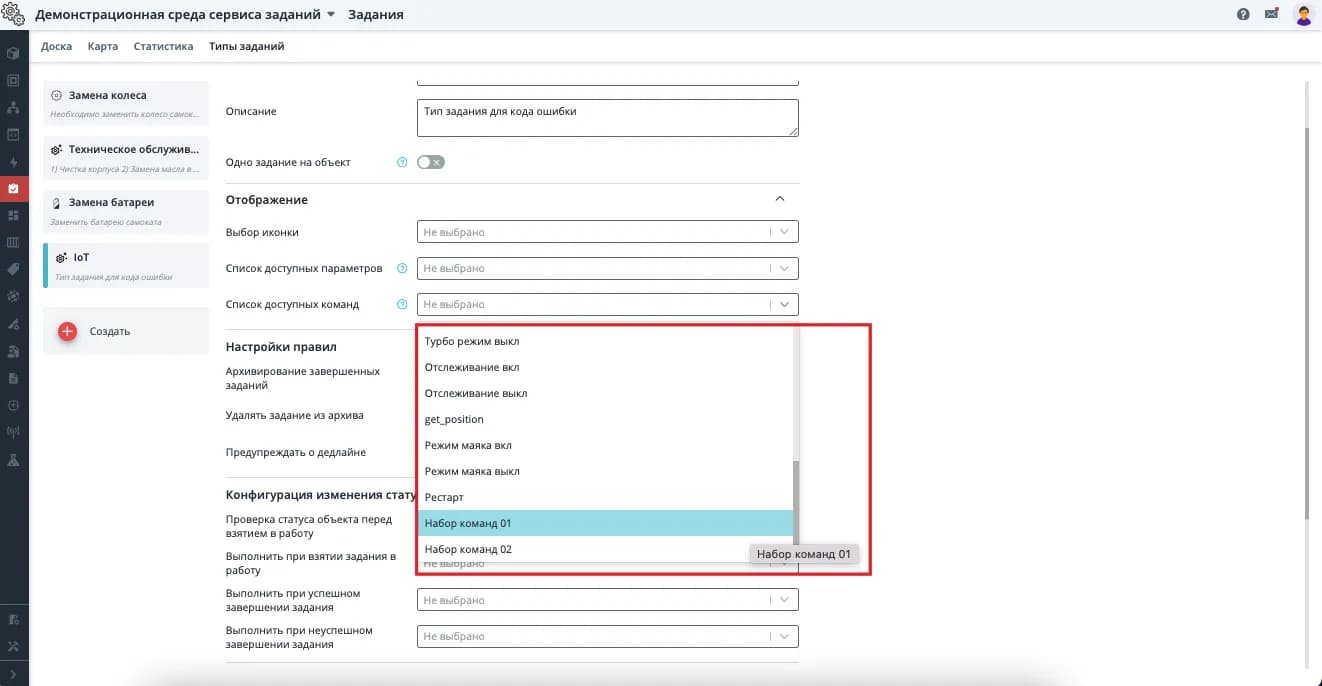
Selecting commands available to the assignee
YouTube link: RIC: Task Service. Configuring Commands for Task Types.
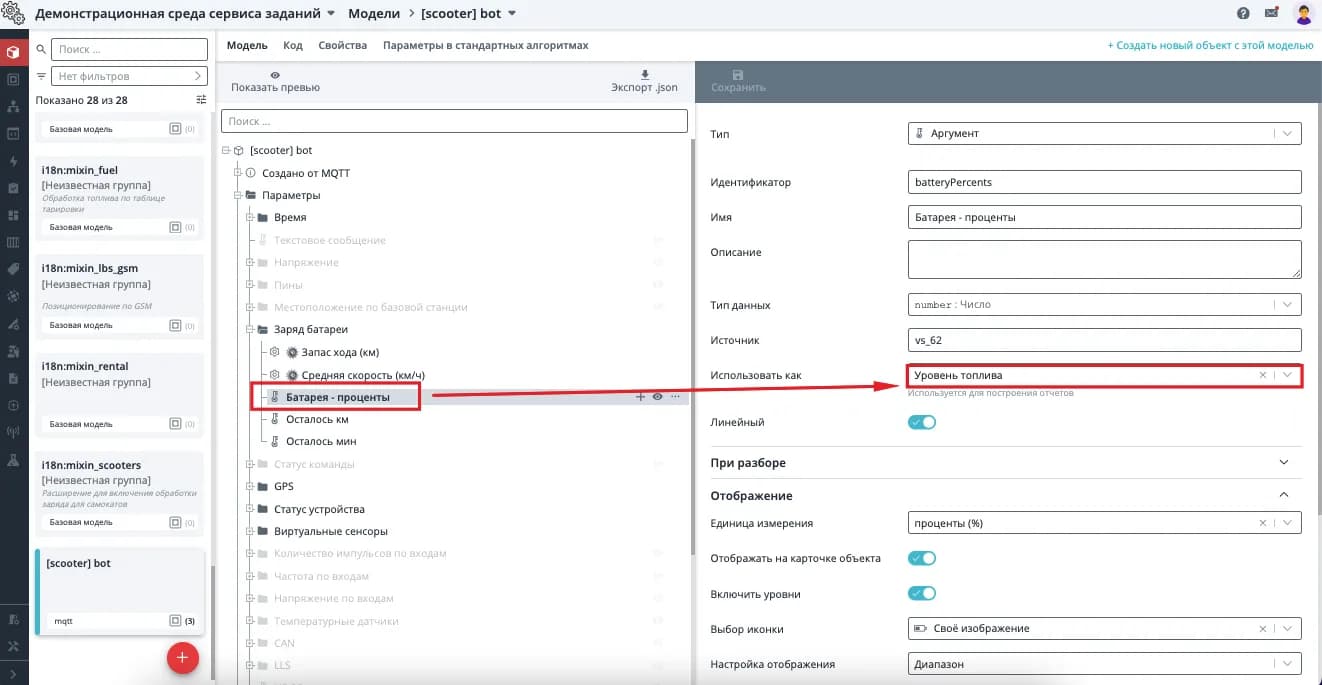
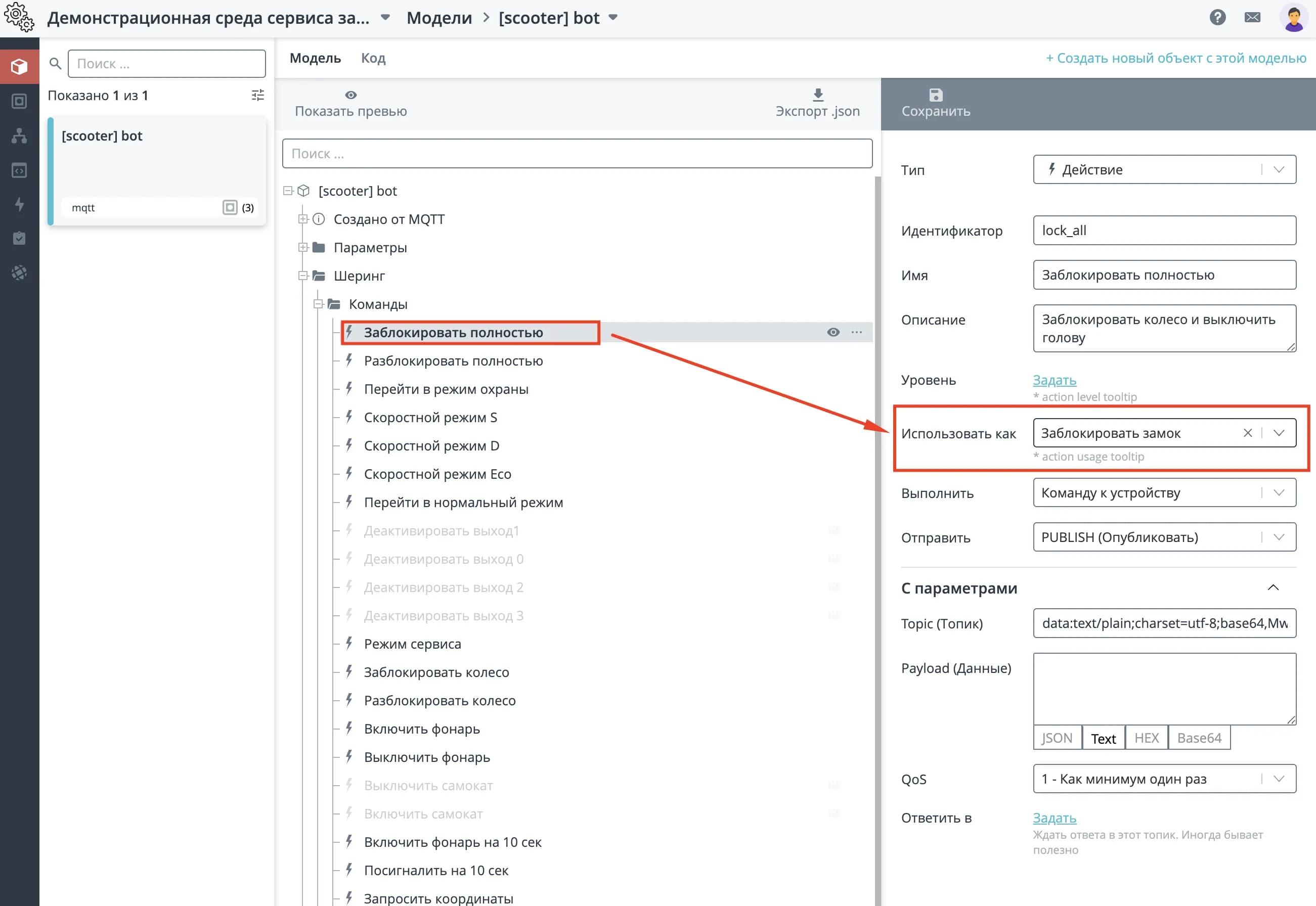
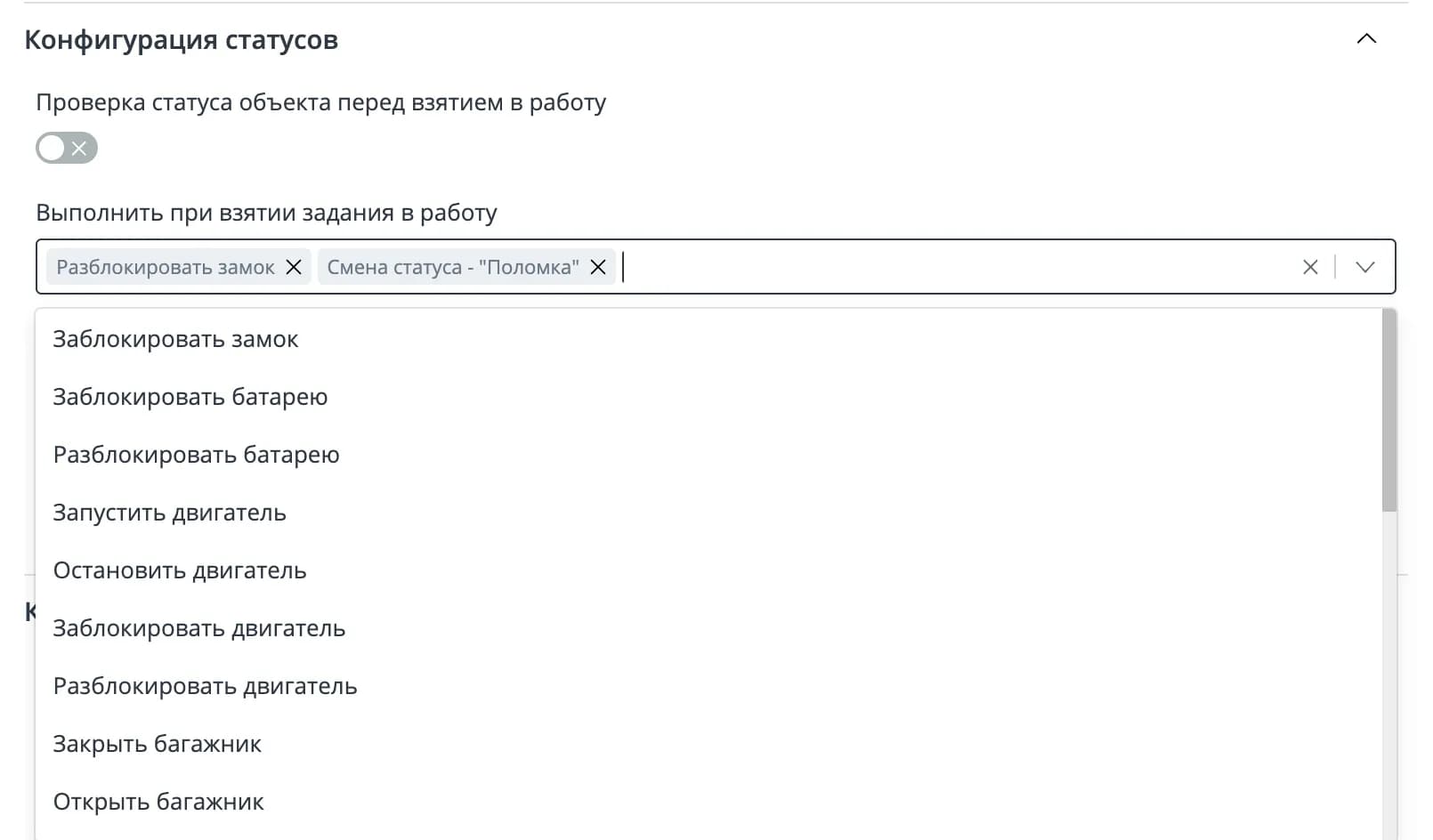
For commands in the device model, you can select tags. Only commands with tags will be visible to the assignee when the task is "In progress".
Currently, various tags are available, for example:
- Status change "Breakdown" — the tag corresponds to the corresponding command to change the vehicle status;
- Status change "Free" — the tag corresponds to the corresponding command to change the vehicle status;
- Lock lock — tag for object lock commands;
- Unlock lock — tag for object unlock commands;
- Lock battery — close the battery slot;
- Unlock battery — open the battery slot;
- Start engine — start;
- Stop engine — stop.
Selecting commands in the task type:
⚠️
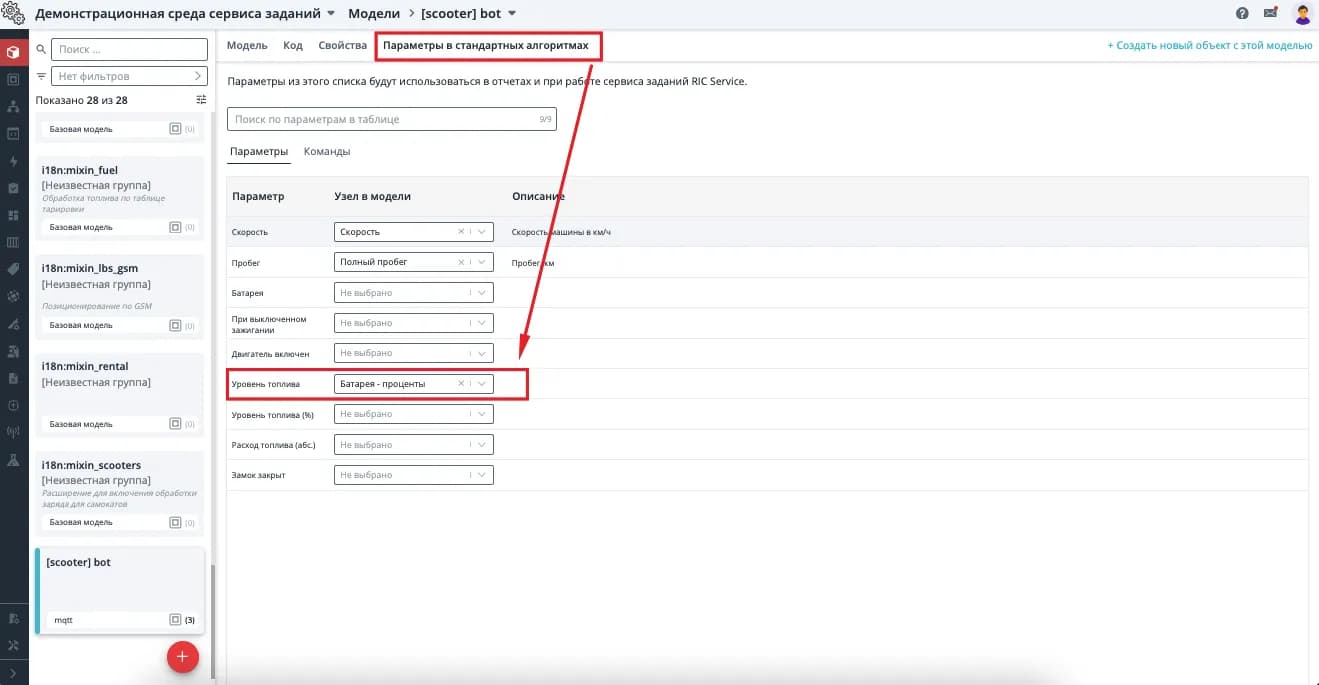
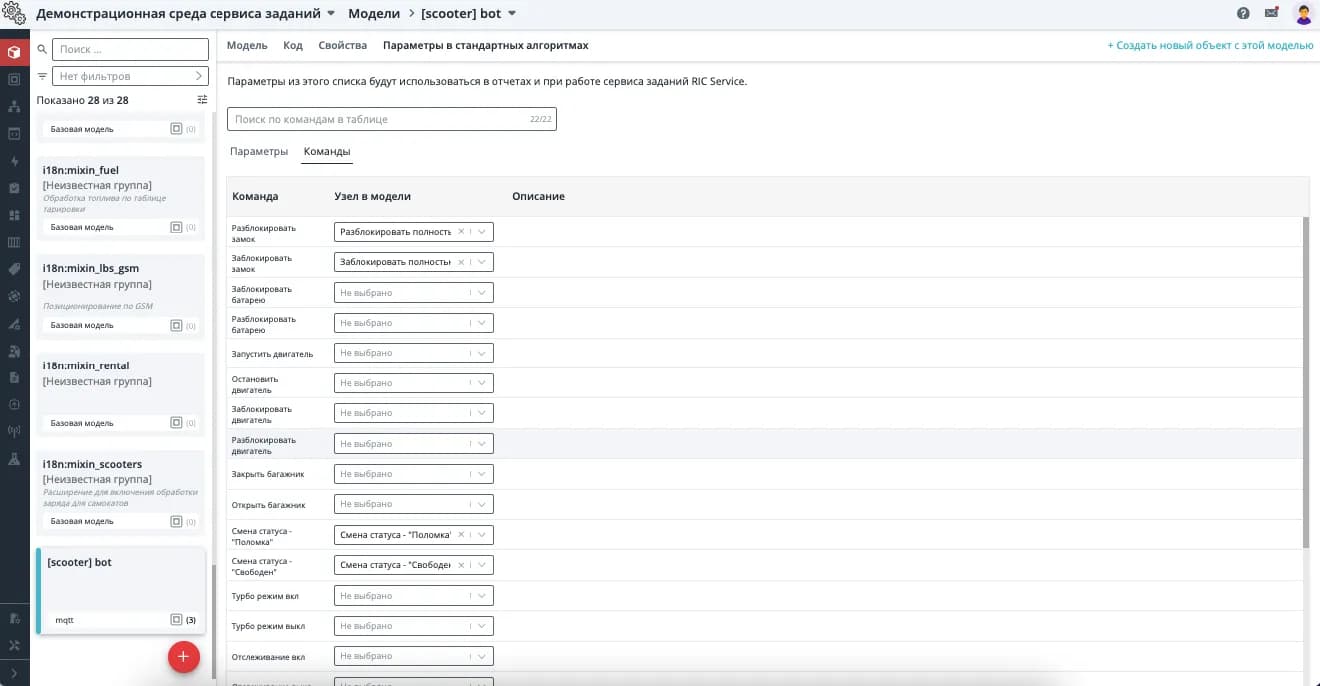
In the object model, you must specify which commands will correspond to those in the task type.
Settings in the model:
⚠️
For the correct operation of sharing services, we recommend selecting the action "Status change — Breakdown" for the "Execute" item when taking a task into work. So that the Assignee gets full access to the vehicle, and service customers lose access to the objects in the client application.
Status configuration
Commands can be sent automatically when a task is taken into work and upon successful/unsuccessful completion of the task. Commands are configured depending on the nature of the task.
Please note. Commands are not sent when assigned to a assignee, but when the task is taken into work.
Example. When a assignee takes a task, it is necessary to take the object offline (change status to Breakdown) so that sharing service customers cannot rent it. And upon task completion, it is better to automatically configure sending a command to lock the object.
Selecting commands in the task type:
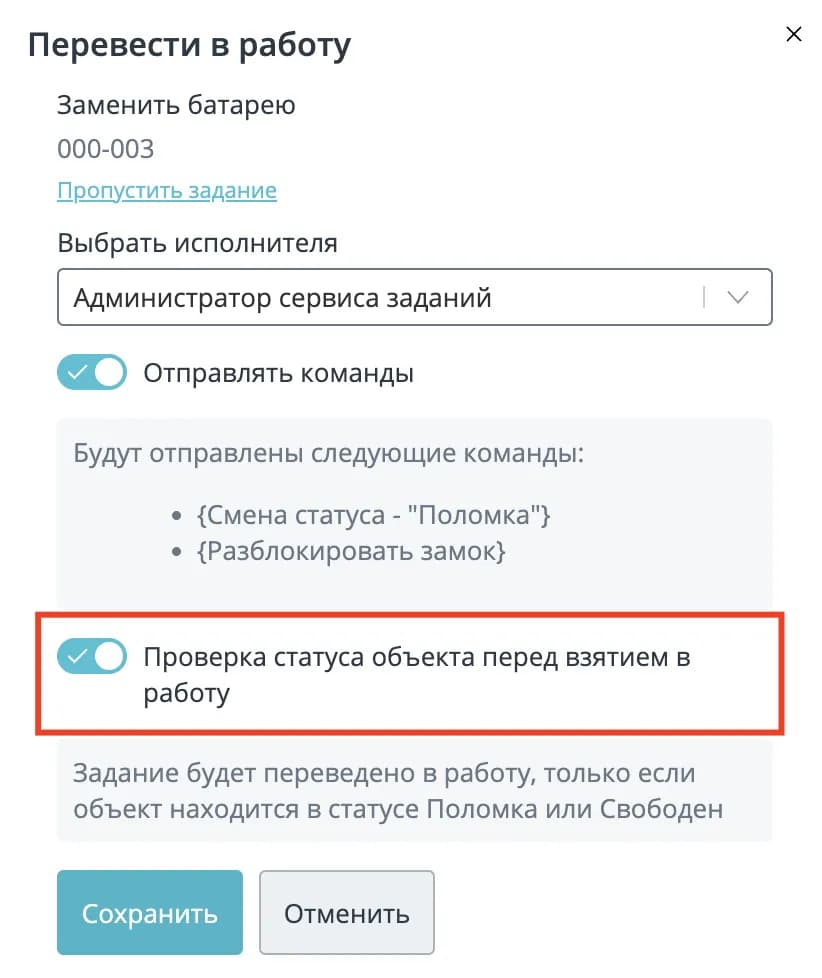
"Check object status before taking into work" — an enabled setting that prevents moving a task to "In progress" for a rented object. If this setting is activated in the task type, the corresponding switch will be available when moving the task to "In progress" via the operator interface.
Banner for moving to work with object status check:
Banner for moving to work without object status check:
When creating a task type, you can specify tags to define which actions will be applied when taking a task into work and upon successful completion of the task.
⚠️
Only commands marked with the corresponding tag will be visible in the mobile app.
Configuring the task completion report
For a task, you can configure fields that the assignee must fill out.
Number of files — the number of mandatory photos the assignee must attach (they can attach more). If 0 is selected, the assignee still has the option to attach photos.
The "Comment" field will always be available for the assignee to fill out.
The table configures the fillable fields. They can be of four types:
- Boolean — a checkbox with the corresponding name will appear in the mobile app.
- String — a text input field.
- Number — a numeric input field.
- Checkbox (*) to the left of the field determines whether it is mandatory for successful task completion.
Task type fields:
Logic automata examples
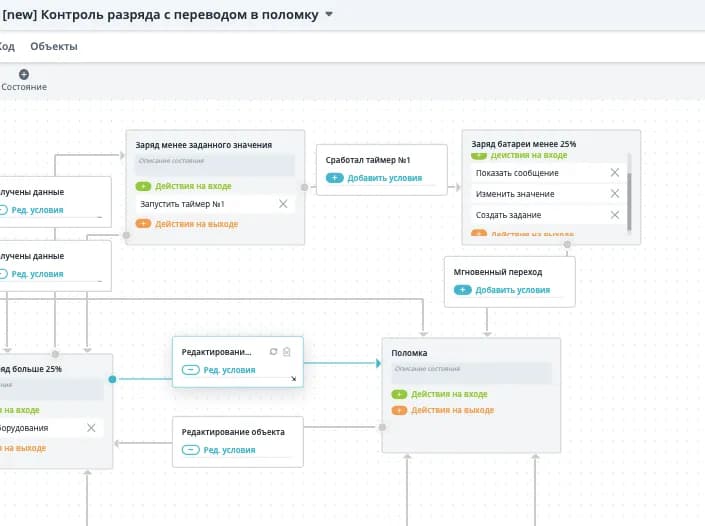
Discharge control with transition to breakdown
For user convenience, the Rightech team has developed a special logic. The main task of this logic is to monitor the state of charge of the vehicle. But besides this, the logic allows creating a battery replacement task when the level drops below the value set by the business. This saves the time needed to manually check the object and create a task. This automaton is called [new] Discharge control with transition to breakdown (available for download and can be imported into the project). The logic element responsible for automatic task creation is shown below.
Discharge control logic and the element creating a task:
Example of creating an automaton for automatic task generation:
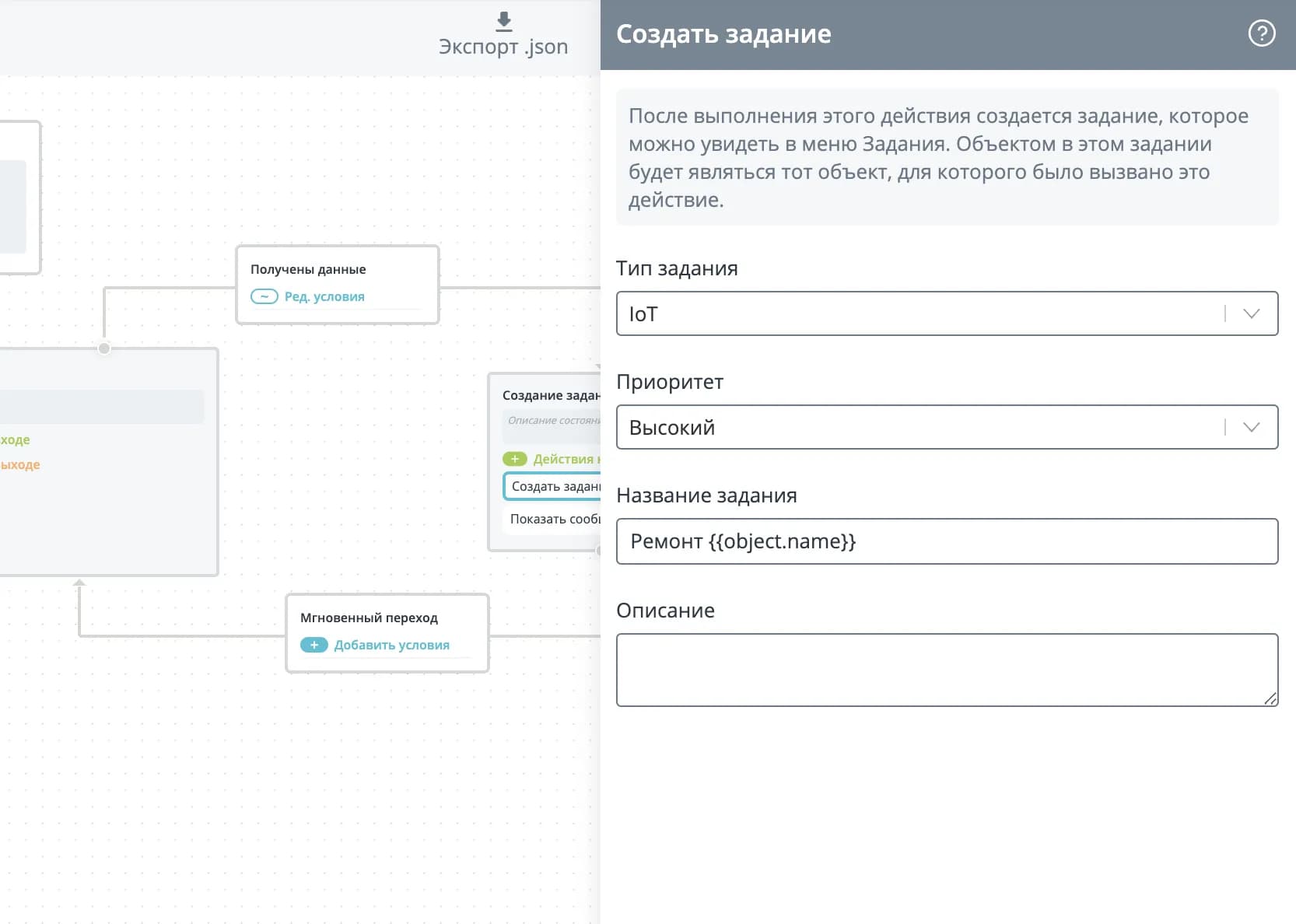
In the automaton, you can add an action "Create task". After executing this action, a task is created, and it appears in the "Tasks" menu. The automaton must be assigned to the object.
Please note! When creating a task from an automaton, there is a limitation: if there is an open, assigned, or in-progress task for the same object and with the same task type, the task will not be created. This is to ensure that an error in the automaton's logic does not lead to duplicate tasks.
Example of task creation automation
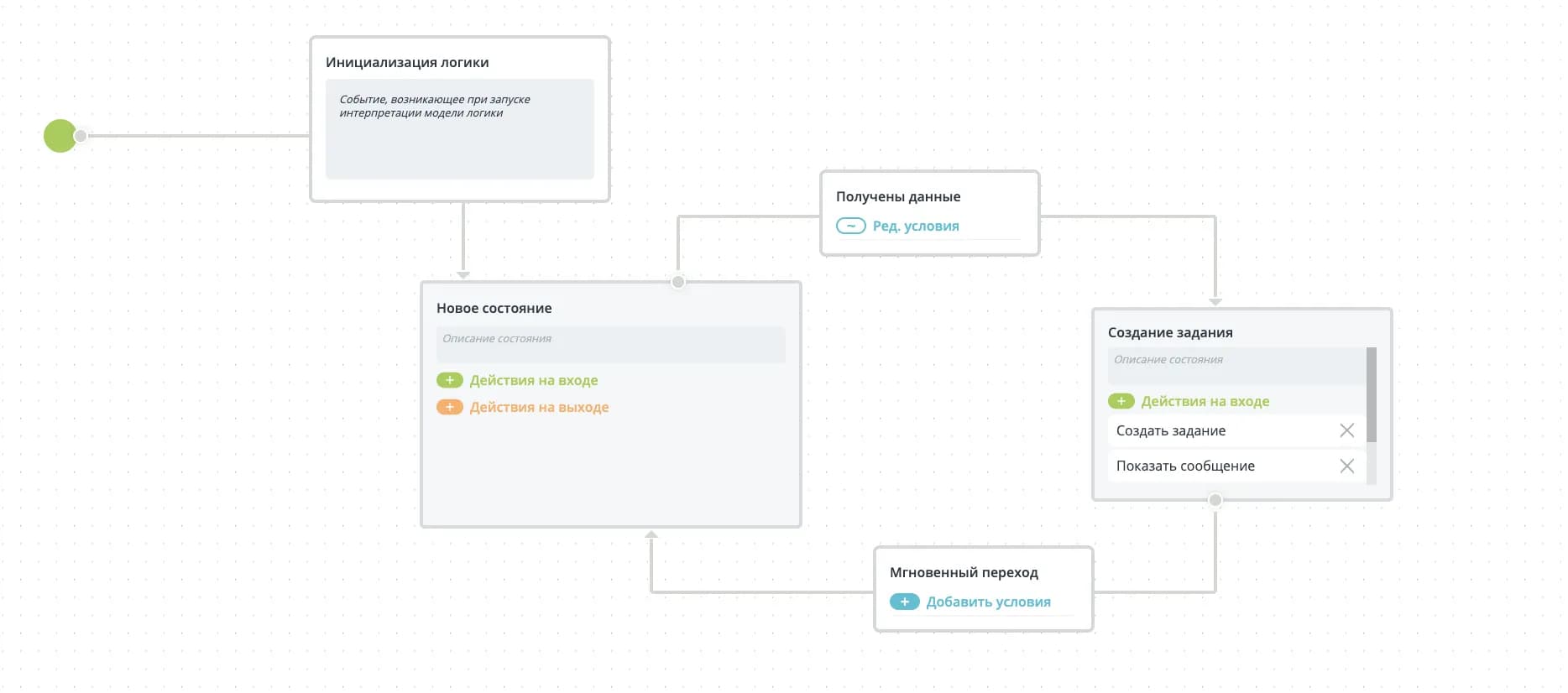
For demonstration, a logic automaton has been created: Automaton for error code.json.
General view of the logic automaton:
This logic works on the following principle:
- After initialization, it transitions to the "Waiting for packet" state;
- In the waiting state, the automaton evaluates incoming data packets from objects;
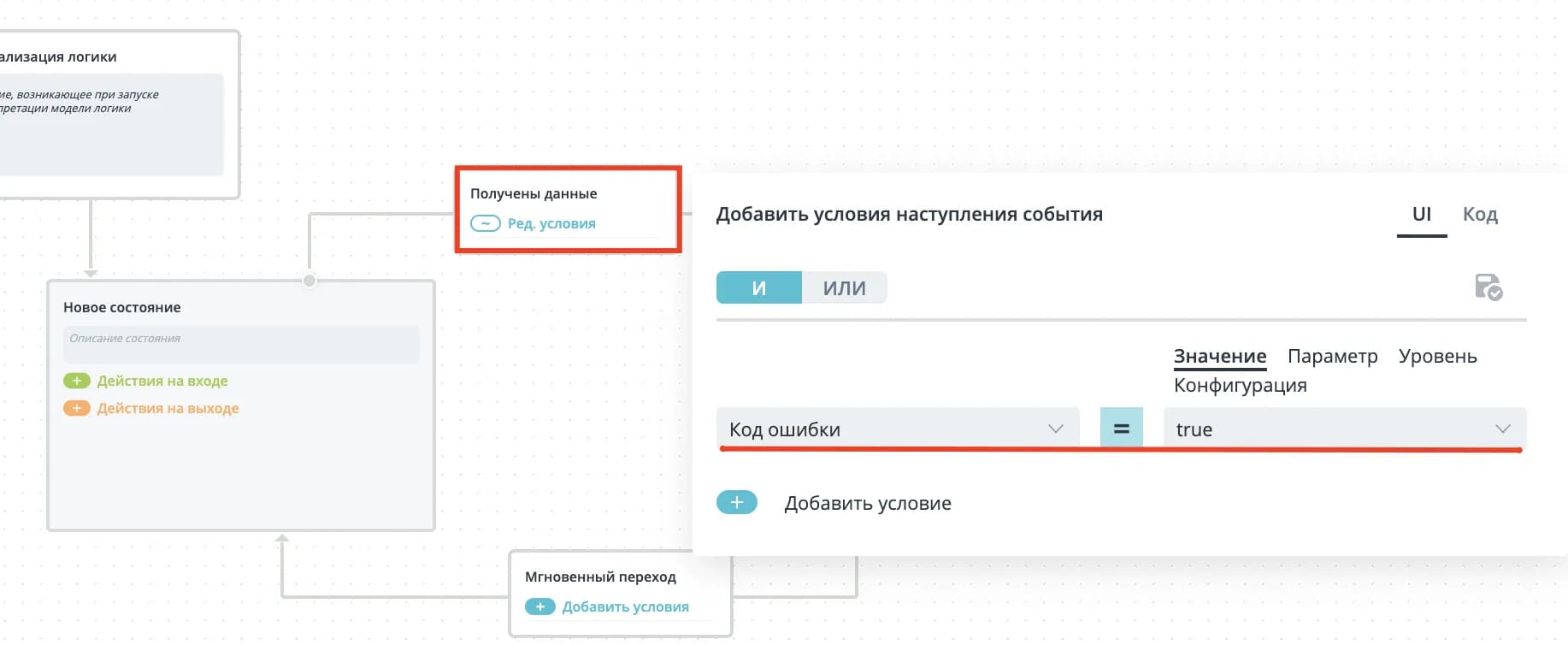
- If the object sends a value "Error code" — True, the logic moves to the "Create task" block;
Task creation condition:
- A task is created with the type configured in the automaton;
Configuration of the created task in the logic automaton:
-
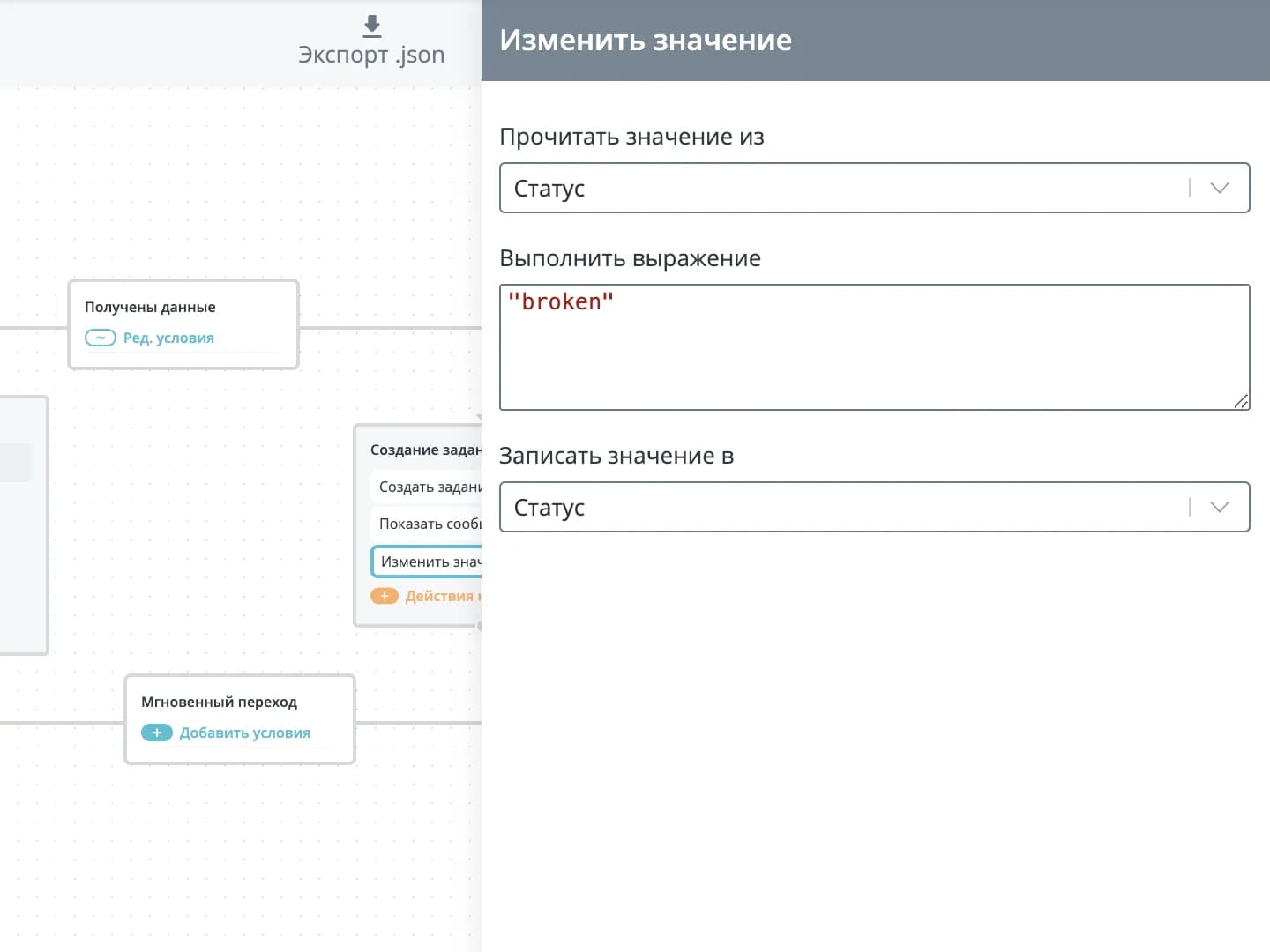
The object status is changed to "Breakdown";
-
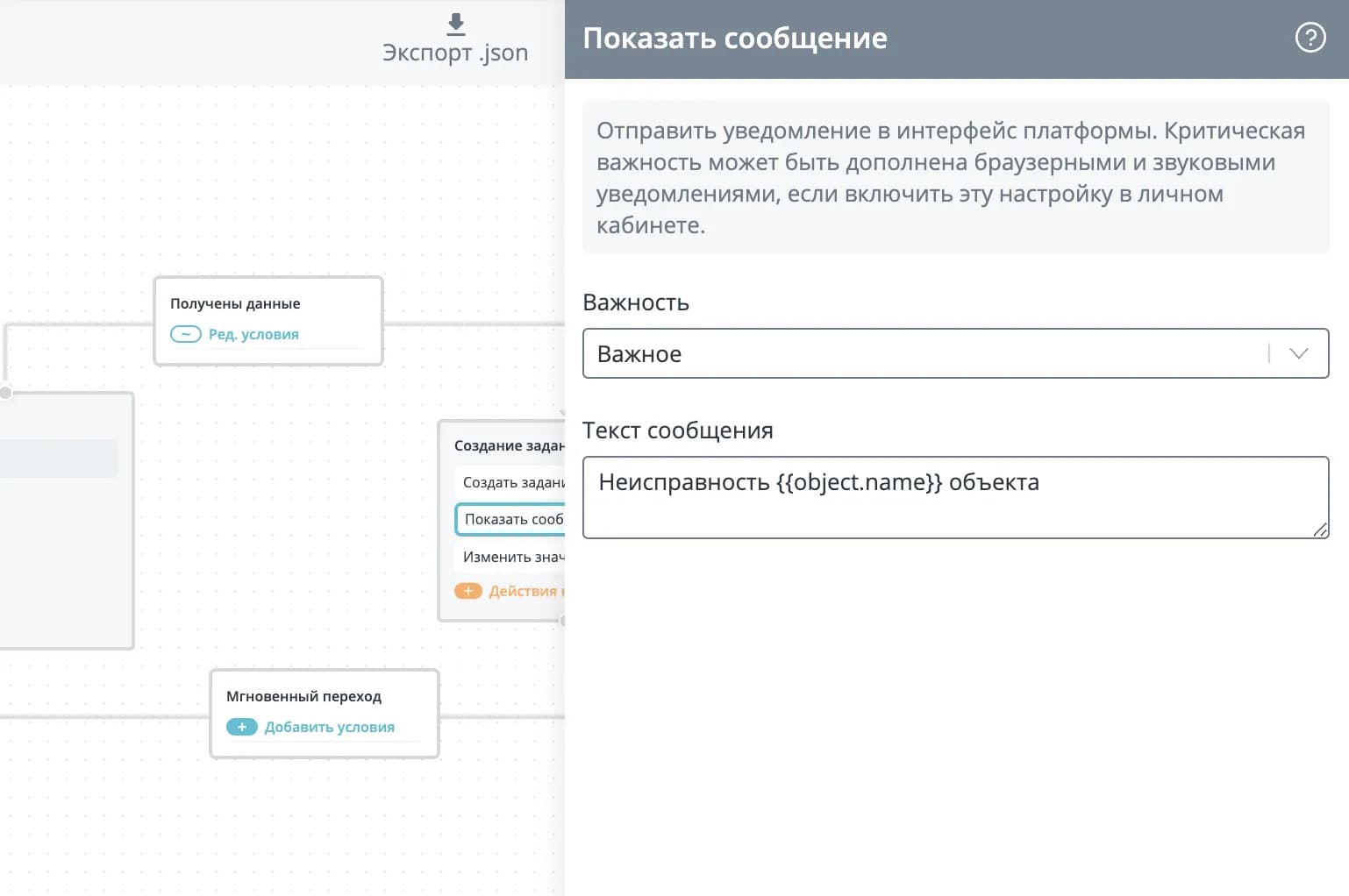
A notification about the created task is issued.
Configuring the notification in the logic automaton:
Change to "Breakdown":
This example demonstrates the possibility of automating task creation through a logic automaton. Other automation scenarios based on error codes or other equipment parameters are also possible.
RIC Service
In addition to automating task creation, users performing equipment maintenance can use our mobile application RIC Service. With its help, you can take a task and start troubleshooting equipment from anywhere. Thus, you can take multiple tasks and more efficiently perform planned and unscheduled equipment work. The interface is shown below.
Google Play link: RIC Service — Apps on Google Play.
YouTube link: RIC: Task Service. Mobile application for assignees.
RIC Service interface:
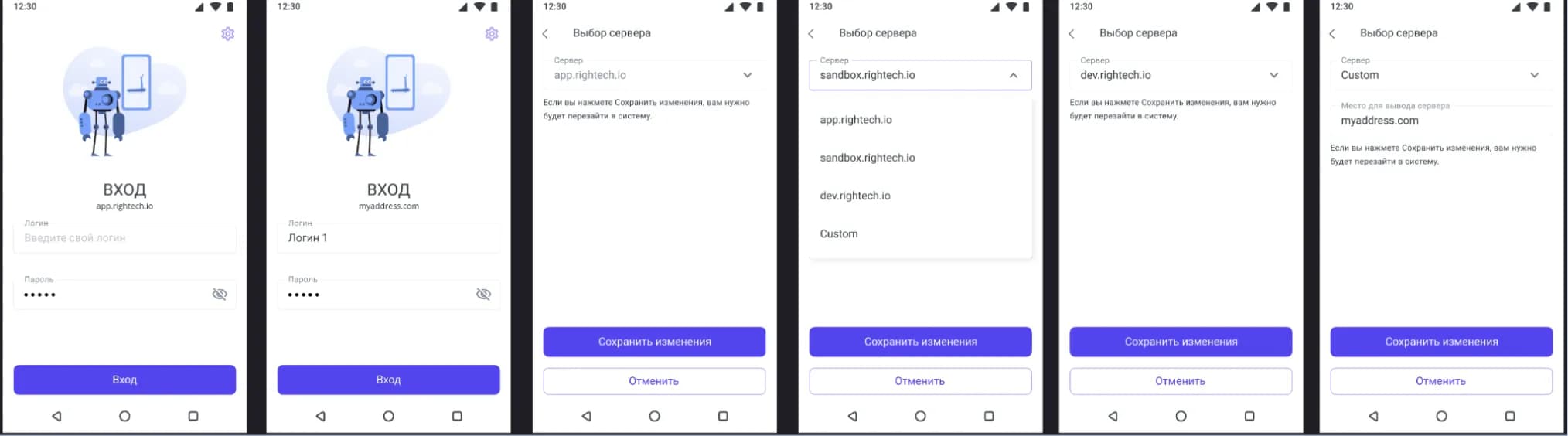
Server selection
When a assignee authenticates in the app, there is an option to select the server of their project. To do this, click the gear icon in the upper right corner of the authentication window.
Currently, 3 types of servers are available for selection:
- sandbox.rightech.io — test server;
- dev.rightech.io — public server;
- Custom — a personal server is specified, for example, if the platform domain for the project differs from the common domain.
Server selection:
Please note. When saving changes to the server selection, the app will require re-authentication!
Application workspace
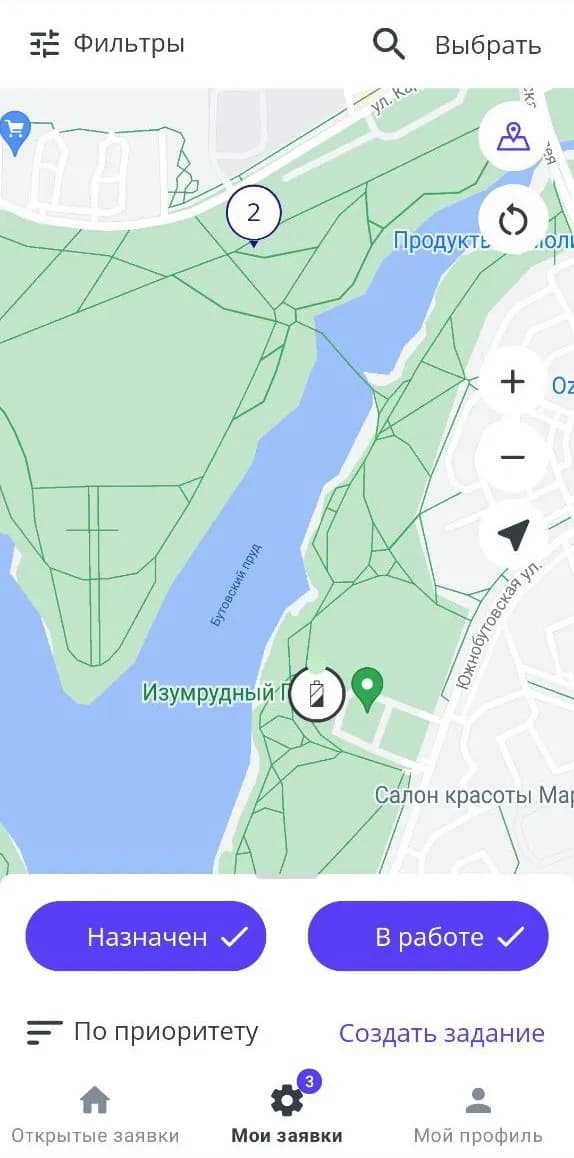
After selecting the server and authenticating the user, the main screen of the application is displayed. The main screen is a map, which by default opens the "My tasks" section.
On the map, the following functions are available to the user:
- Map displaying tasks and geozones;
- Map zoom for easy searching;
- "My location" button;
- "Refresh" button — refreshes the tasks on the map;
- Filter by task types;
- Geozone display settings button;
- Task banner with "Assigned" and "In progress" statuses;
- Ability to create a task;
- Ability to select multiple tasks and change the status to either "Assigned" or "In progress";
- Search for an object from the list, by name, or by scanning a QR code.
Section: My tasks
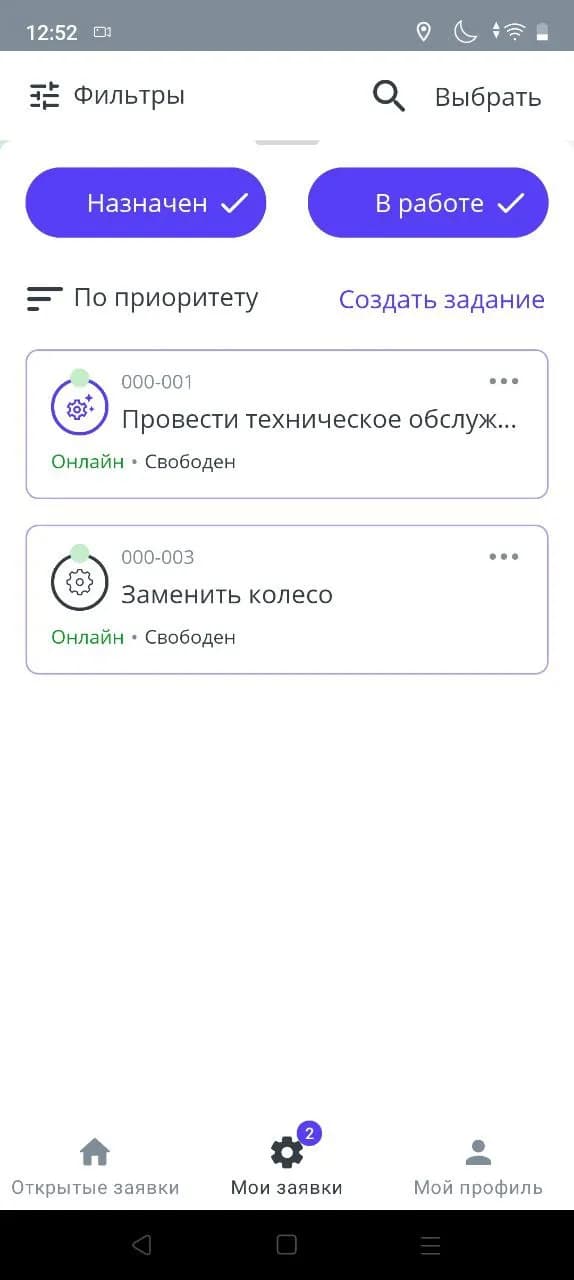
Switching to this user menu section is done via the button at the bottom of the interface. For greater information content, an icon with the number of current tasks is implemented, which takes into account the total number of tasks in "Assigned" and "In progress" status for the user.
User interface windows: My tasks:
The "Assigned" and "In progress" toggles allow displaying tasks of these types on the map.
Tasks with "In progress" and "Assigned" statuses:
Please note.
One of the types must be selected. The app will not allow both to be inactive.
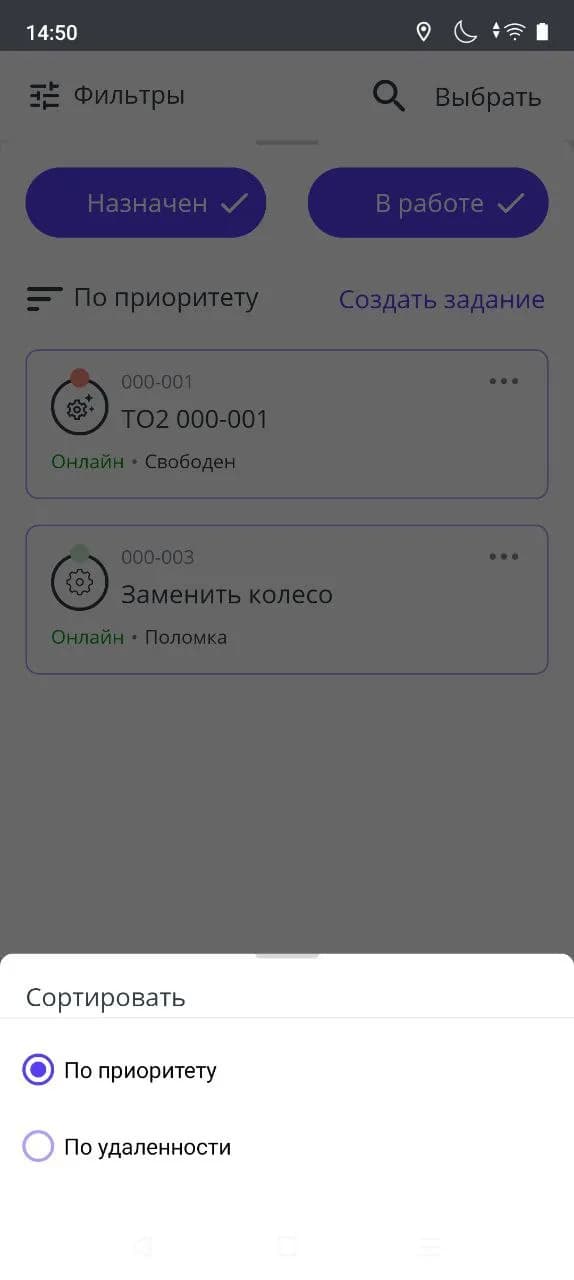
If you pull the banner up, the list of the user's tasks expands. In this state, you can additionally sort the task list by priority or by distance from the user's actual location.
Selecting sorting for the user's task list:
Section: Open tasks
Switching to this user menu section is done via the button at the bottom of the interface.
User interface windows: Open tasks:
In this section, the user can view on the map the current tasks for which no assignee has yet been assigned. Sorting by priority and distance from the user's actual location is available.
Working with tasks in the application
When opening a task, the assignee sees more detailed information: online/offline status, object state, task description, materials, and history.
The task history is necessary so that the assignee can review previous work on this object if necessary. This does not require a request through the operator. Everything can be viewed in the mobile app interface.
Task card (management and history):
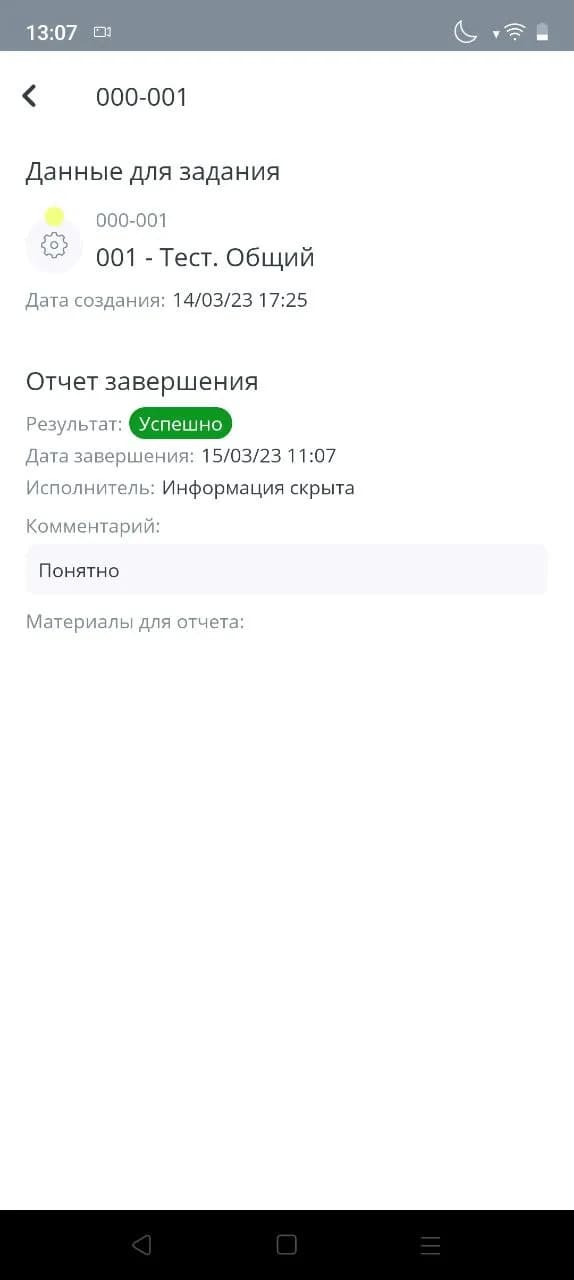
When clicking on a task card in the history, a detailed version opens for review. Closed tasks cannot be edited or deleted through the mobile app interface.
Task card (history):
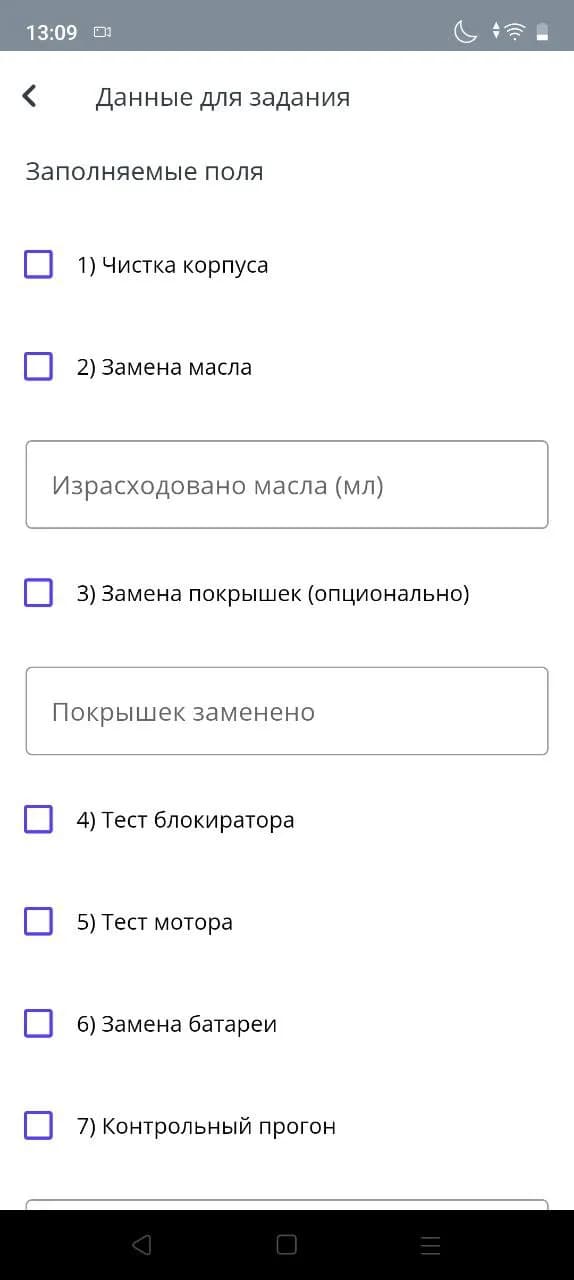
Working with a task can be done in several scenarios. If the task cannot be completed yet, but data needs to be entered into the protocol, then click the "Fill data" button. The assignee will be presented with fields to fill out. After filling in the required fields, the changes are applied after clicking the "Save changes" button.
Task card (fill data):

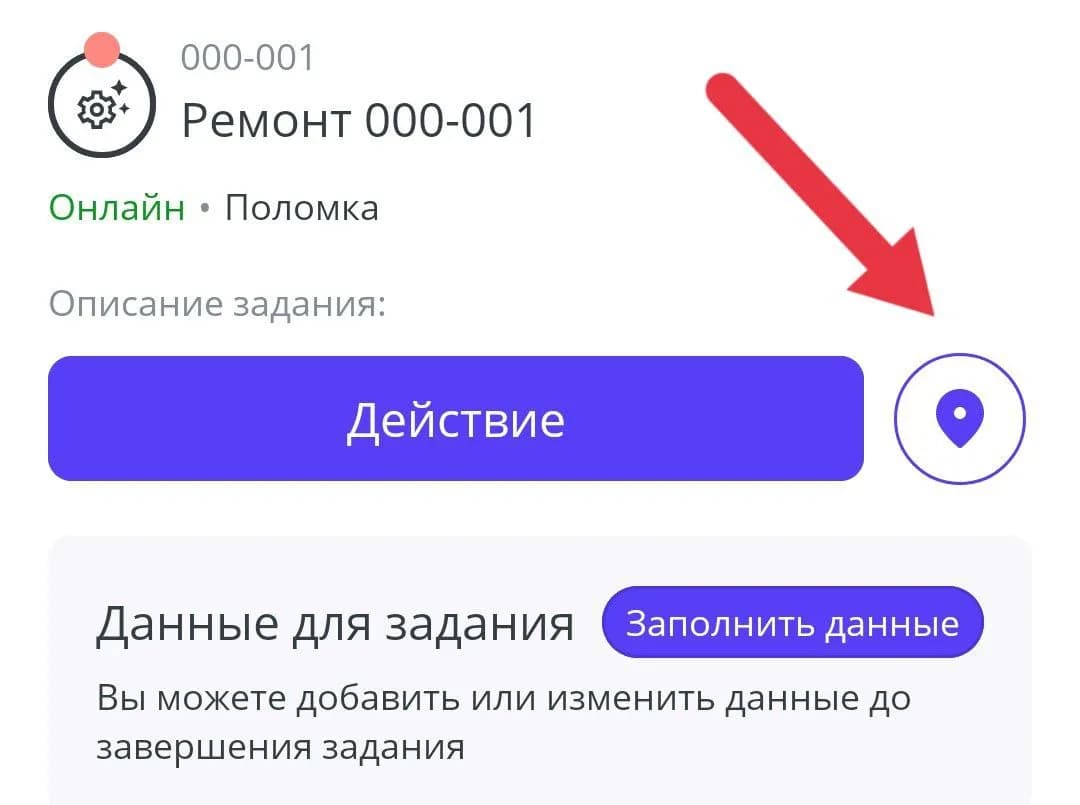
The geolocation button allows you to set the location point of the task (object) on Google Maps, which will allow you to build a route to it.
Task card (location):
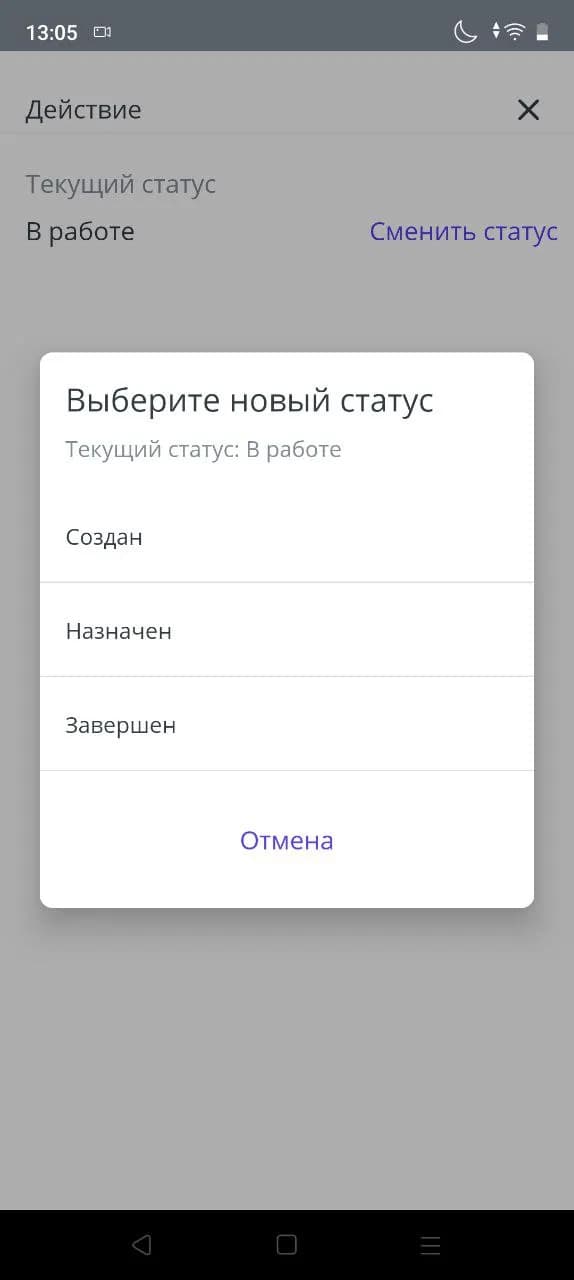
Clicking the "Action" button will open the task status change menu.
Task card (action):
In case of successful assignment, a message will appear.
Task card (assigned):

When selecting the "Completed" status, the assignee will be presented with a task protocol window. If data has already been entered previously, some fields will be pre-filled.
Task card (completion):

In the task card, mandatory fields are marked with a "*". Mandatory fields can be text and numeric fields, as well as the number of photos. More details on configuring mandatory fields for the report can be found in the Task Service section.
If the assignee tries to complete a task without filling in the mandatory fields, the app will not allow it. A tooltip message will also be displayed indicating the fields that need to be filled.
Task card (mandatory fields tooltip):
When all mandatory fields are filled, the assignee completes the task and a successful completion message appears in the app.
Task card (successful completion):
Creating a task from the app
If the assignee has the access right to create tasks, they can create them from the mobile app interface. To do this, in the "My tasks" and "Open tasks" sections, there is a "Create task" button.
Task card (create from app):
Clicking the button opens the task creation interface. Mandatory fields are highlighted with a "*". Object search is possible in several ways, including scanning the object's QR code with the camera.
Task details when creating from RIC Service:
If "Assign task to myself" is selected, the task will become available in the "My tasks" window. If the checkbox is left unchecked, the task will go to the "Open tasks" list and will be available for assignment to all assignees.
Roles and accesses (configuration options)
YouTube link: RIC: Task Service. Roles, Access and Task Type.
Configuring access for each role of the Task Service is an individual process that depends on the needs of a particular user or business.
We identify three main roles for the Task Service:
- Administrator — Configures and debugs the service, has the maximum set of accesses;
- Operator — Monitors the timely completion of tasks, has an average set of access rights for project configuration;
- Assignee (worker) — Executes tasks, has the least access rights for project configuration.
The main access rights for the role required to configure the Task Service are located in the console, in the "Tasks" section.
Access for creating tasks:
Conclusion
In conclusion, it is worth noting that the Task Service in the Rightech platform is a flexible tool that saves time and resources spent on maintaining IoT devices. This tool has a user-friendly interface, flexible display settings, and detailed statistics. Built-in automation and a mobile application further reduce the time between the occurrence of a malfunction and the return of the device to operation.
For questions regarding the configuration of the Task Service and any issues that arise, create requests for configuration and consultation in our customer support service — HelpDesk.