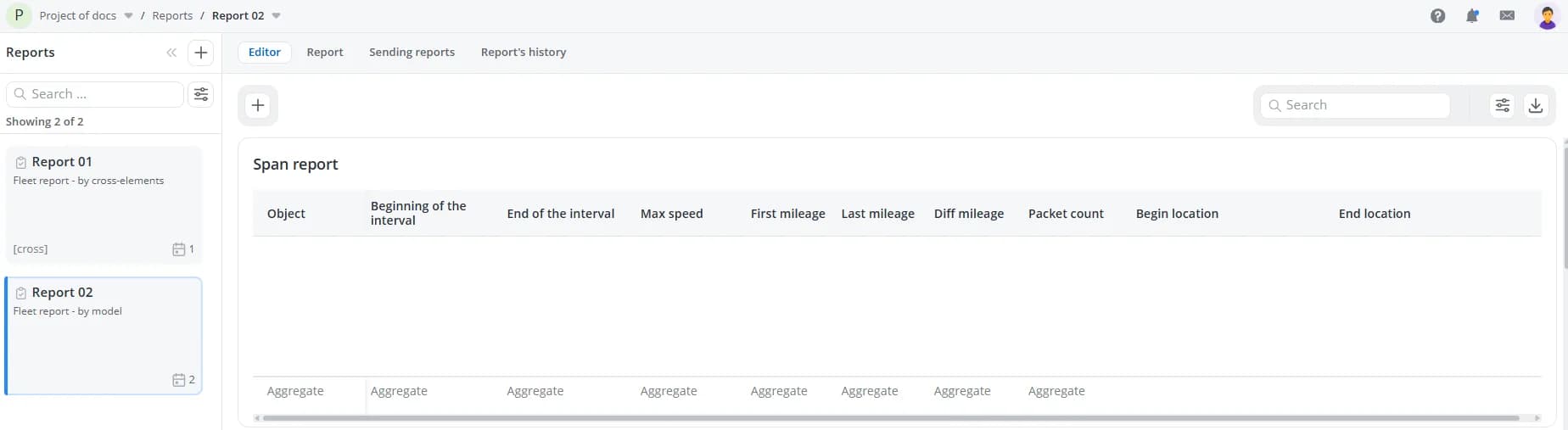
Creating a report
To create a new report, open the Reports tab and click the plus button.
Fill in the following fields:
- Name – the report name;
- Description – an optional detailed description of the report.
Select the report type:
- By cross-elements – this type of report uses cross-elements, which are abstract parameters that can be created directly within the report without being tied to a specific model. A report built with cross-elements is reusable and can be applied to objects based on different models after mapping the cross-elements to the corresponding model parameters for the target object;
- By parameters from model – this type of report is built directly from parameters defined in specific object models.
You can also import an existing report from a file or a link.
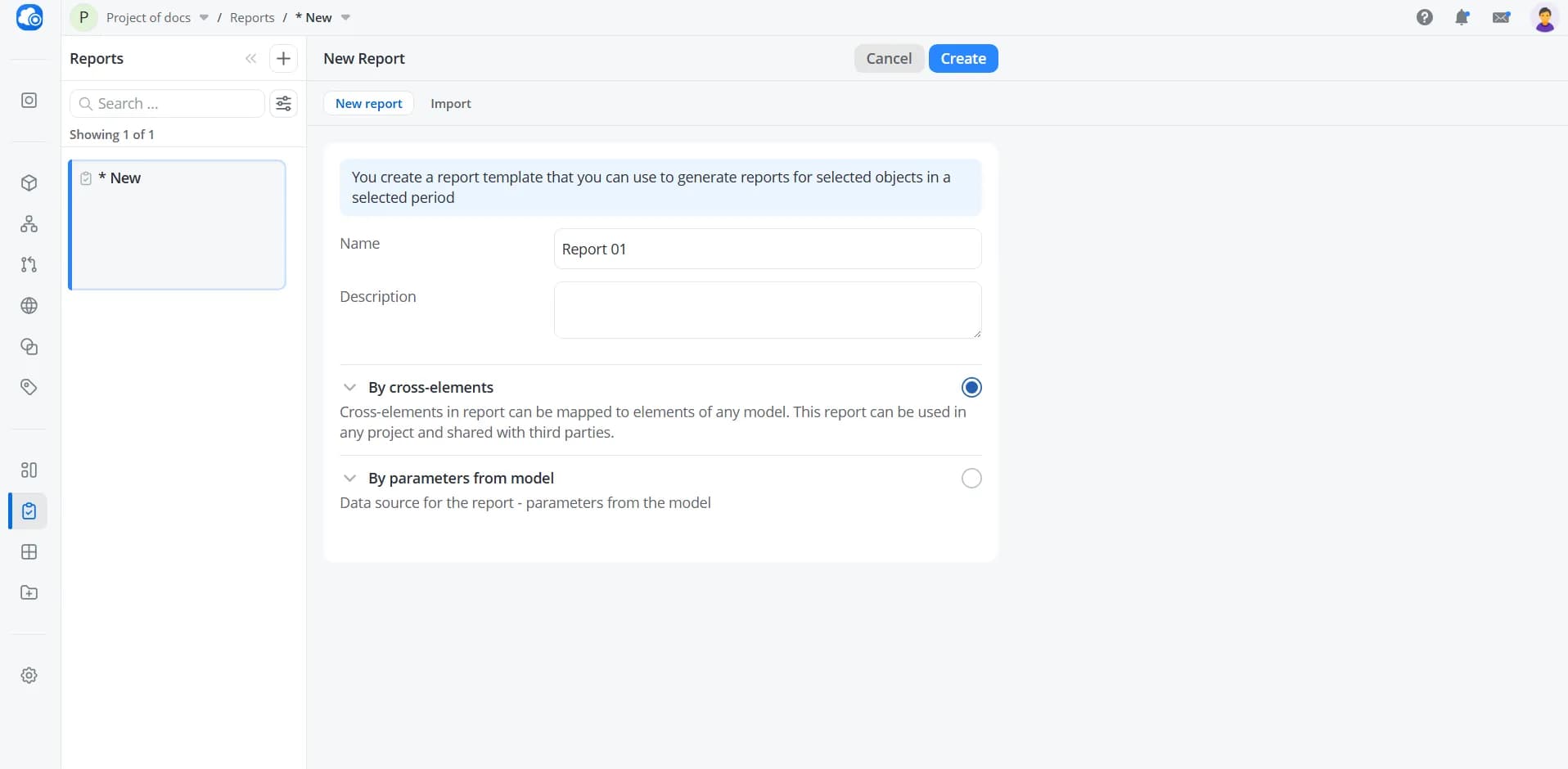
Click Create. A blank workspace will open where you can add and arrange tables – the primary building blocks of a report.
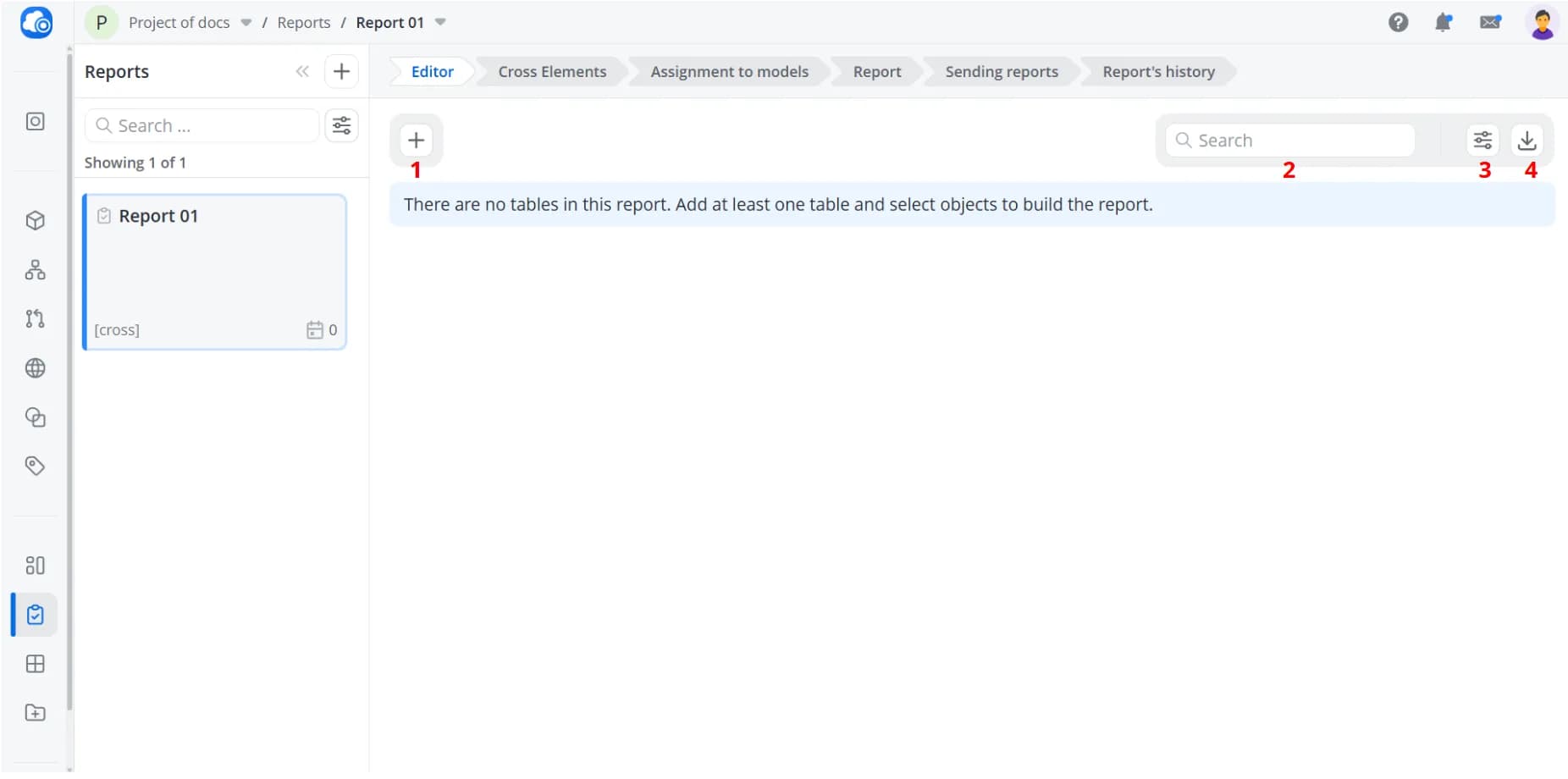
1 – Add table: Create a new table in the workspace
2 – Search: Find specific data within the report. When a search query is entered, only matching rows are displayed in the tables
3 – Settings: Change the font size used for report data
4 – Download report: Export the report in one of the available formats
2 – Search: Find specific data within the report. When a search query is entered, only matching rows are displayed in the tables
3 – Settings: Change the font size used for report data
4 – Download report: Export the report in one of the available formats
Creating a table
A table is a report element used to display large amounts of data in a structured format. To create a table, click
Add table. The table configuration form will open.
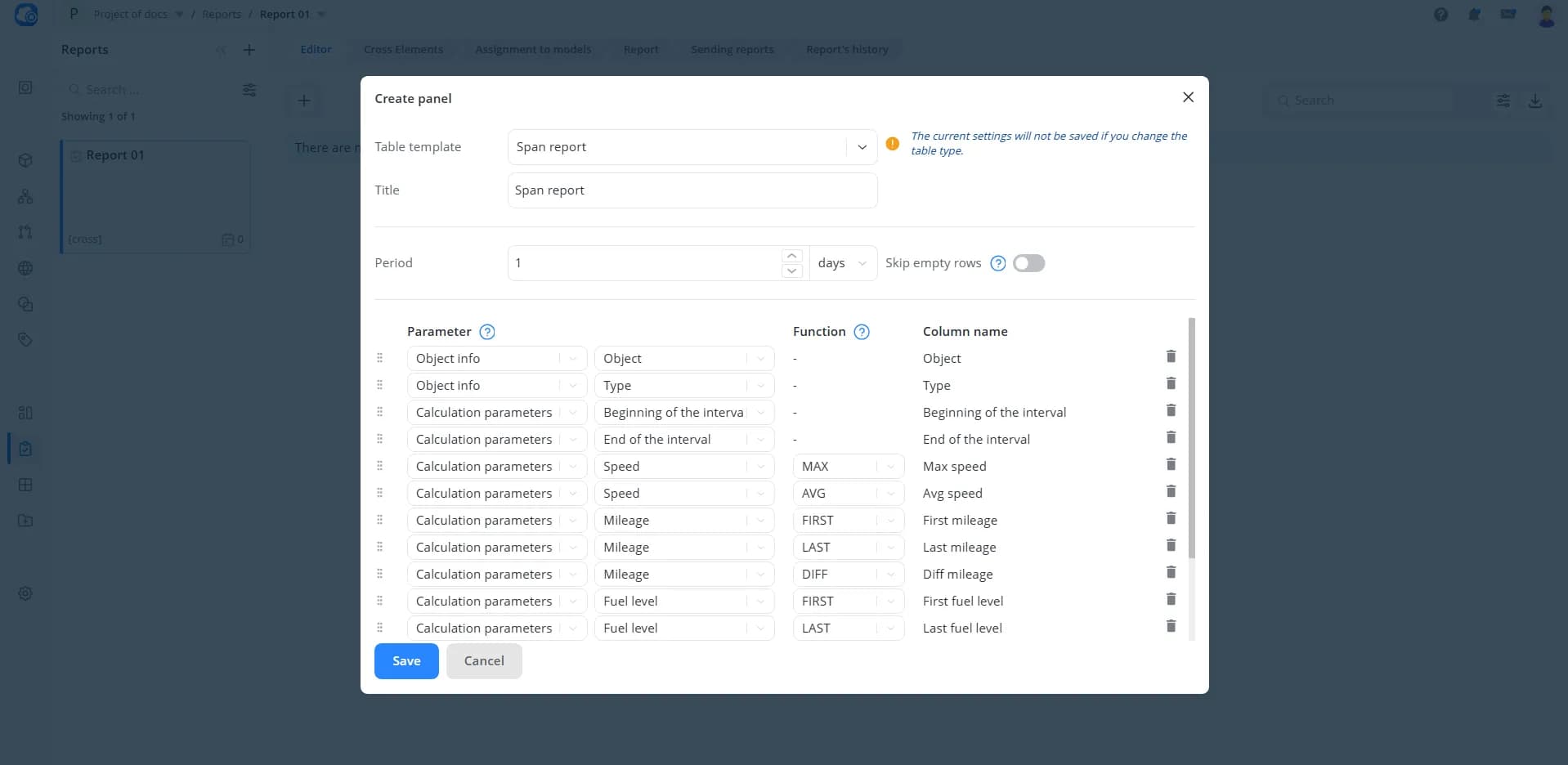
Select a Table template:
- Span report – displays parameter changes over the selected time period;
- Event report – displays information about all recorded object events. These may include built-in events (Online/Offline, Enter/Leave the geofence/room, Command sent/completed, etc.) as well as custom events defined in your model;
- Event count report – provides statistical summaries of recorded object events;
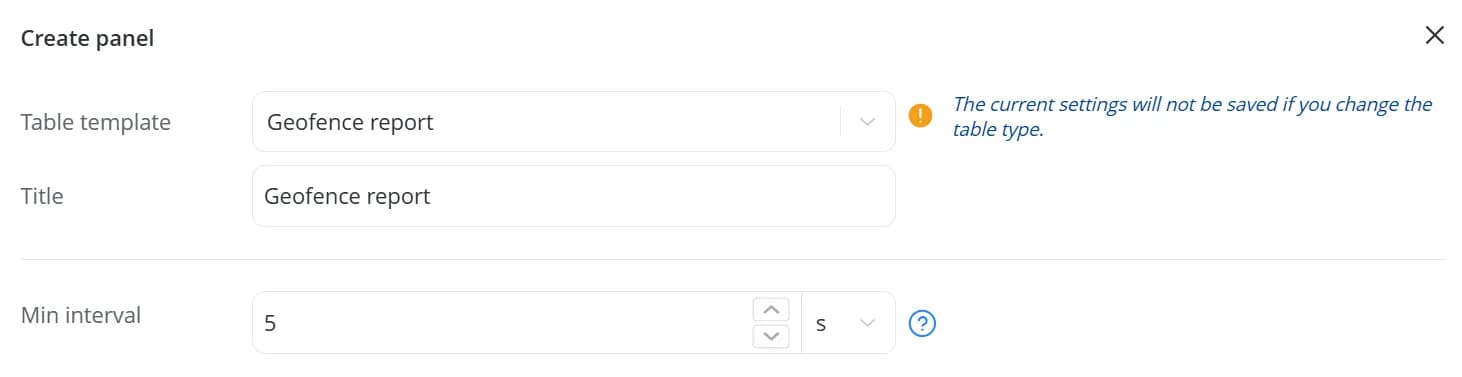
- Geofence report – analyzes how an object moves between geofences. The report records entry and exit events only for geofences assigned to the object. Each row represents a period during which the object remained within a geofence. The minimum time required for a geofence entry to be considered valid is configurable and defaults to 5 seconds;
- Report on premises – analyzes movement between rooms when using an Indoor positioning system (IPS). The report records room entry and exit events only within geofences assigned to the object. Each row represents a period during which the object remained in a room. The minimum time required for a room entry to be considered valid is configurable and defaults to 5 seconds;
- Trips report – displays parameter changes during trips. A trip is defined as the time interval between vehicle stops. A stop is recorded when the device remains stationary for more than five minutes. Only trips lasting longer than five minutes are included in the report;
- Refuel report – records vehicle refueling events. A refueling event is detected when the fuel level increases continuously for more than one minute while the vehicle speed is zero;
- Fuel report – provides fuel consumption information based on Fuel level sensors (FLS) and Fuel consumption sensors (AbsFCS);
- Fuel discharge report – records instances of fuel being drained from a vehicle. A fuel drain event is detected when the fuel level decreases rapidly while the vehicle speed is zero.
💡
A report can contain multiple tables, but only one table of each type may be added.
You can optionally specify a table name. The table name is displayed at the top of the table.
Additional settings are available depending on the selected table template:
- For a Span report, you can configure a Period. The selected reporting interval will be divided into segments according to the specified period.
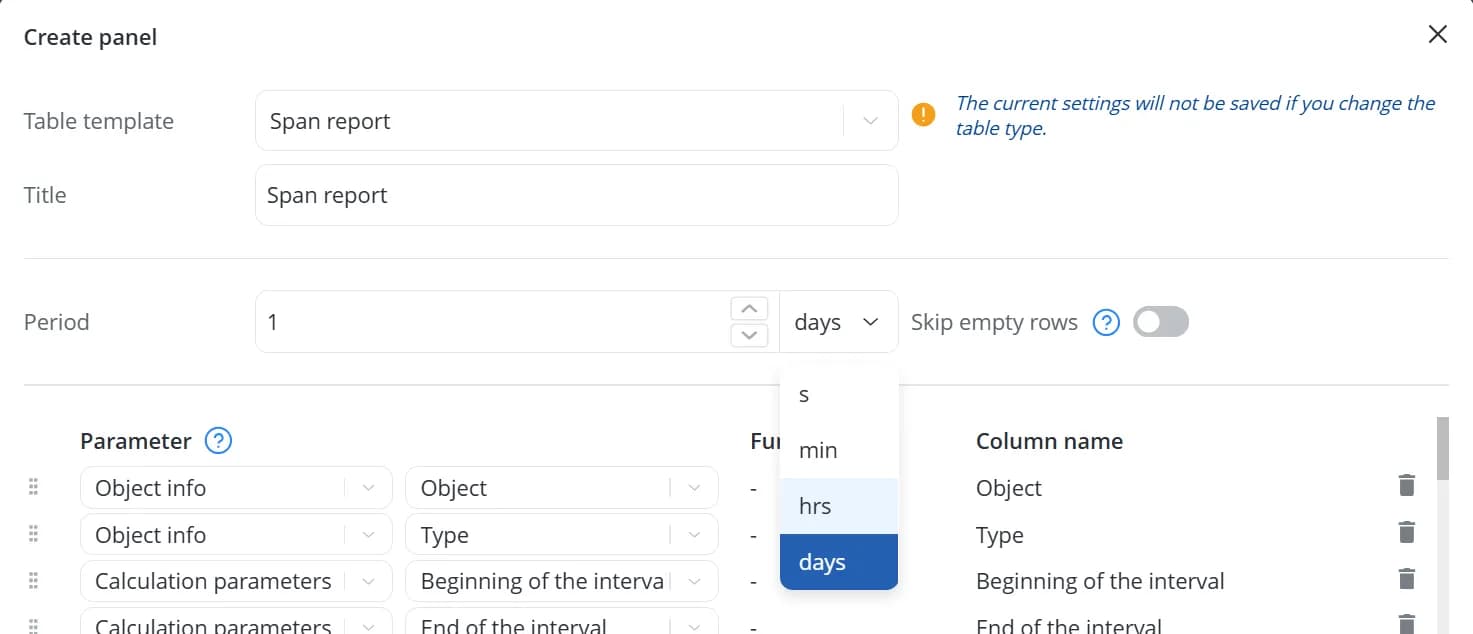
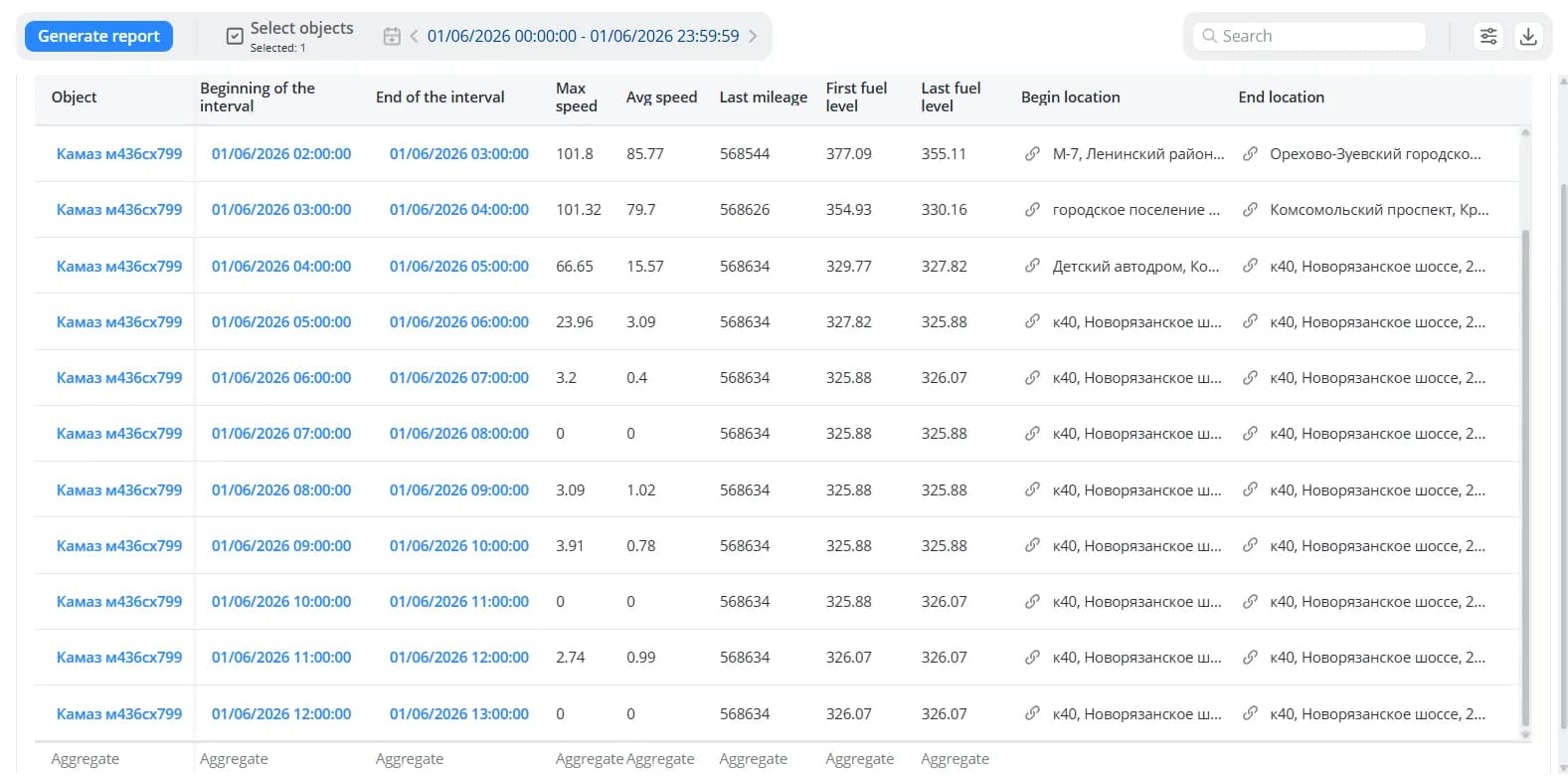
For example, if the period is set to 1 hour and the report covers a full day, the table will contain 24 rows – one for each hour.
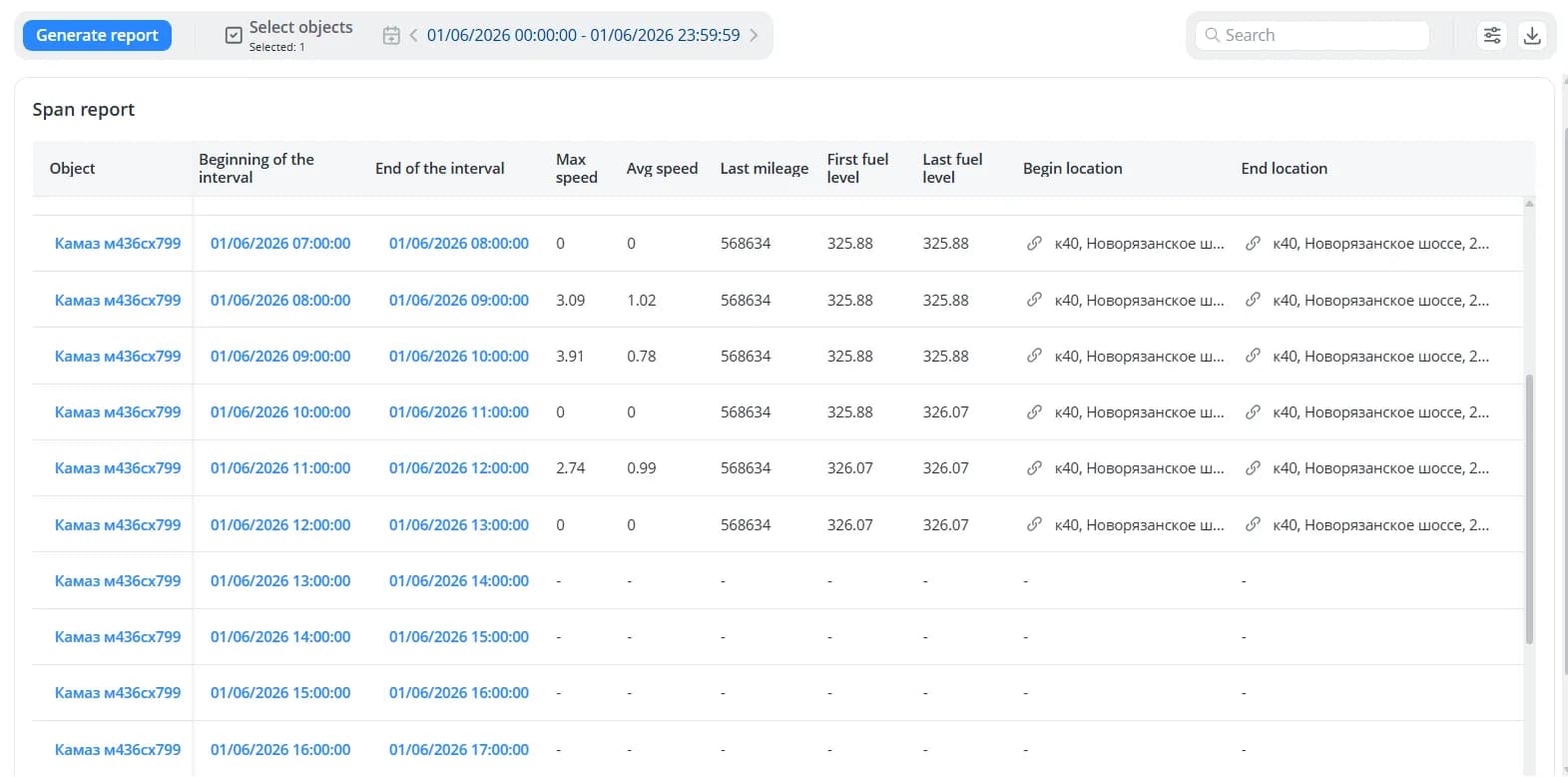
When using very short intervals, some periods may contain no data. In such cases, the corresponding table rows will
display dashes. To exclude these empty rows, enable Skip empty rows. The report will then omit intervals for which
no data was received.
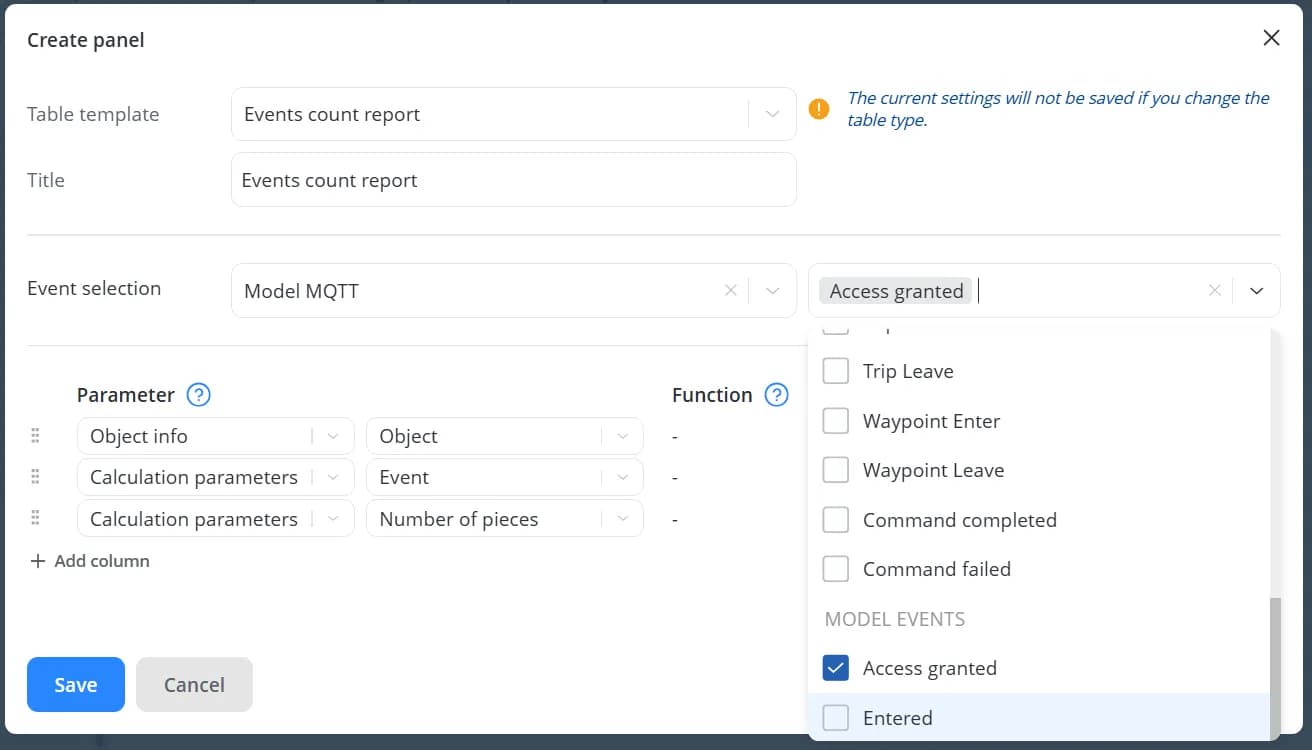
- For Event report and Event count report, you can select model-specific events that should be tracked in addition to built-in events.
- For Geofence report and Report on premises, you can specify the Min interval required for an object to be considered present within a geofence or room.
The next step is configuring the table structure. By default, the table contains a set of columns appropriate for the
selected table template. You can modify these columns, remove them, or add new ones.
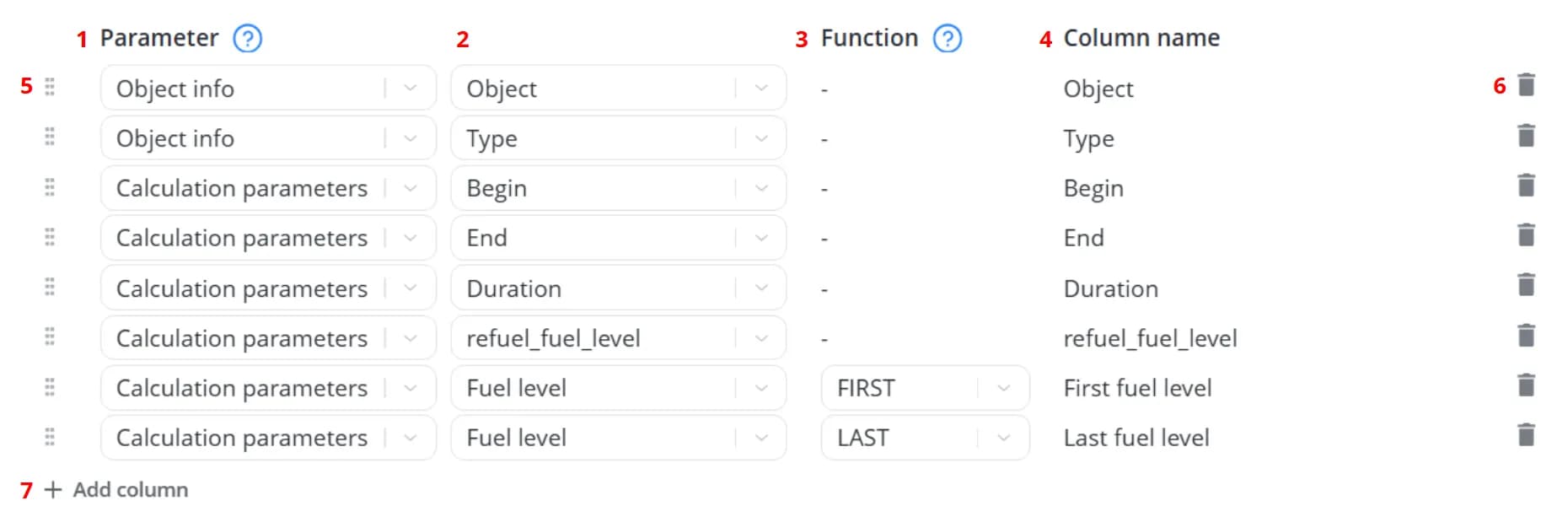
1 – Category used to select a report parameter:
- Calculation parameters
- Object info
- Cross-elements / Parameters of model
2 – Depending on the selected category, choose a calculated parameter, object property, cross-element, or model
parameter
3 – Aggregation function used to calculate the column value:
3 – Aggregation function used to calculate the column value:
- MIN/MAX – minimum or maximum value of the parameter during the selected period;
- AVG – average value of the parameter during the selected period;
- FIRST/LAST – first or last recorded value of the parameter during the selected period;
- DIFF – difference between the last and first values of the parameter during the selected period;
- SUM – sum of all parameter values received during the selected period
4 – Column name displayed in the table. By default, it is generated from the parameter name and the selected aggregation
function
5 – Reorder columns using drag-and-drop
6 – Delete column
7 – Add column
5 – Reorder columns using drag-and-drop
6 – Delete column
7 – Add column
Report parameters
Calculation parameters
The list of Calculation parameters available for each table depends on the selected table template. All
Calculation parameters are listed in the table below.
| Parameter | Used In | Description |
|---|---|---|
| Model | Span Report, Trips report, Refuel report, Fuel report | The name of the selected object's model. Click it to open the model tree. |
| Beginning of the interval | Span Report, Trips report, Fuel report | For the Span Report – The start time of the selected reporting interval, taking into account any period segmentation configured in the table settings. For the Trips report – The start time of the recorded trip. For the Fuel report – The timestamp of the first data packet received from the device within the selected reporting interval |
| End of the interval | Span Report, Trips report, Fuel report | For the Span Report – The end time of the selected reporting interval, taking into account any period segmentation configured in the table settings. For the Trips report – The end time of the recorded trip. For the Fuel report – The timestamp of the last data packet received from the device within the selected reporting interval |
| spend_fuel_level | Span Report, Geofence report, Trips report | For the Span Report – Total fuel decrease during the selected interval. Calculated as the sum of all decreases in fuel level between consecutive data packets received from the device between Beginning of the interval and End of the interval. For the Geofence report – Total fuel decrease while the object was inside a geofence. Calculated as the sum of all decreases in fuel level between consecutive data packets received from the device between Enter the geofence and Leave the geofence. For the Trips report – Total fuel decrease during the recorded trip. Calculated as the sum of all decreases in fuel level between consecutive data packets received from the device between Beginning of the interval and End of the interval |
| refuel_fuel_level | Span Report, Geofence report, Trips report, Refuel report | For the Span Report – Total increase in fuel level during the selected interval. Calculated as the sum of all increases in fuel level between consecutive data packets received from the device between Beginning of the interval and End of the interval. For the Geofence report – Total increase in fuel level while the object was inside a geofence. Calculated as the sum of all increases in fuel level between consecutive data packets received from the device between Enter the geofence and Leave the geofence. For the Trips report – Total increase in fuel level during the selected interval. Calculated as the sum of all increases in fuel level between consecutive data packets received from the device between Beginning of the interval and End of the interval. For the Refuel report – The difference between the final and initial fuel levels after refueling: refuel_fuel_level = Last fuel level - First fuel level |
| Packet count | Span Report | The number of data packets received from the device between Beginning of the interval and End of the interval |
| Begin location | Span Report, Event report, Geofence report, Trips report, Refuel report, Fuel discharge report | The object's location at the beginning of the time interval. Click it to open the location on the map |
| End Location | Span Report, Event report, Geofence report, Trips report, Refuel report, Fuel discharge report | The object's location at the end of the time interval. Click it to open the location on the map |
| Source event | Event report | The name of the event that occurred immediately before the most recent event |
| Target event | Event report | The name of the most recent event. It becomes the Source event when the next event occurs |
| Event date | Event report | The date on which the Source event occurred |
| Event start | Event report | The time when the Source event occurred |
| Event end | Event report | The time when the Target event occurred |
| Event duration | Event report | The time elapsed between Event start and Event end |
| Event | Event count report | The name of the event |
| Number of pieces | Event count report | The number of events recorded during the selected time interval |
| Geofence | Geofence report, Report on premises | The name of the monitored geofence. Click it to open the geofence in the Geofences tab |
| Enter the geofence | Geofence report | The time when the object entered the geofence |
| Leave the geofence | Geofence report | The time when the object exited the geofence |
| Duration of stay | Geofence report | The time elapsed between Enter the geofence and Leave the geofence |
| Floor | Report on premises | The name of the floor where room entry and exit events are being tracked |
| Room | Report on premises | The name of the monitored room |
| Enter the room | Report on premises | The time when the object entered the room |
| Leave the room | Report on premises | The time when the object exited the room |
| Duration | Report on premises, Trips report, Refuel report, Fuel discharge report | For the Report on premises – The time elapsed between Enter the room and Leave the room. For the Trips report – The time elapsed between Beginning of the interval and End of the interval. For the Refuel report – The time elapsed between the Start and End of the refueling event. For the Fuel discharge report – The time elapsed between the Start and End of the fuel drain event |
| Fuel consumption per 100 km | Trips report | The calculated fuel consumption per 100 km, defined as the ratio of fuel level change to mileage change between Beginning of the interval and End of the interval, expressed in liters per 100 km: Fuel consumption per 100 km = (Diff fuel level / Diff mileage) × 100 |
| Fuel consumption, km/L | Trips report | The distance traveled per unit of fuel consumed. It is calculated as the ratio of mileage change to fuel level change between Beginning of the interval and End of the interval: Fuel consumption, km/L = Diff mileage / Diff fuel level |
| Begin | Refuel report | The start time of the recorded refueling event |
| End | Refuel report | The end time of the recorded refueling event |
| Consumed by FLS | Fuel report | The calculated amount of fuel consumed between Beginning of the interval and End of the interval, determined as the difference between the fuel level at the beginning and end of the interval, adjusted for any refueling events recorded during the same period: Consumed by FLS = First fuel level - Last fuel level + refuel_fuel_level |
| Consumed by AbsFCS | Fuel report | The calculated amount of fuel consumed between Beginning of the interval and End of the interval, determined as the difference between the absolute fuel consumption values at the beginning and end of the interval: Consumed by AbsFCS = First fuel consumption (abs) - Last fuel consumption (abs) |
| Avg consumption by FLS | Fuel report | The calculated average fuel consumption, determined as the ratio of fuel consumed by FLS to mileage over the interval, expressed in liters per 100 km: Avg consumption by FLS = (Consumed by FLS / Diff mileage) × 100 |
| Avg consumption by AbsFCS | Fuel report | The calculated average fuel consumption, determined as the ratio of fuel consumed by AbsFCS to mileage over the interval, expressed in liters per 100 km: Consumed by AbsFCS = (Consumed by AbsFCS / Diff mileage) × 100 |
| Consumed by FLS on move | Fuel report | |
| Consumed by FLS on idle | Fuel report | |
| Consumed by AbsFCS on move | Fuel report | |
| Consumed by AbsFCS on idle | Fuel report | |
| Start | Fuel discharge report | The start time of the recorded fuel drain event |
| End | Fuel discharge report | The end time of the recorded fuel drain event |
| Discharge value | Fuel discharge report | The difference between the initial and final fuel levels after the fuel drain event |
| Speed, Mileage, Battery, On ignition, Fuel level, Fuel consumption (abs), Lock closed | All Reports | A set of parameters that can be added by default to any report table |
If you add Calculation parameters from the Table subcategory (such as Speed, Mileage, etc.) to a report
of type By parameters from model, you must map these parameters to the corresponding parameters in the model.
Otherwise, the report columns associated with these parameters will contain dashes (
–), because the system will not
know which model parameters should be used for the calculations.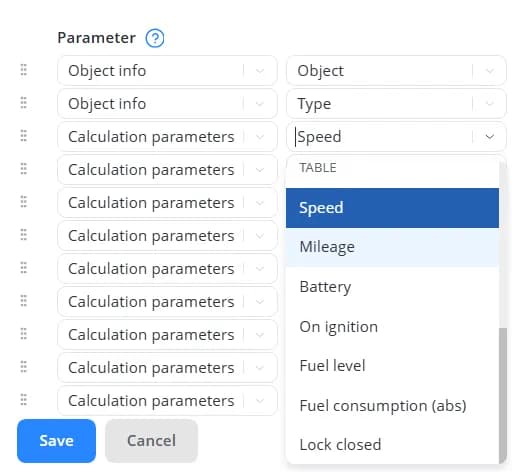
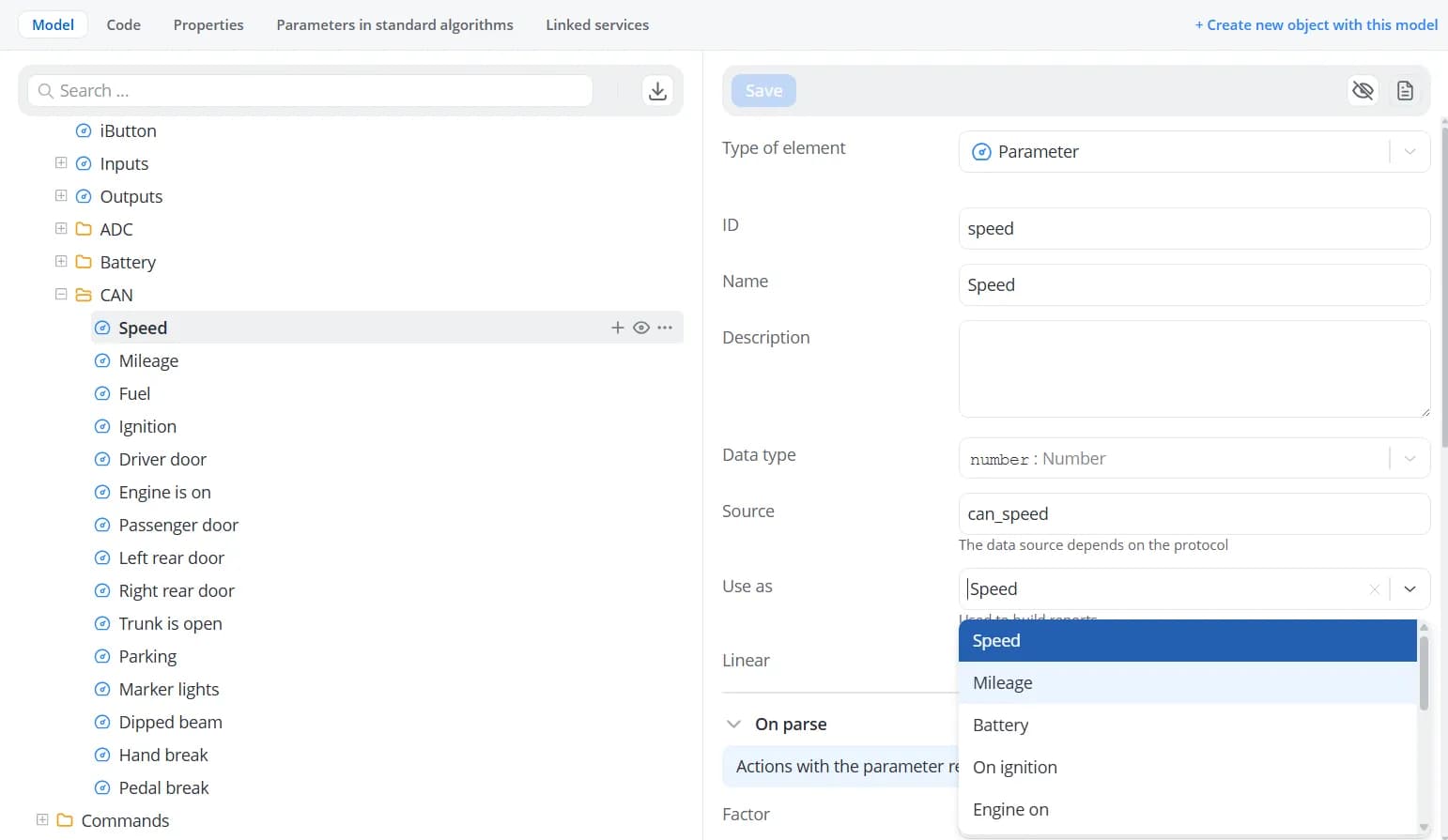
To create these mappings, open the root node of the model tree and click Extensions. In the panel that opens on the
right, enable the General transport parameters extension.
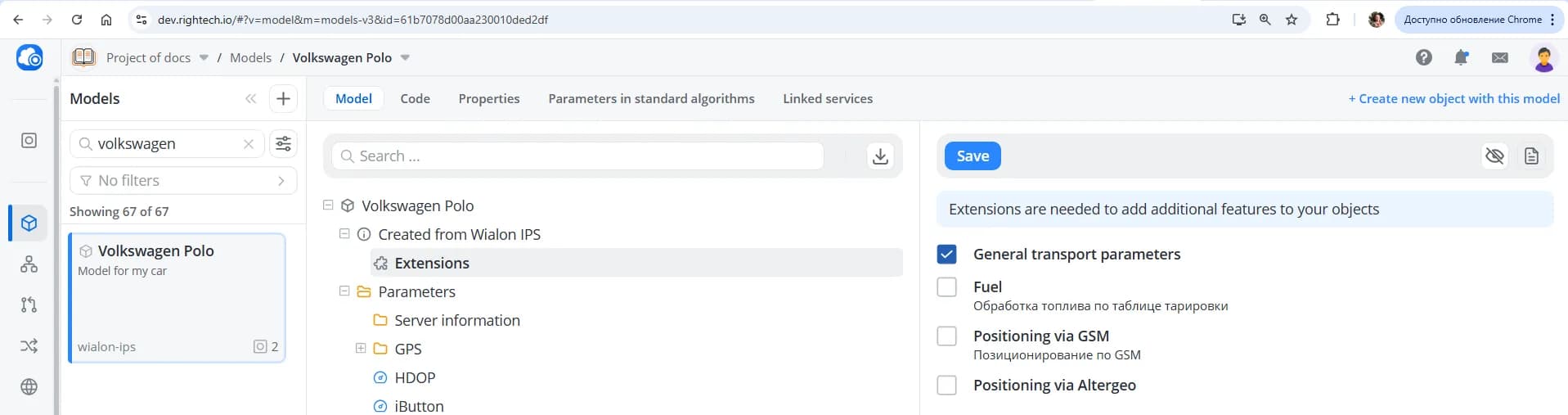
Click Save. After that, an additional Use as option will appear for all model parameters. Use this option to
specify which calculated report parameter each model parameter should correspond to.
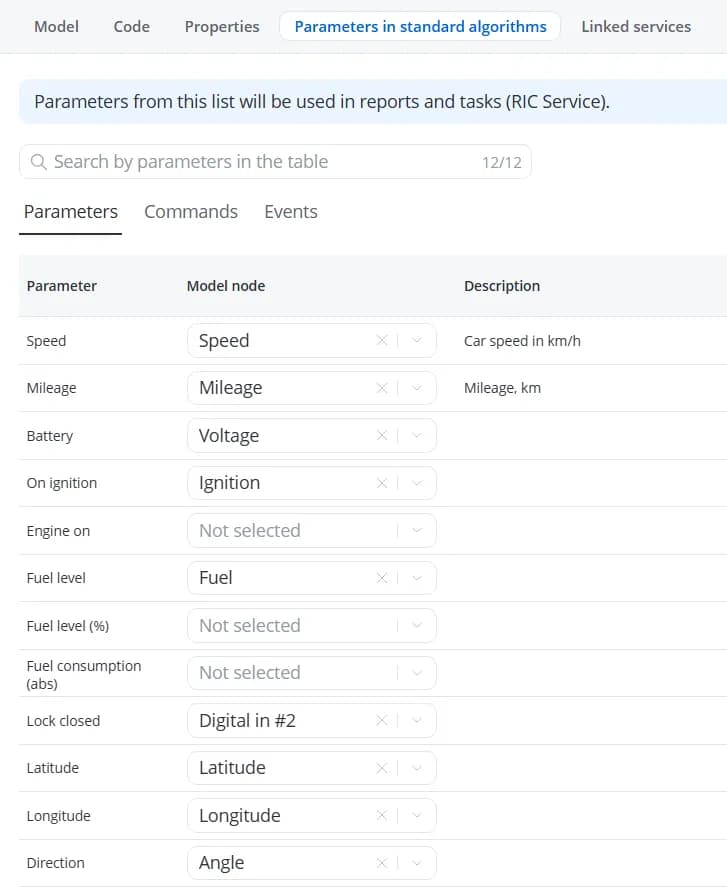
You can view the complete list of parameter mappings on the Parameters in standard algorithms tab.
Object information
The next category of parameters that can be added to tables of any type is Object info.
| Parameter | Description |
|---|---|
| Object | The name of the selected object. Click it to open the object's history for the selected time interval |
| ID | The unique object identifier assigned when the object is created in the platform. This value cannot be changed and is used to identify the object when making API requests. In the object's API link, this identifier is stored in the _id field |
| Type | The object type, used as a string tag for synchronizing the platform's internal services |
| Description | The description specified for the object |
Depending on the report type, the table will also include one of the following parameter categories:
- Cross-elements – available for reports created with the By cross-elements type. Here, you can choose one of the cross-elements created in the report to display in the table. Before generating the report, all cross-elements used in the report must be mapped to specific model parameters. To do this, open the Assignment to models tab and create the mappings in the same way as when configuring cross-elements before launching a scenario.
- Parameters of model – available for reports created with the By parameters from model type. Here, you can choose a
parameter from a specific model to display in the table. If the report is generated for an object whose model does not
contain that parameter, a dash (
–) will be displayed in the corresponding table cells.
After adding all the required parameters to the table, click Save. The new table will appear in the report editor.