Sending reports
You can configure automatic scheduled report delivery by e-mail. To do this, open the Sending reports tab.
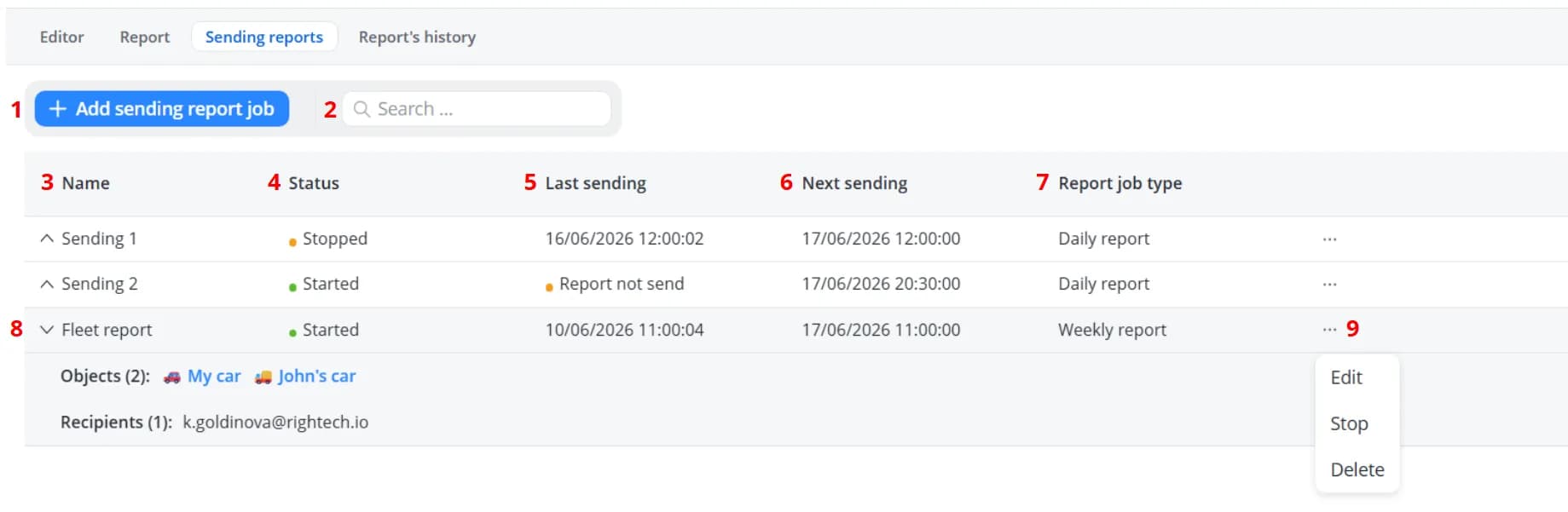
1 – Add a new rule for automatically sending reports on a schedule
2 – Search deliveries by the Name column
3 – Delivery name
4 – Delivery status, which corresponds to the Activate sending report job checkbox in the delivery settings:
2 – Search deliveries by the Name column
3 – Delivery name
4 – Delivery status, which corresponds to the Activate sending report job checkbox in the delivery settings:
- Stopped – the report is not being sent;
- Started – the report is being sent
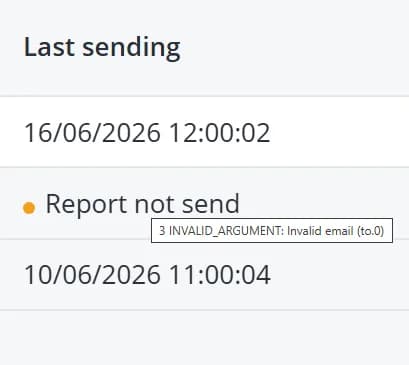
5 – The time the report was last sent. If the delivery failed for any reason, you will see the status Report not send
instead of a timestamp. Hover over the status to view the reason
6 – The next scheduled report delivery time
7 – Report type:
7 – Report type:
- Daily
- Weekly
- Monthly
8 – Expandable section for a quick overview of the delivery details: the number and list of objects, and the number and
list of recipients
9 – Delivery management actions:
9 – Delivery management actions:
- Edit – modify the delivery settings;
- Stop/Start – change the delivery status;
- Delete – remove the selected delivery.
To create a new delivery rule, click Add sending report job. A form will open where you need to fill in the following fields:
- Activate sending report job – when enabled, the report will be sent according to the settings below. Disable this option if you want to temporarily pause delivery;
- Name (required) – the delivery name, used in the e-mail subject line;
- To (required) – the e-mail address that will receive the report. Multiple addresses can be specified;
- File format – the report file format: JSON, XLSX, CSV, or PDF;
- SMTP gateway (required) – the outgoing mail server used to send the e-mail via SMTP. Learn more about creating an SMTP server >>>
- Objects (required) – the list of objects for which the report will be generated;
- Report jop type:
- Daily report – generates a report for a 1-day period. Available settings:
- Report for the previous day – if enabled, the report will cover the day before the delivery date; if disabled, it will cover the current day from 00:00 until the delivery time;
- Days of mailing – select the days of the week. If no days are selected, the report will be sent every day;
- Weekly report – generates a report for a 7-day period. Available settings:
- Day of mailing – select the day of the week;
- Start week from the previous day – if enabled, the delivery day will be included in the reporting period;
- Monthly report – generates a report for a 30-day period. Available settings:
- Calendar month – if enabled, the report will cover the calendar month preceding the delivery month; if disabled, it will cover the 30 days preceding the delivery date;
- Day of mailing – select a day of the month. If the report should be sent at the end of the month, select Last day of the month instead of a specific date;
- Daily report – generates a report for a 1-day period. Available settings:
- Transmit time – select the delivery time according to the chosen time zone;
- Time zone – by default, this is set to the time zone configured in your platform profile, but it can be changed.

Click Save. The new delivery rule will appear in the list.
When the scheduled delivery time is reached, the report will be generated, added to the report history, sent by e-mail,
and the Last sending and Next sending timestamps will be updated.